






How to Manage Odoo Purchase Advance Payment Automatically?
 Hardik Soni
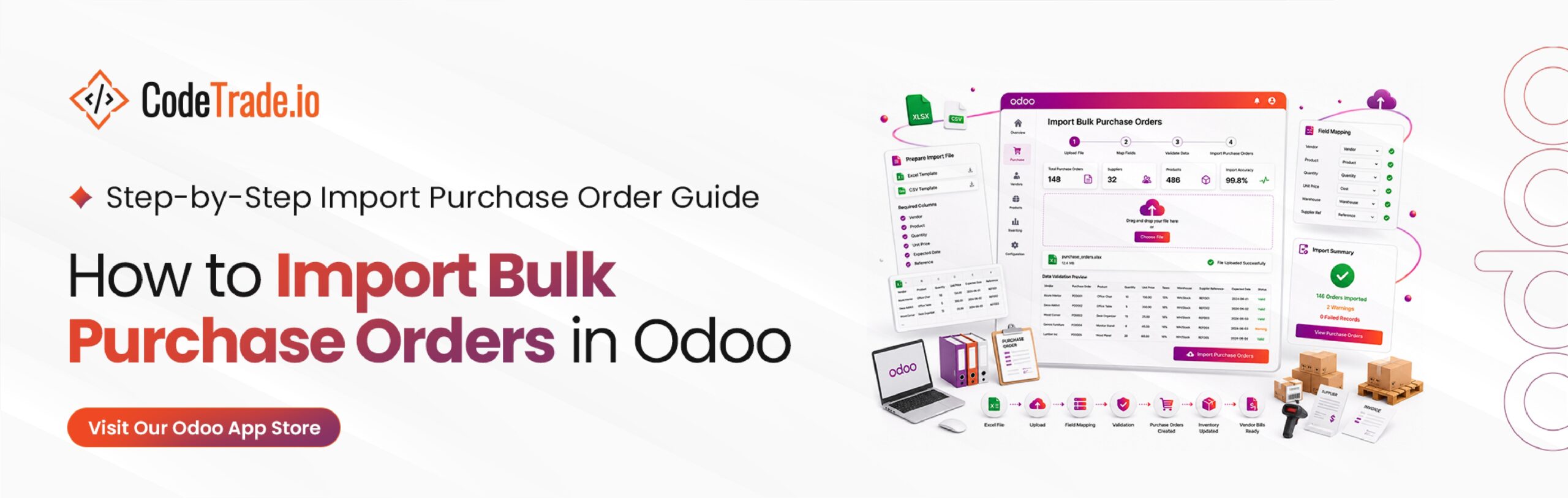
Managing large vendor supply data manually often creates operational backlogs for growing procurement teams. Reviewing a technical Odoo development guide highlights how processing multi-line spreadsheets item by item introduces manual typing mistakes and slows down inventory replenishment schedules.
Utilizing a dedicated Odoo Purchase Order Import workflow allows enterprises to transform raw spreadsheet lines into actionable database records within seconds. This automated method optimizes standard Odoo Purchase Management by eliminating repetitive administrative tasks across your entire procurement branch.
Procurement managers can seamlessly handle high-volume vendor receipts through a secure, structured Odoo Bulk Purchase Order Import system. Implementing this targeted layout directly ensures data validation accuracy while preserving essential supplier tax records.
This foundational platform upgrade streamlines warehouse forecasting and establishes a reliable framework for systematic Odoo Procurement Automation.
Handling administrative warehouse workflows manually often creates critical processing delays when dealing with expansive supplier inventories. Entering extensive spreadsheet data row by row leads to frequent typing mistakes like incorrect pricing or flawed product selections. For logistics teams managing bulk stock receipts regularly, this repetitive workflow remains highly inefficient.
The specialized Odoo Purchase Order Import Module addresses these systemic challenges by enabling swift document generation from external inventory spreadsheets. Instead of typing individual product lines over hours, procurement teams execute an Odoo CSV Purchase Order Import within seconds.
This practical utility shortens operational timelines and reduces manual transcription errors across your entire supply department. Whether your team needs simple draft RFQs for internal review or instant order verification, this framework minimizes overall workforce friction.
The specialized Odoo Import Purchase Order utility simplifies high-volume file processing inside your primary tracking databases. This application introduces a clean upload wizard where managers process external supplier lists to execute an Odoo Excel Purchase Order Import seamlessly.
During this automated transfer, your administrators dictate database matching logic, backend entry statuses, and sequential document numbering. The architecture supports several distinct data fields for locating existing inventory records:
Enterprises can also process complex, multi-layered tax fields for individual material lines during an active Odoo Vendor Purchase Import sequence. This adaptable structure allows your department heads to choose between tracking original document IDs or generating standard platform numbers automatically.
Such functional adaptability makes the application highly effective for businesses utilizing tailored Odoo integration services to centralize procurement data from external warehouses, diverse suppliers, or legacy inventory spreadsheets.
Deploying this integrated database resource requires only a few minutes of straightforward backend configuration without any custom engineering.
Acquire and download the targeted Odoo Purchase Order Import Module directly from the official marketplace platform.
Extract your downloaded package files and transfer the folder directly into your designated custom server addons directory.
Restart your primary instance server to allow the core architecture to recognize and load the newly added software files.
Navigate to your main applications management screen, input the document name into the search field, and select the install option.
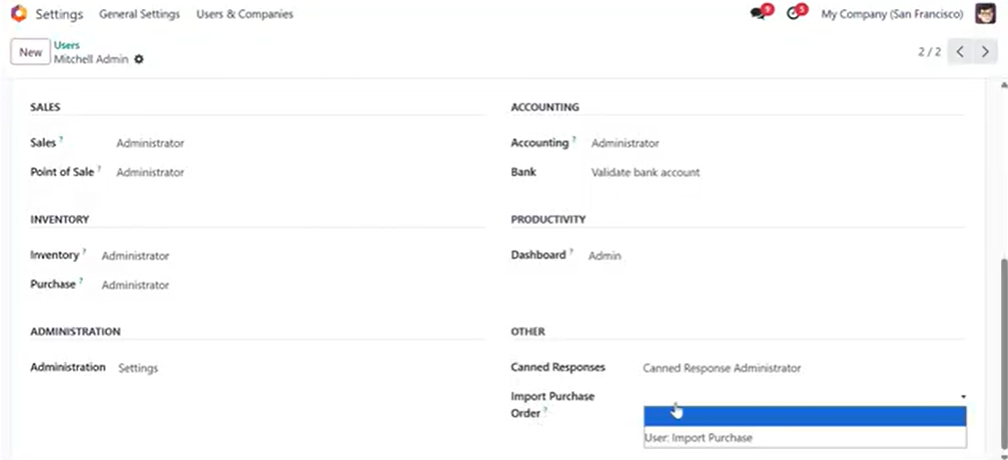
Go to your system settings, locate individual profiles, and activate the specialized user import purchase permission parameters.
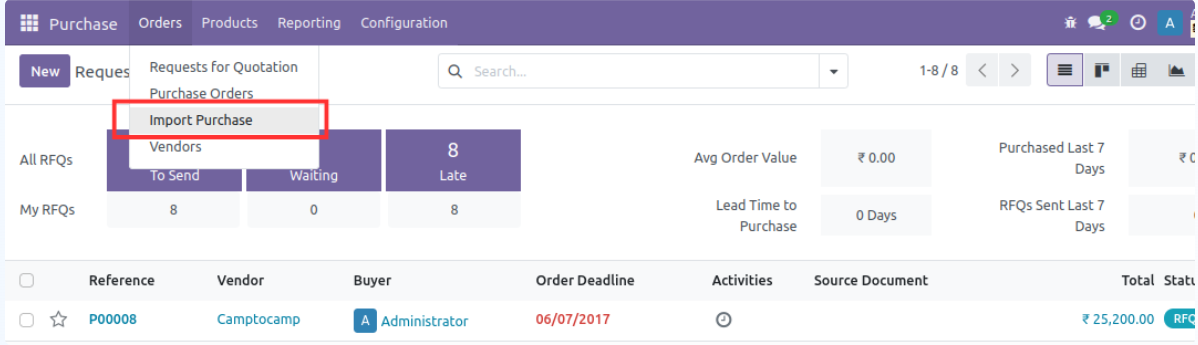
Executing this systematic backend data transfer involves an intuitive, step-by-step processing interface designed to optimize your warehouse logistics.
Navigate directly through your administration interface via Purchase → Orders → Import Purchase Order. This internal action launches the central wizard layout where teams execute an Import Purchase Orders in Odoo task and adjust structural preferences.
The processing dashboard provides several advanced fields to regulate your incoming inventory documentation.
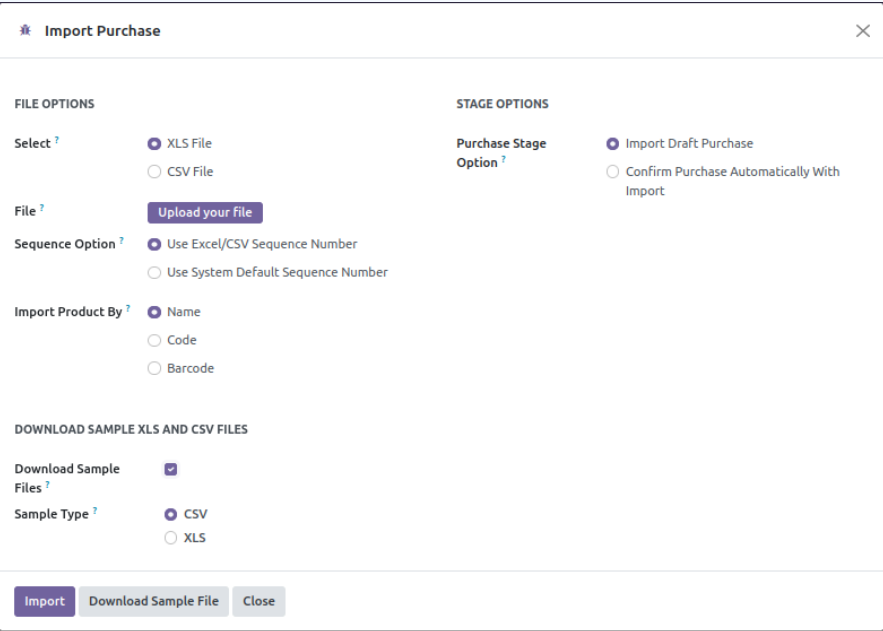
Load your structured transaction spreadsheets directly into the dashboard and trigger the confirmation button. The platform executes rapid Odoo Purchase Import Automation to validate and construct extensive transaction documents within seconds.
Following file confirmation, the interface displays the newly established inventory records. The active document status shifts dynamically depending on your chosen processing options:
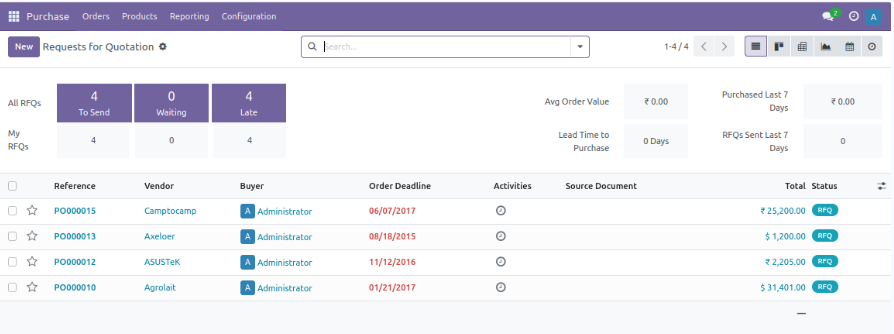
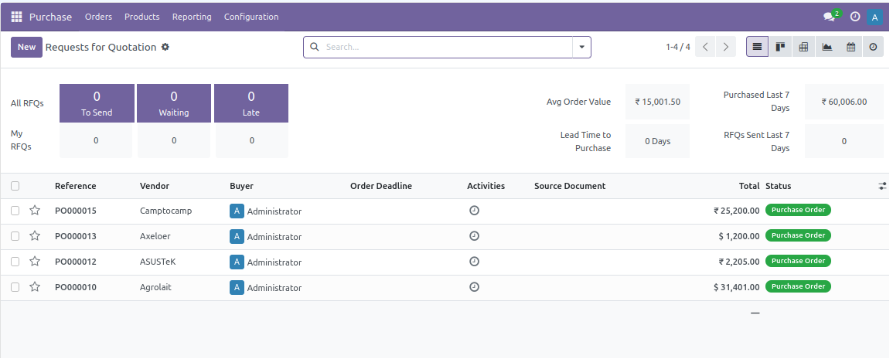
Administrators can inspect individual transactional profiles at any moment to double-check core dataset details:
This quick review ensures your external spreadsheet datasets match your localized records perfectly.
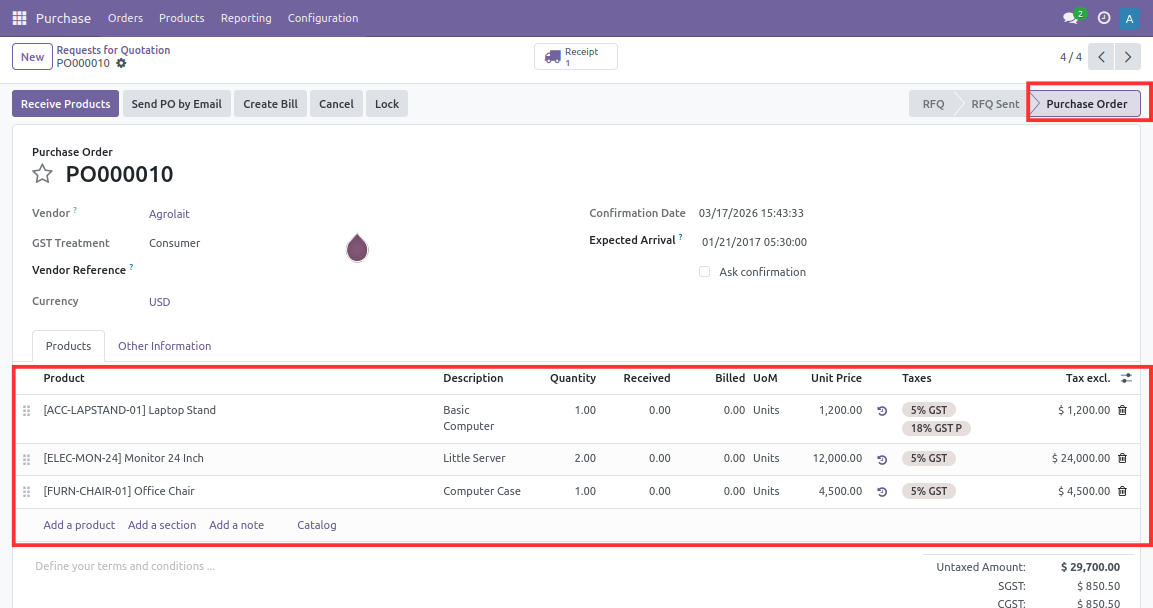
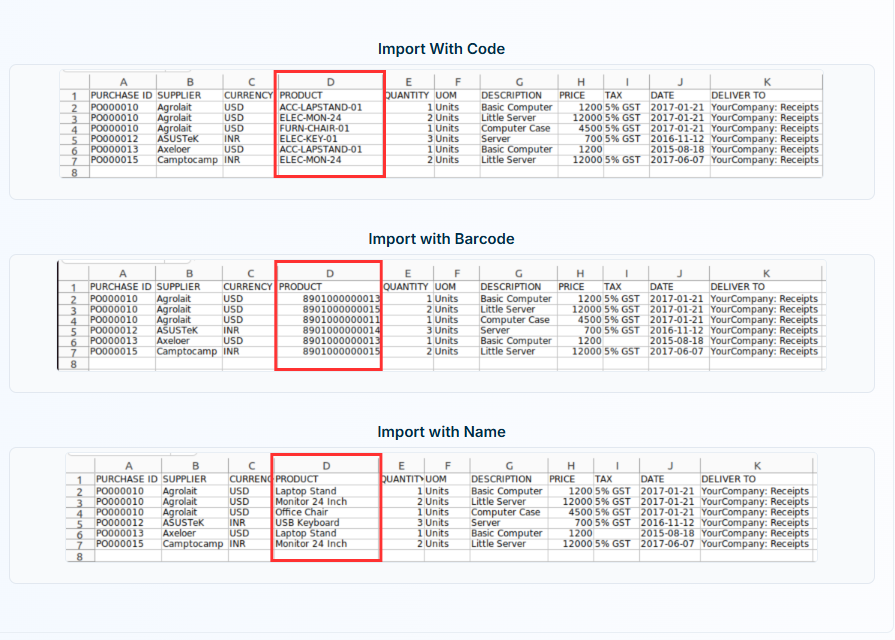
This integrated database resource offers three separate system-matching avenues to align your incoming supplier data strings with existing inventory items.
Products are cross-referenced utilizing their pre-configured Internal Reference values. This precise tracking option is recommended when your warehouse system maintains completely unique, well-organized inventory identifiers.
Products are matched by scanning and identifying unique localized barcode values. This technical approach is ideal for growing enterprises running a standardized, sensor-based warehouse management operation.
Products are identified through their exact nomenclature strings. This method remains highly useful when incoming vendor lists only detail clear item descriptions rather than advanced corporate serial numbers or barcodes.
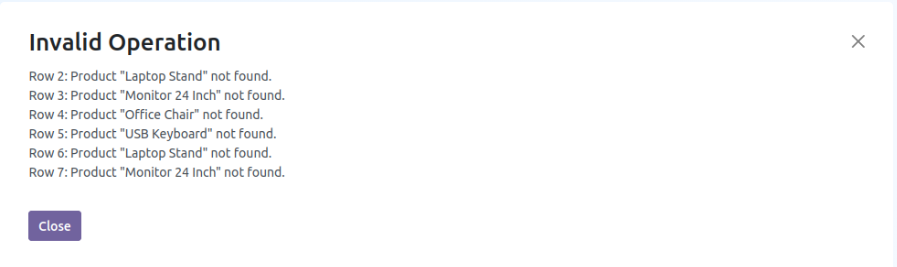
The processing application embeds automated verification checkpoints to protect data consistency during an active Odoo CSV Purchase Order Import sequence. The system flags appropriate alert screens when:
These defensive automated checks ensure absolute structural data precision across your database logs while significantly reducing expensive downstream supply chain mistakes.
This advanced interface tool provides several specialized procurement functionalities designed to eliminate repetitive data tracking workflows across your organization.
Upload extensive transaction summaries directly using external data files without manually entering individual inventory item rows.
Match incoming stock records utilizing specific identifiers:
This system flexibility allows procurement teams to process a wide variety of external supplier file configurations easily.
Establish customized baseline processing states to determine whether your newly transferred data strings should:
Regulate your primary database record indexing by choosing to utilize:
Apply complex, multi-layered tax parameters to a single document line by separating localized tax names with a comma in your import sheet.
Minimize initial configuration delays and lower your overall Odoo implementation cost by extracting pre-formatted, structured CSV or XLS data templates built with correct formatting columns.
System administrators can regulate platform security parameters by restricting access to the central data transfer wizard through dedicated security permissions.
Eliminating manual data entry is essential for maintaining an accurate supply chain operation. Deploying a dedicated Odoo Purchase Order Import Module allows procurement branches to process extensive spreadsheet files smoothly. This application upgrades your standard purchase management by replacing tedious, line-by-line inventory entry tasks entirely.
Procurement managers can confidently execute an Odoo CSV Purchase Order Import to create clean RFQs or validated transactions immediately. The flexible matching options ensure all individual supplier codes, barcodes, or names align perfectly with your centralized records.
Adopting this integrated strategy directly minimizes downstream clerical mistakes while saving valuable operational hours. Your administration teams can safely handle extensive supplier datasets without experiencing traditional operational fatigue or data gaps. Businesses can seamlessly introduce this scalable utility to establish a highly accurate workflow.

 Hardik Soni
 Chand Prakash
 Hardik Soni
 Chand Prakash
 Hardik Soni