







How Do You Generate Accurate Predictions With AI Sales Forecasting In Odoo?
 Chand Prakash
Accounts payable teams lose countless hours manually typing vendor details from PDFs into their accounting systems. This repetitive data entry introduces costly human errors and creates severe payment delays. The CodeTrade AI Document Import module solves this specific operational bottleneck completely. Finance professionals can now efficiently import invoices into Odoo without typing individual line items.
This advanced Odoo AI OCR tool connects directly to intelligent models like Google Gemini or OpenAI. These providers automatically read and extract critical information from your uploaded image files. The software pulls exact quantities and unit prices directly from the source document. Users simply review the populated fields before the system generates the final vendor bill. This practical Odoo invoice automation reduces daily administrative overhead significantly.
Through expert Odoo development services, IT administrators can configure the necessary API keys quickly without writing any custom code. Your accounting department maintains complete control over financial records while eliminating tedious manual data entry.
Businesses receive dozens of documents every day like vendor invoices, purchase orders, and receipts. Someone on the team must open each file, read the details, and manually type them into Odoo. This process is slow and repetitive. It introduces errors every time a number is misread or a field is skipped.
For example, an accounts payable team processing thirty vendor invoices daily spends significant time re-entering existing data from paper or PDFs. Vendor names, invoice numbers, dates, line items, and totals require separate manual entry for every single document.
When document volumes increase or staff members are busy, invoices pile up and payment delays follow. Effective Odoo document automation eliminates these repetitive bottlenecks entirely.
The AI OCR Document Import module by CodeTrade solves this challenge efficiently. Users upload documents such as PDF invoices, scanned purchase orders, or image files. An advanced AI model extracts all key data automatically. The system presents extracted fields for review before record creation. Your team stays in complete control while the tedious entry work is handled by the AI.
This module adds an Upload with OCR button to document list views like Sales Orders, Vendor Bills, or Purchase Orders. When a document is uploaded, it is sent to the configured AI provider such as Google Gemini, Groq, or OpenAI. The system extracts structured data from the file and returns it in a reviewable format.
The extracted data is mapped directly to Odoo fields. After reviewing and confirming the data, the module creates the Odoo record automatically with all line items, customer or vendor details, dates, and totals already populated.
This module depends on Discuss, Invoicing, and Sales modules. Installation takes just a few minutes and requires no custom coding.
After installation, configure your AI provider and API key from Settings before uploading any documents. The module will not process files until a valid API configuration is saved and tested. Proper initial setup ensures smooth Odoo vendor bill OCR workflows.
Below is a walkthrough of how the AI OCR Document Import module works. It guides you from configuring the AI provider to reviewing extracted data and creating records in Odoo.
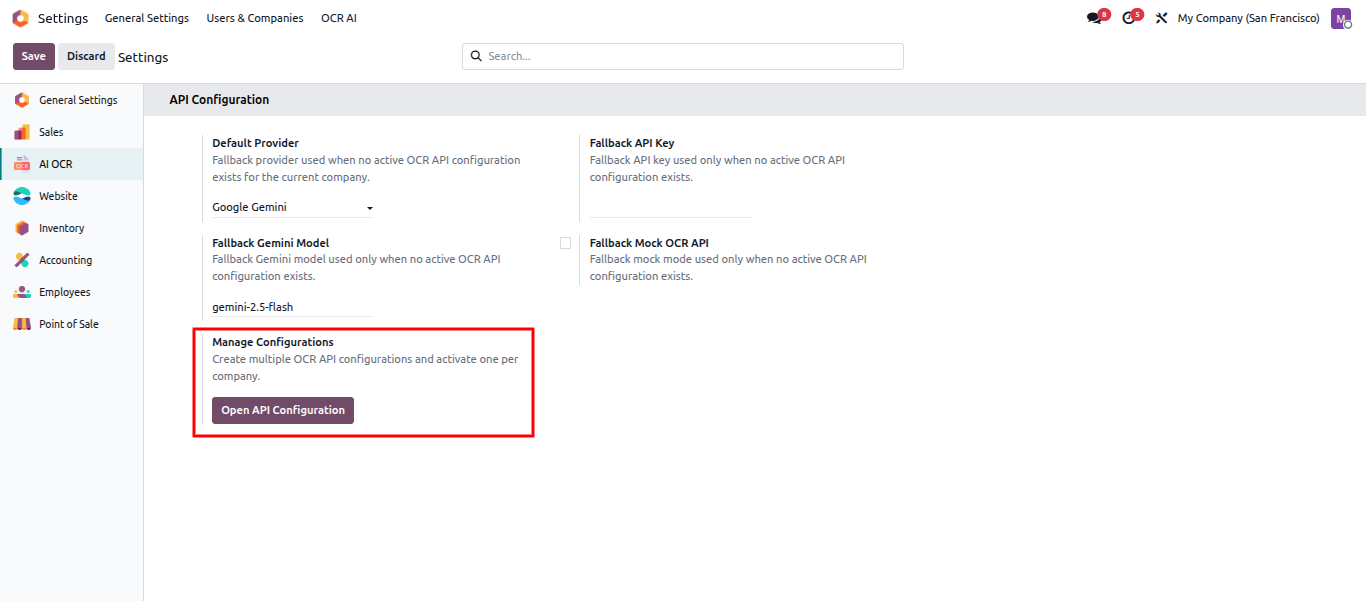
Go to Settings and select the OCR AI menu. This is where the AI provider configuration is managed. Before uploading any document, at least one API configuration must be set up here.
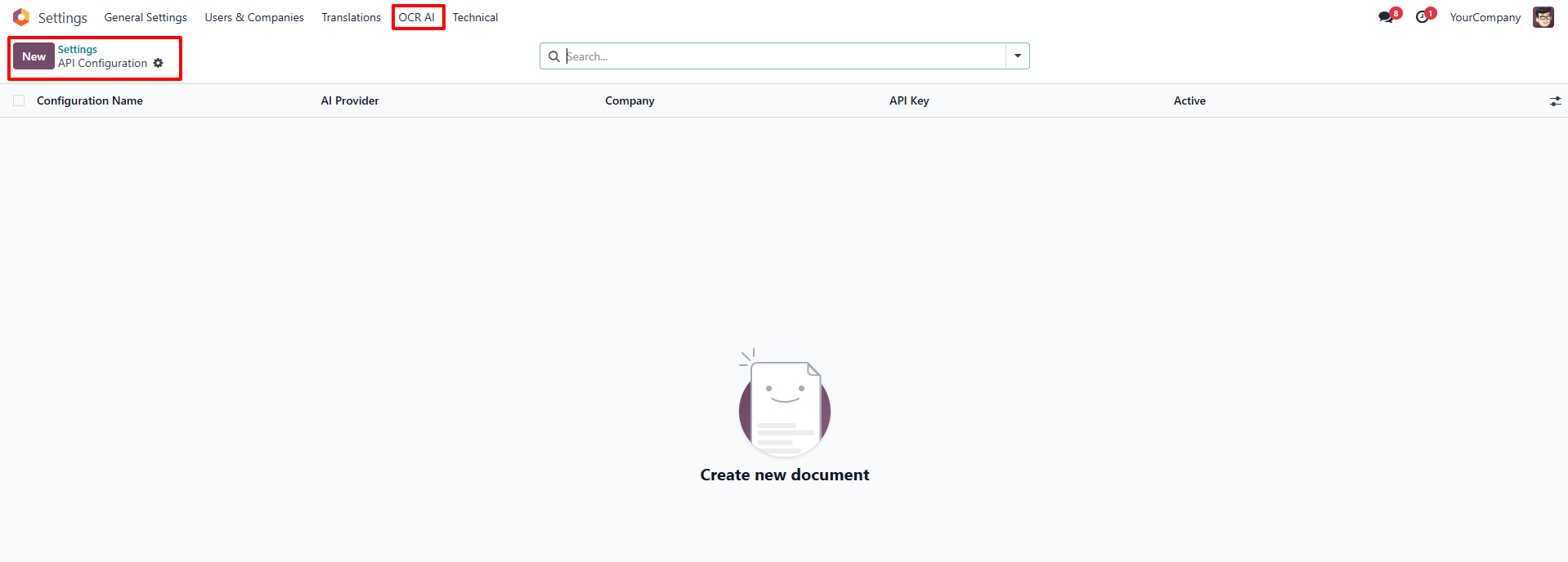
Click New to create an API configuration for your chosen AI provider. Tailored via custom Odoo ERP development, each configuration can be set up for a specific company, and multiple configurations can be created for different providers or sequences.
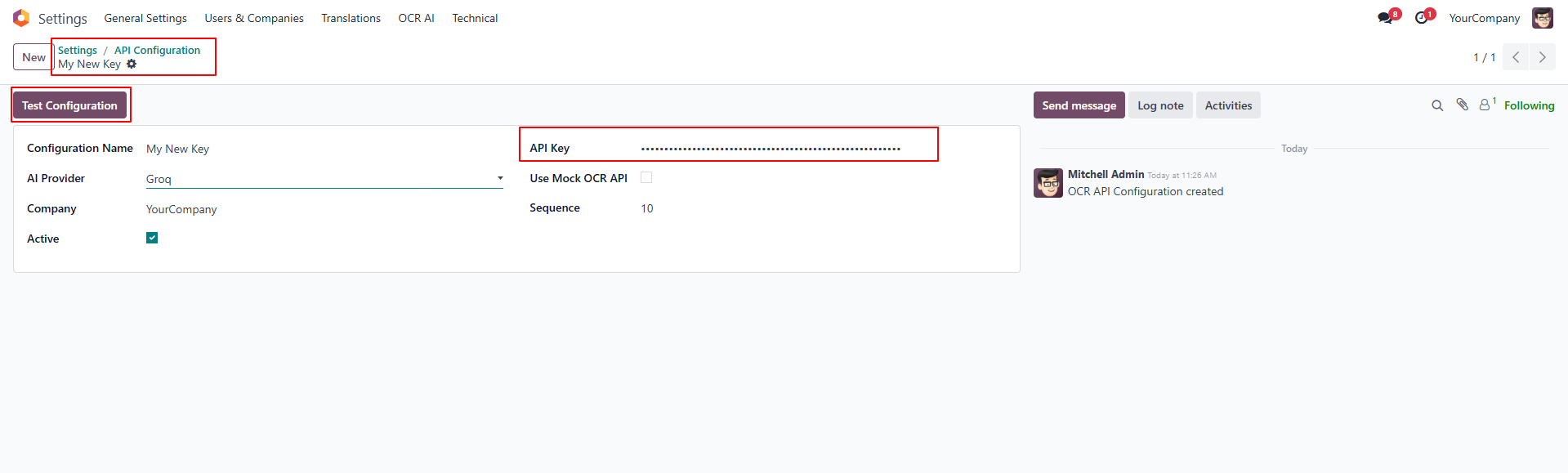
Enter your API key and select your AI provider like Google Gemini, Groq, or OpenAI. If using Groq, upload image files such as PNG, JPG, or JPEG rather than PDFs, as Groq does not support PDF format directly. Enable Mock OCR to use dummy data for testing without consuming API credits.
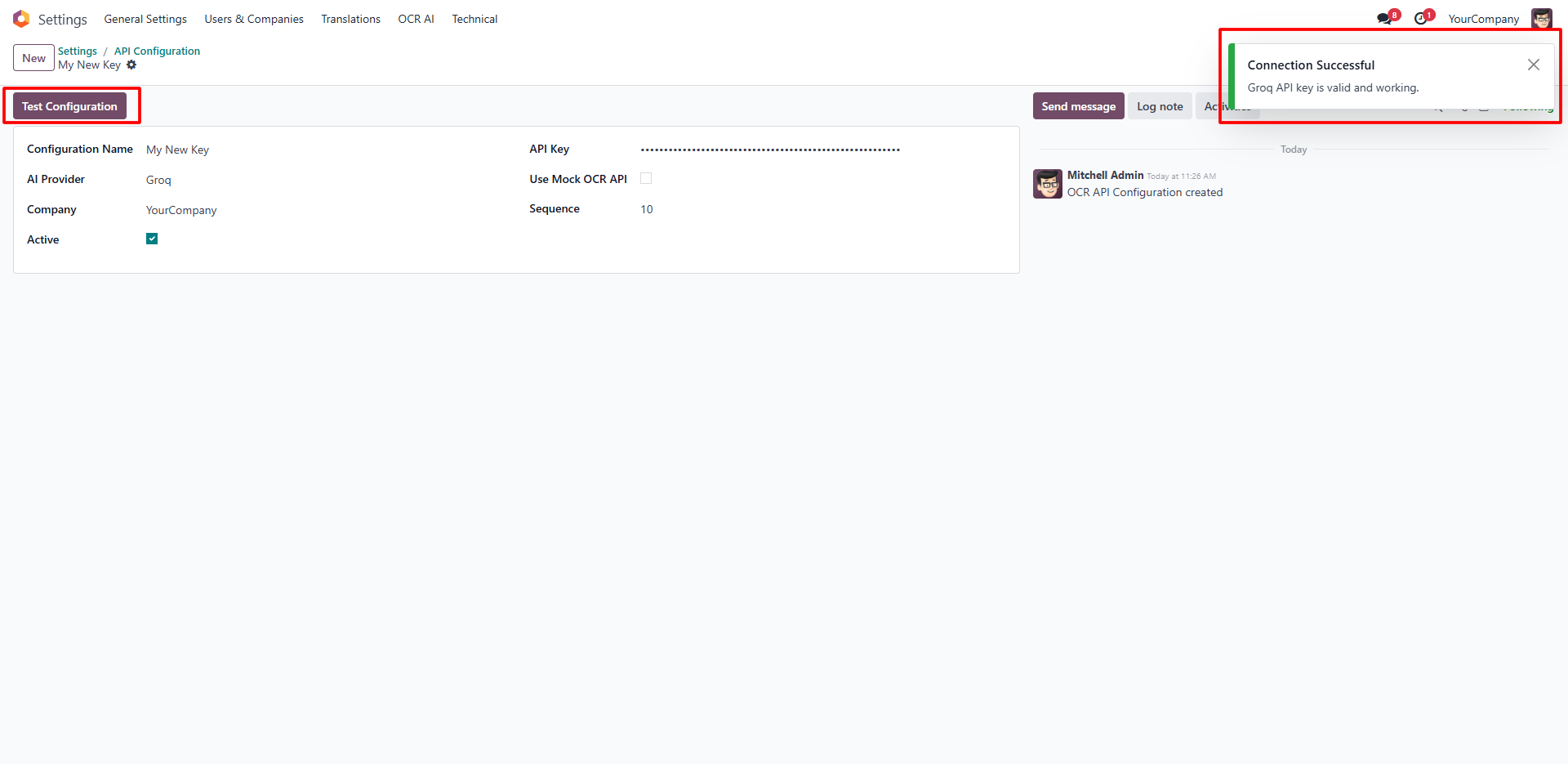
Click the Test Configuration button to verify that your API key and provider are working correctly. A successful result confirms the AI service is active and ready to process uploaded documents.
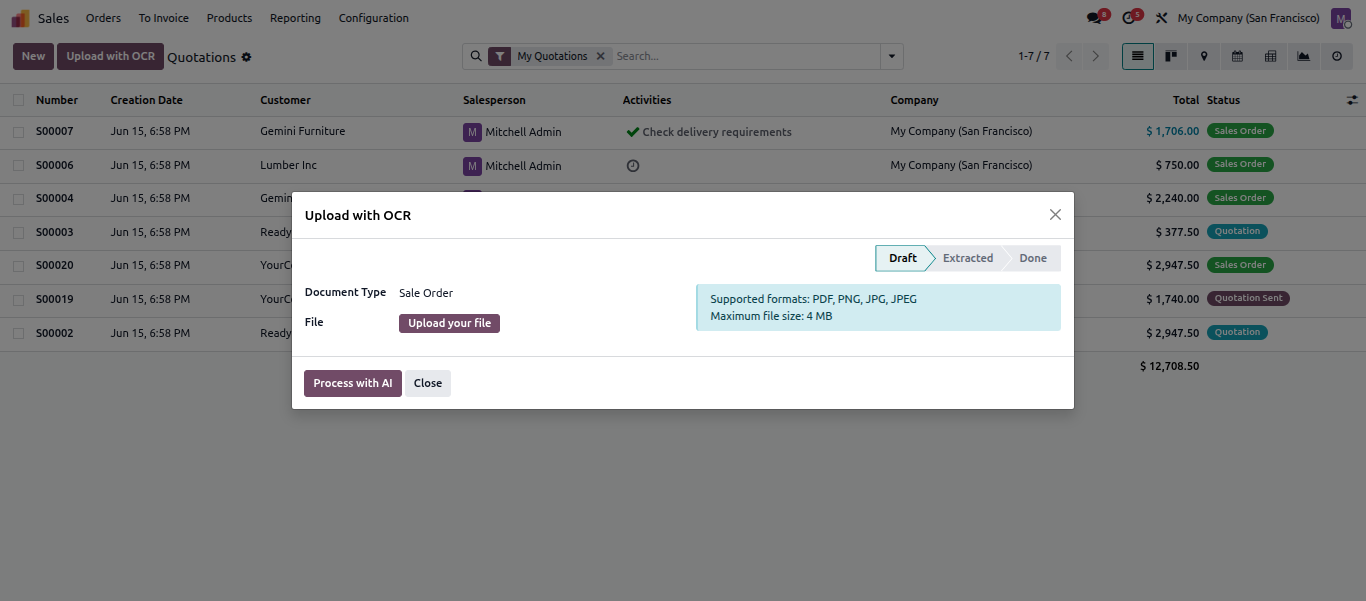
Navigate to the relevant document list like Sales Orders or Vendor Bills and click the Upload with OCR button. Select the document type and upload your PDF or image file. The file is immediately sent to the configured AI provider for processing. This streamlined step helps users effortlessly import orders into Odoo.
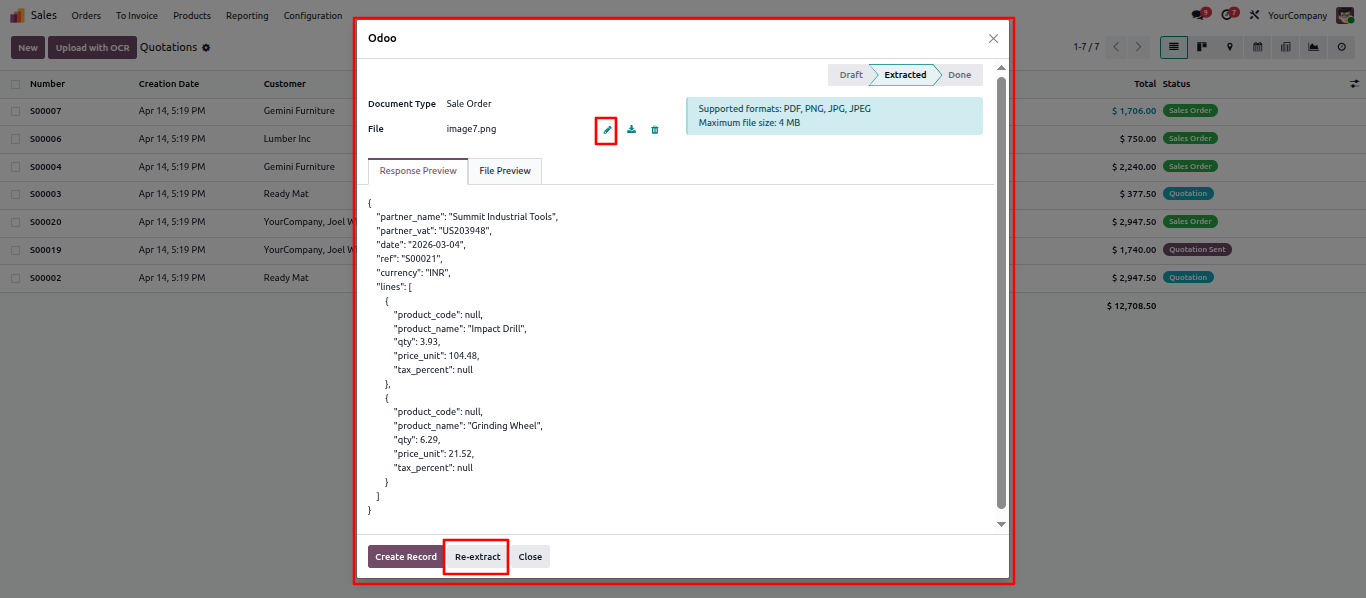
If the wrong file was uploaded or a better scan is available, the document file can be changed and the data re-extracted from the updated file from the same screen without starting over.
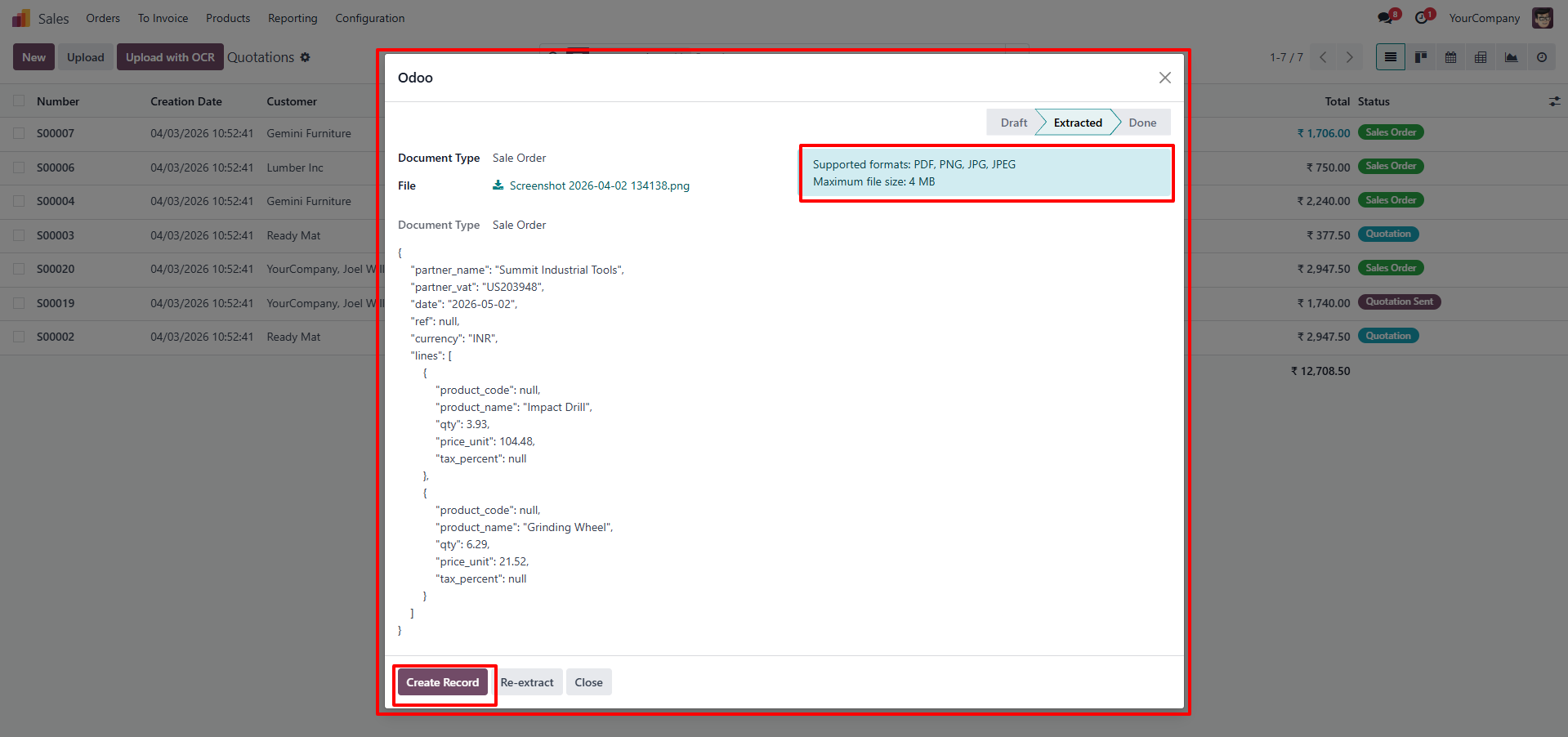
The AI parses the uploaded document and presents the extracted fields in a structured, reviewable format. Check vendor or customer details, invoice numbers, dates, line items, quantities, unit prices, and totals. Edit any field that needs correction before proceeding.
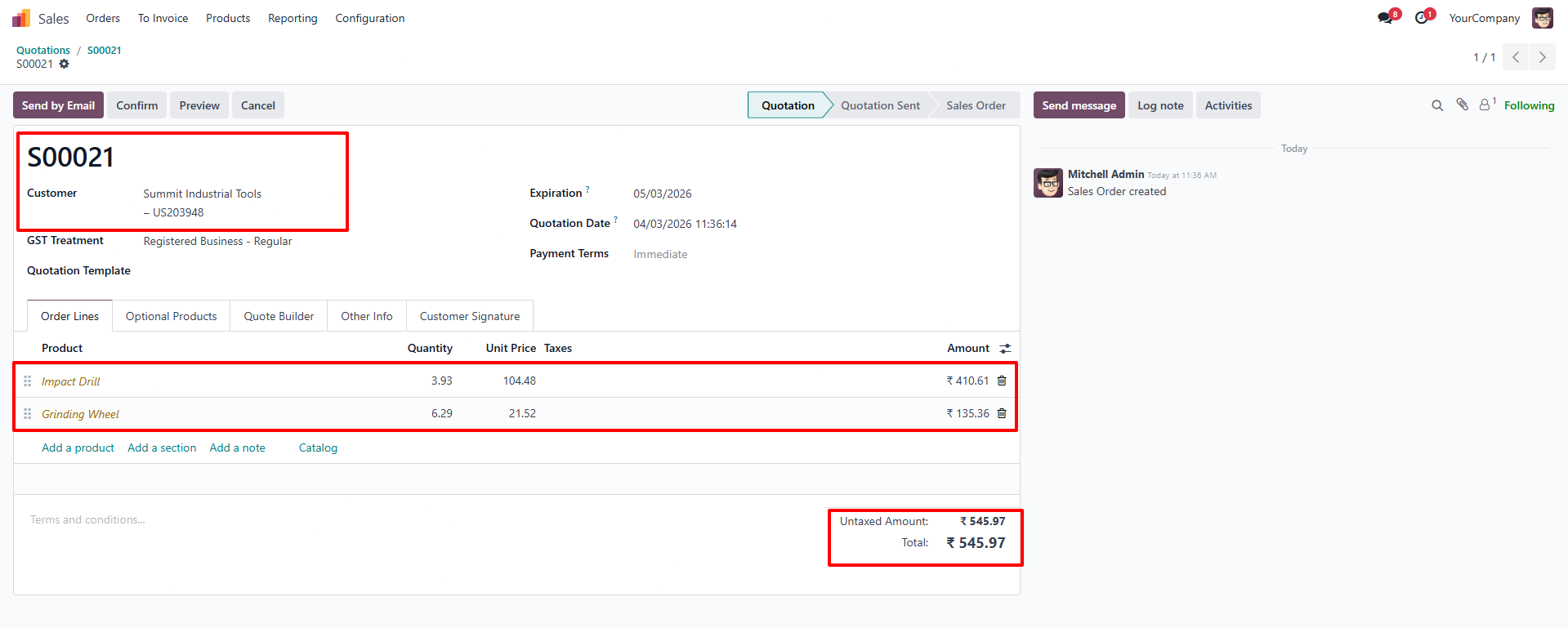
After reviewing and confirming the extracted data, click to create the record. Odoo generates the document like a Quotation or Vendor Bill with all line items, customer or vendor details, and pricing already populated. No further manual entry is needed, making Odoo invoice data extraction completely seamless.
This powerful intelligent tool delivers advanced document processing capabilities designed to eliminate manual data entry errors completely.
The module sends uploaded documents to an advanced AI model which reads and extracts key information like vendor or customer names, document numbers, dates, line items, quantities, unit prices, and totals. It returns this structured data ready to be mapped into Odoo fields, making Odoo purchase order OCR workflows entirely effortless.
Invoices, receipts, purchase orders, and other standard business documents can all be processed through the same workflow. The module is not limited to a single document type, making it suitable for accounts payable, accounts receivable, and procurement teams alike.
Administrators can configure the module to use Google Gemini, Groq, or OpenAI as the underlying AI engine. Each provider can be set up with its own API key and assigned to a specific company, giving businesses flexibility to choose the provider that best fits their requirements and pricing.
Extracted data is always presented for human review before any Odoo record is created. Users can check, edit, or correct any field. This ensures accuracy and maintains full control over what gets saved into the system, even while automating the heavy lifting.
A Mock OCR mode is available for teams who want to test the workflow without consuming API credits. When enabled, the module returns dummy data in place of real AI extraction, allowing the full upload, review, and record creation flow to be tested safely before going live.
The module integrates directly with Odoo’s Accounting, Sales, and Purchase modules. Records created through the OCR workflow are standard Odoo documents. They follow the same workflows, approval processes, and reporting as records created manually, with no separate tracking or reconciliation needed.
Manual data entry wastes valuable hours for finance teams and introduces costly human errors. Implementing the CodeTrade AI document import tool transforms back-office efficiency completely.
Organizations can now process high document volumes without traditional administrative bottlenecks. Utilizing advanced Odoo AI OCR technology eliminates repetitive typing tasks. Teams maintain full control through simple review and validation steps before creating records.
Administrators can set up preferred API providers securely within minutes. Adopting reliable Odoo invoice OCR methods safeguards your financial records against discrepancies. Modern accounting departments achieve seamless workflows and long-term operational accuracy using advanced Odoo AI Invoice Automation.

 Chand Prakash
 Chand Prakash
 Hardik Soni
 Hardik Soni
 Hardik Soni