





How Do You Generate Accurate Predictions With AI Sales Forecasting In Odoo?
 Chand Prakash
Typing credentials blindly creates daily friction for enterprise users across standard ERP environments. Standard systems deployed via expert Odoo implementation services hide characters behind dots for privacy during authentication workflows. This rigid behavior forces users to retype logins repeatedly when errors occur. Implementing an efficient Odoo password protector widget solves this minor inconvenience completely.
Enterprise teams appreciate how the Odoo login password visibility feature improves daily routines. A lightweight Odoo password eye icon allows users to verify inputs instantly. System architects can utilize a flexible Odoo masked password widget across custom forms easily.
Upgrading your user experience with an advanced Odoo password visibility toggle ensures smooth navigation. Modern organizations eliminate authentication friction while preserving strict platform security.
Think about the last time you filled in a password field. You see a row of dots and nothing else. If your finger slips and you type the wrong character, you have no way of knowing until the login fails and you are staring at an error message. This happens on the login page, the signup page, and the reset password page too, since teams partnering with skilled Odoo integration services rely on default Odoo security settings that hide password fields.
That default behaviour is good for privacy, but it comes at the cost of convenience. Users end up retyping passwords more than once, second guessing whether Caps Lock is on, or copy pasting from a notes app just to be sure they got it right. For something as routine as logging in, this small friction adds up and creates unnecessary frustration, which an Odoo password protector widget easily prevents.
The Eye Icon Password Data Protector module solves this in the simplest way possible. It adds a small eye icon right next to any password field. Click it once and the dots turn into readable text, so you can check exactly what you typed. Click it again and the field goes back to being hidden. There is no extra page, no extra click, and no change to how you normally log in.
This gives users the best of both worlds. The password stays masked by default, so nothing sensitive is visible on the screen unless someone chooses to reveal it, and revealing it takes nothing more than a single click on the eye icon, supported seamlessly by the Odoo password visibility widget.
Eye Icon Password Data Protector is a lightweight widget built for Odoo 19.0. Out of the box, when deployed by experienced hire Odoo developers, it applies itself to the standard password fields on the Login, Signup, and Reset Password pages, so the toggle is available instantly.
It is also built to be reusable, meaning developers can apply the same eye icon behaviour to any custom password field in their own modules with a single widget attribute, without writing any extra code, supported by clean Odoo custom widget development.
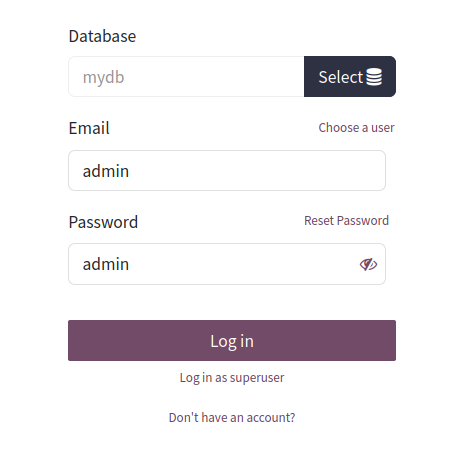
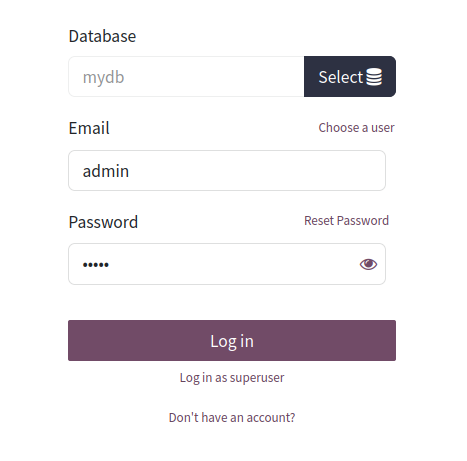
When you open the Odoo login page, the password field behaves exactly the way Odoo users are used to. The characters are hidden behind dots, and a small eye icon sits quietly inside the field, waiting to be clicked.
To reveal a hidden password:
With that single click, you can double check your password before hitting Log in, without having to guess whether you typed it correctly.
Hiding the Password Again in One Click
Once you have confirmed your password is correct, you probably do not want it sitting in plain view on the screen. The same eye icon takes care of that too.
To mask the password again:
This back and forth between hidden and visible happens instantly, so you are always in control of whether your password is on display.
Using the Same Toggle on Other Password Fields
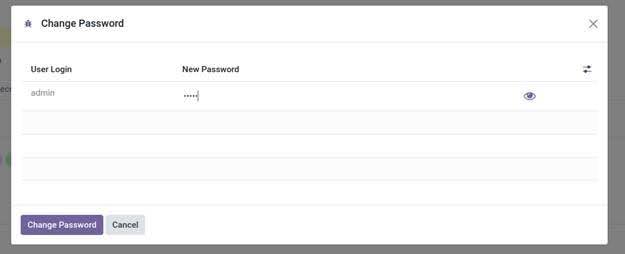
The eye icon toggle is not limited to the login page. It works anywhere a password field uses the module widget, including places like the Change Password screen where users set a new password for their account.
To apply the toggle to any password field:
Because the widget is reusable, developers can bring the same show and hide behaviour to any password field across the system in just one line.
Eye Icon Password Data Protector keeps password fields hidden by default across the Login, Signup, and Reset Password pages, so sensitive information is never shown on screen without the user choosing to reveal it, utilizing effective Odoo password visibility.
At the same time, it stays fully compatible with custom fields, since applying it to any field in your own modules is as simple as adding the masked_password widget attribute, with no additional setup needed.
The toggle icon itself is built to show or hide the password input dynamically, giving users a quick way to verify their entry at any point. Under the hood, the module is lightweight and reusable, built as a standalone Odoo password field widget so it can be dropped into any view that needs it rather than being tied to a single form. This also makes integration effortless, since there is no extra configuration involved beyond plugging in the widget attribute.
From a security standpoint, the module is secure by design, ensuring sensitive inputs stay hidden unless a user actively chooses to reveal them, which keeps the default experience safe even in shared or public spaces. And because it follows standard Odoo styling, the eye icon toggle fits naturally into the interface, giving users a smooth, intuitive experience that feels like a native part of Odoo rather than an add-on.
Eliminating blind password entry improves daily user satisfaction across enterprise authentication environments. Deploying an efficient Odoo password protector widget removes unnecessary typing friction completely. Technical teams employ flexible interface tools backed by Odoo customization services to secure modern portals.
Users can verify their login credentials instantly without compromising platform security. Upgrading your platform with a robust Odoo password visibility widget guarantees seamless navigation.
Modern organizations adopt these specialized solutions to streamline daily user workflows today. Technical decision-makers prioritize such precise improvements to ensure optimal system performance and superior user adoption.

 Chand Prakash
 Hardik Soni
 Chand Prakash
 Hardik Soni
 Hardik Soni