







Odoo Development
 Hardik Soni
14 October 2026
Hardik Soni
14 October 2026
How to Create and Use Client Actions in Odoo 20?
 Hardik Soni
Form views function as the primary interface for single-record data interaction in Odoo. They dictate exactly how efficiently users execute daily operational tasks within the system. A properly constructed layout reduces navigational friction and standardizes data entry across enterprise departments. Mastering Odoo 20 XML views allows developers to map complex backend models into clean frontend interfaces.
Organizations depend on these visual structures to process transactions and maintain accurate client databases. According to Forbes, implementing an ERP system to replace disconnected workflows can yield a 7 percent boost in operational efficiency.
Writing optimized XML layouts and integrating Odoo 20 AI features directly impacts how quickly a business processes large volumes of information. Poorly designed interfaces slow down critical business workflows.
Following strict architectural guidelines helps developers prevent these bottlenecks. This Odoo 20 developer guide provides the exact architectural steps to build custom interfaces from scratch. You will learn how to create form view in Odoo 20 using structured XML definitions. The resulting custom Odoo 20 views provide a stable foundation for complex business operations.
An Odoo 20 form view is the structural blueprint that dictates how individual database records appear. It translates raw PostgreSQL database fields into a highly structured graphical user interface. This critical translation allows non-technical users to interact with complex relational databases effortlessly.
A well-designed Form View in Odoo 20 essentially functions as a guided operational checklist. The interface ensures that required data is captured accurately before database commits occur.
Customizing these interfaces aligns the software directly with actual physical business workflows. According to Gartner, poor data quality and entry errors cost organizations an average of $12.9 million annually. A structured layout prevents these costly mistakes by enforcing strict data validation natively.
Employees spend much less time searching for input boxes or correcting system faults. They dedicate more time to executing their core operational responsibilities. This direct alignment creates a highly efficient workplace across all departments.
The foundation of any layout requires defining mandatory XML root tags. Developers must declare a unique identifier and map it to the ir.ui.view model. This registration process tells the rendering engine how to parse frontend elements. Every Odoo XML form view must encapsulate its structural logic within specific containers. You use an <odoo> or <data> tag to ensure recognition during module installation.
The architecture block within the record defines spatial coordinates for every single field. Writing optimized Odoo 20 XML views requires strict adherence to this node hierarchy. Failing to structure this architecture correctly results in severe system validation errors.
A broken layout will crash the module during routine framework upgrades. Precision is mandatory for long-term enterprise software stability.
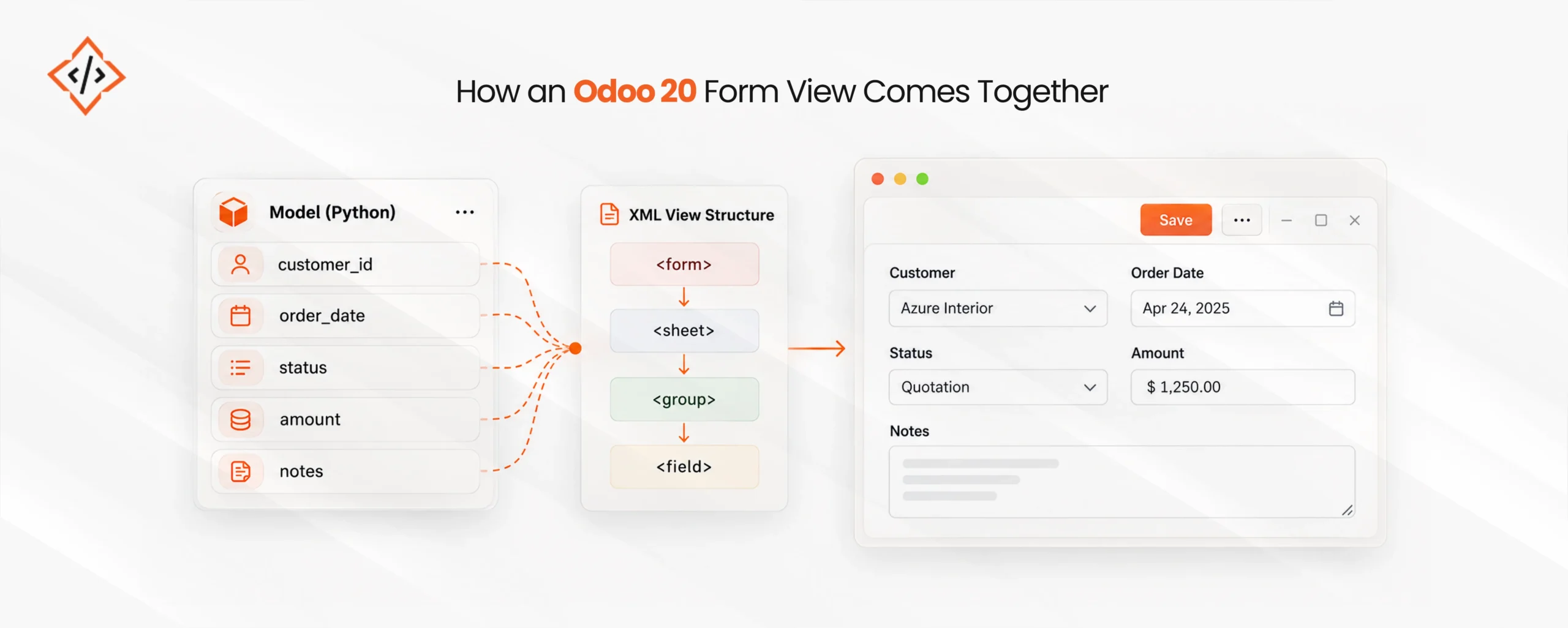
Individual model attributes render on the screen using the standard <field> tag. Developers apply specific widgets to format dates and currency properly. Assigning the correct widget ensures the data format matches exact user expectations. These widgets also validate input automatically before the system processes database commits. Understanding these Odoo form view fields is mandatory for clean interface design.
Advanced fields like Many2one or One2many relationships demand careful placement within the layout. These complex relational fields often pull massive datasets onto the screen. This data volume can easily disrupt the visual flow of a standard interface.
Developers manage this by embedding them within specialized container tags. Proper container usage preserves screen space and maintains high readability.
To create form view in Odoo 20 requires writing a precise XML record. Developers map this record directly to the ir.ui.view model. It must contain a specific <form> architecture block. This architecture block defines the exact spatial arrangement of frontend elements. The layout syntax controls the final visual output for end users.
A standard implementation begins by defining the record metadata accurately. You then structure the primary visual sheet. The process concludes by adding interactive data nodes for data management.
Following this linear progression guarantees perfect backend model synchronization. The frontend presentation layer will accurately reflect the database schema.
Every custom interface needs a unique external identifier to function properly. You must designate a model attribute that matches the Python class. Developers assign a clear name for identification within the user settings. This metadata allows the framework to catalog the layout accurately.
The central database registry uses this catalog for future retrieval. Setting an appropriate view priority is also an absolute necessity. Priority ensures the system selects your custom layout over default configurations.
A lower priority number forces the rendering engine to load it first. This step is critical during advanced Odoo 20 development tasks. Overriding core functionalities in enterprise environments depends on correct priority settings.
The <sheet> tag serves as the primary container for data input. It creates a highly centralized visual focus on the screen. The design mimics a standard paper document for better user experience. Placing fields outside this sheet creates a severely disorganized layout. The interface will stretch awkwardly across wide desktop monitors.
The sheet acts as the anchor for all subsequent data groups. Inside this container, <group> tags automatically align field labels. They organize input boxes into readable and uniform vertical columns. This structural grid prevents UI elements from overlapping unpredictably.
You can also incorporate the <title> element in the header. This displays dynamic record names at the top of the screen. Users gain immediate context regarding the specific record they are editing.
Relational fields connect different database tables and require specialized display strategies. A Many2one field typically renders as a standard dropdown menu. This allows users to select a single linked database record easily. Developers often apply the widget=”selection” attribute to streamline this interaction. This widget works best when the list of options remains static.
One2many and Many2many fields display multiple related records simultaneously. These elements usually render as embedded list views within the parent document. These complex fields consume significant screen space during data entry. You should place them at the bottom of the Odoo XML form view.
Alternatively, you can place them inside separate notebook pages. Providing specialized inline views helps users edit child records quickly. They can update data without navigating away from the primary document.
Complex layouts demand interactive components to manage data density efficiently. The <header> section sits at the very top of the layout. It houses state-driven action buttons and visual statusbars for the user. These crucial elements guide users through the logical progression of records. For example, they help move a sales order from draft to confirmed.
Buttons placed inside the header trigger specific Python backend methods. Developers use the states attribute to reveal or hide these buttons. Button visibility depends entirely on the current stage of the document. The statusbar widget visually tracks this entire workflow progression. It gives management a clear overview of operational progress at a glance.
Multi-layered data requires strict organization to prevent severe interface clutter. Developers use <notebook> and <page> tags to group related fields. This strategy separates information into distinct and clickable UI tabs. It keeps the primary view focused strictly on high-priority business information.
Secondary data like historical logs remain securely hidden behind these tabs. Designing with notebooks ensures the layout remains accessible for everyone. It prevents overwhelming the visual hierarchy of the Odoo 20 form view. This is the standard approach for managing extensive relational lists.
Structuring pages logically accelerates the onboarding process for new employees. They can learn the ERP system much faster with grouped data.
Modifying existing layouts requires Odoo 20 view inheritance for system stability. You must avoid editing core module files directly in production environments. This safe approach guarantees smooth upgrades when applying framework patches. Editing base code is a dangerous practice that permanently breaks update paths.
It also voids official software support from the publisher. Declaring an inherited view requires utilizing the inherit_id field properly. This field must link to the parent view external identifier. You locate the exact module name and view ID to establish connection. Once linked, the engine treats your custom XML as an extension. It merges your customized XML layers securely during runtime operations.
Developers deploy XPath expressions to pinpoint target nodes accurately. They locate specific structural points within the original document structure. This method alters base module behavior without risking dependency failures.
Precision targeting ensures only the intended Odoo form view fields change. If an XPath expression fails, the entire module installation crashes immediately. Developers must constantly verify the parent XML structure before deploying updates. Testing XPath accuracy prevents broken interfaces in live production environments.
Using correct node targeting is mandatory for reliable Odoo 20 form view customization. It allows multiple third-party modules to coexist without fatal conflicts.
You can change existing attributes instantly once the target node is located. Developers can make fields readonly or invisible dynamically. These changes are triggered based on specific state conditions. This level of control enforces strict business rules at the interface level. You can safely inject custom Odoo 20 views using placement commands.
Using position=”after” ensures your custom data points flow logically. This non-destructive editing technique preserves the original document design integrity. Replacing entire XML blocks is possible using the position=”replace” command.
However, you should use this replacement technique very sparingly. It can inadvertently remove critical functionalities introduced by other installed modules.
Security groups integrate directly within the XML structure for access control. They conditionally render layout elements based on specific user permissions. This allows you to hide highly sensitive financial fields easily.
Managing visibility at the view level adds operational security to your deployment. A warehouse worker does not need to see shipping document profit margins. Using the groups attribute ensures only authorized management accounts edit data. This modular approach to security is a cornerstone of enterprise customization.
It guarantees data is only exposed to strictly authorized employees. Secure interfaces protect the organization from internal data breaches effectively.
Efficient Odoo 20 development relies heavily on writing clean and modular XML. This practice prioritizes user experience and database integrity simultaneously. A well-designed Form View in Odoo 20 reduces training time and maximizes enterprise software return on investment. A structured interface removes workflow friction for everyday users. It allows employees to manage complex relational data with absolute accuracy.
The ability to modify these interfaces safely dictates long-term ERP stability. Odoo 20 view inheritance prevents catastrophic system failures during routine framework upgrades. Developers must master exact XPath targeting to adapt software for unique business processes. Audit your current module interfaces and apply these structural best practices immediately.
Translating these technical principles into a functional enterprise system requires deep architectural knowledge. Complex business requirements often demand professional Odoo development services beyond standard framework documentation.
CodeTrade delivers exceptional Odoo 20 form view customization for complex enterprise deployments. Our technical consultants build highly optimized custom Odoo 20 views from scratch. We ensure your frontend presentation perfectly matches your core operational workflows.
 Hardik Soni
 Hardik Soni
 Hardik Soni
 Hardik Soni
 Hardik Soni