22 July 2026What Makes the Odoo Task Management Dashboard the Ultimate Tool for Eliminating Bottlenecks?
Introduction
Managing operational workflows across separate ERP departments often creates hidden execution delays. Fragmented task tracking forces supervisors to check multiple apps manually just to assess daily priorities, which can be streamlined with professional Odoo implementation services. Deploying an enterprise Odoo activity management dashboard establishes unified visibility over pending work items across your organization.
This functional centralization allows department leads to monitor team progress using a dedicated Odoo task management dashboard. Consolidating cross-functional deadlines within an interactive Odoo activity dashboard prevents crucial customer follow-ups from slipping through.
Managers can instantly review real-time workload balances through an advanced Odoo multi module dashboard interface. Shifting daily operations toward systematic Odoo activity tracking optimizes resource distribution across all departments. Utilizing a robust Odoo dashboard module protects daily output without requiring complex custom code modifications.
How Does One Dashboard Deliver Complete Control Over Daily Operations?
The Odoo Activity Management Dashboard brings all your tasks into one functional, interactive screen. No more jumping between modules or losing track of activities. Instead, you get:
- Real-time visibility – Monitor all pending work at a glance using color-coded status cards.
- Smart filtering – Refine views by supervisor, team member, or date range in seconds.
- One unified table – Access complete task details, linked records, and deadlines in a single location.
- Module-wise tracking – Visualize work distribution across CRM, Sales, Inventory, and other departments using this Odoo multi module dashboard.
- Quick actions – Mark tasks complete or review underlying records without navigating away.
- Customizable setup – Select the specific system models your interface should track.
This operational centralizer functions as an automated Odoo employee task management control center for your entire enterprise.
What Is the Odoo Activity Management Dashboard?
This Odoo task management module offers a lightweight yet powerful solution for cross-functional teams. Incorporating tailored Odoo customization centrally organizes sales leads, HR requirements, inventory updates, and regular accounting tasks.
The interface acts as a primary control center for daily execution. Employees access their consolidated task list immediately upon system login. Supervisors utilize this Odoo business activity management tool to monitor performance and resolve bottlenecks early.
This solution supports multiple functional areas:
- Sales teams – Track client follow-ups, formal proposals, and customer interactions
- HR departments – Monitor onboarding schedules, staff reviews, and daily tasks
- Accounting teams – Oversee pending invoice processing and routine payment actions
- Project managers – Review all outstanding work across the entire organization
- Team leads – Evaluate complete workload distribution at a glance

Disconnected task lists and scattered module updates shouldn't dictate your department's daily schedule. Bring absolute transparency to your team operations and centralize your workflow with a single dedicated workspace.

How Can You Set Up the Odoo Activity Management Dashboard?
Getting your Odoo activity management dashboard running involves several key steps, each building on the previous one. Let us walk through the complete setup process, from installation to using advanced features.
Step 1: Install the Activity Management Dashboard Module
Before you can access your centralized Odoo activity dashboard, you need to install the module into your Odoo instance. This is the foundation, once installed, the Odoo task management module becomes available in your main menu alongside your other business applications.
To install the module:
- Go to your Odoo home screen and click on Apps in the top-left corner.
- In the search bar, type “Activity Management Dashboard” or “activity_management_dashboard_codetrade” to find the module.
- When the module card appears in the search results, click on it to open the detailed module page.
- Click the green Install button to add the module to your Odoo instance.
- Wait a moment for the installation to complete. You will see a confirmation message once it is done.
- The Odoo dashboard module icon will now appear in your main app menu alongside other tools like CRM, Sales, Inventory, and Calendar.
The module is now installed and ready to use. Every user in your organization will see the application in their menu.
Step 2: Access the Main Activity Dashboard Menu
Now that the application is installed, it is time to open your Odoo task management dashboard for the first time and familiarize yourself with the main interface. This is where you will spend most of your time managing activities across your organization.
To access the dashboard:
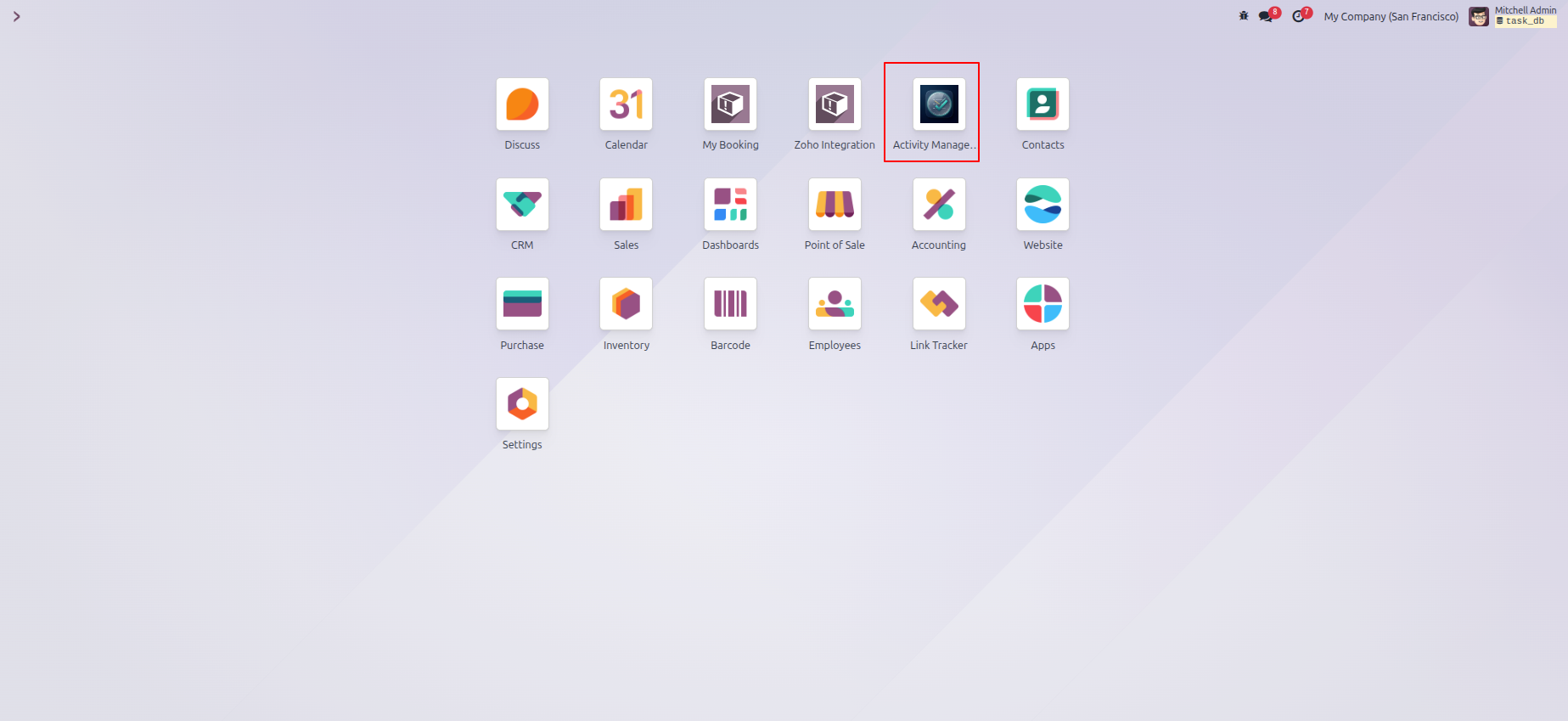
- Look at your main Odoo app menu (the grid of icons on your home screen).
- Find and click the Activity Management icon to open the application.
- You will land on the Dashboard view, which is your default landing page.
- The main app menu shows all your integrated Odoo modules, allowing you to navigate between CRM, Sales, Inventory, Calendar, Employees, Accounting, and other apps from one central location.

Step 3: Understand the Activity Insight Dashboard Cards
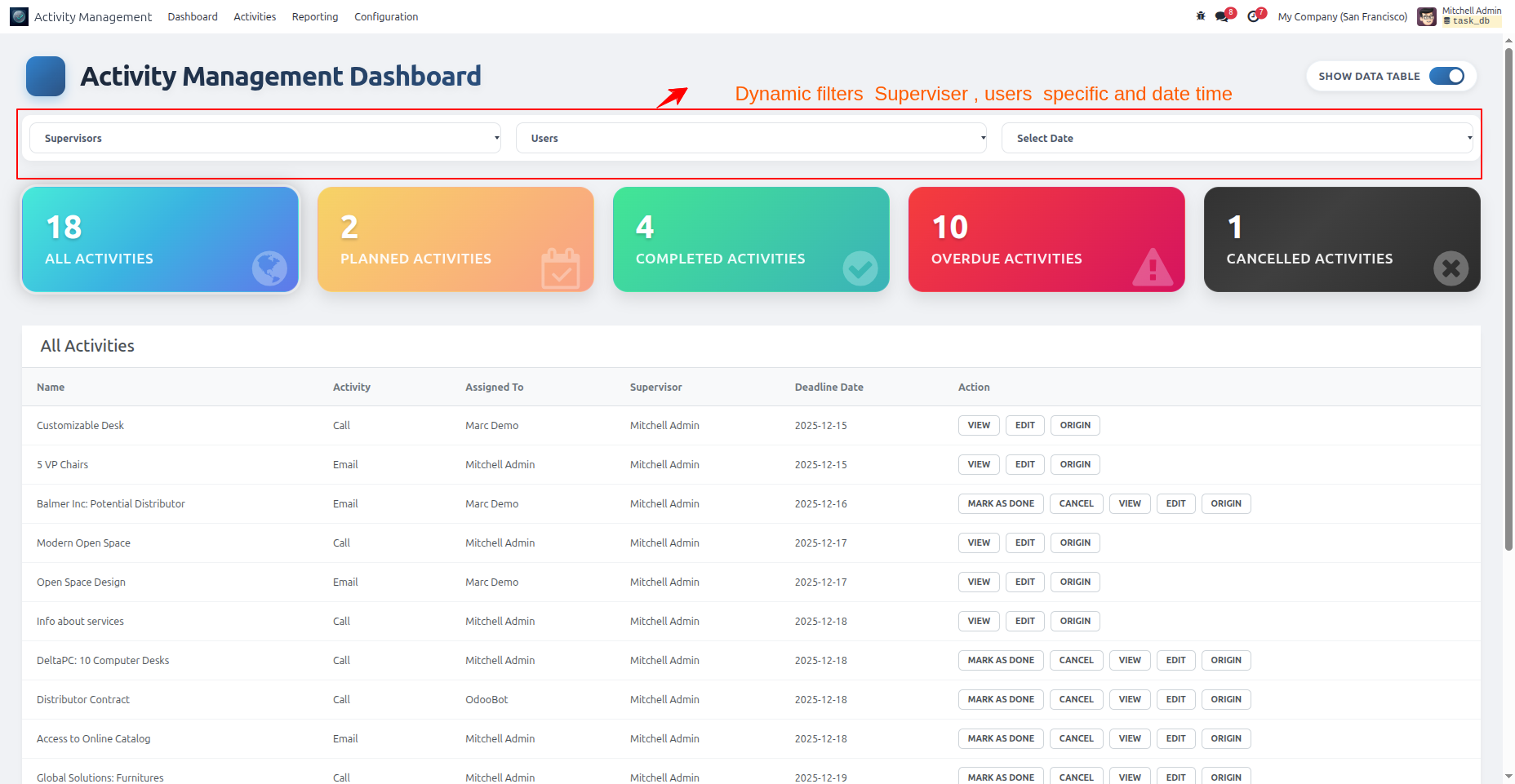
The best part of the interface is the five color-coded metric cards on top. These cards give you an instant snapshot of your team workload and task status at a glance.
To understand your Odoo business activity management overview:
- Look at the top section of your dashboard where five colored metric cards are displayed horizontally.
- Each card represents a different activity status:
- Blue card (All Activities) – Shows the total count of all tasks across your organization (planned, completed, overdue, and cancelled combined).
- Yellow card (Planned Activities) – Displays tasks that are scheduled for future dates and have not been started yet.
- Green card (Completed Activities) – Shows finished tasks that your team has successfully completed (great for tracking progress!).
- Red card (Overdue Activities) – Highlights tasks that have passed their deadline and need immediate attention.
- Dark card (Cancelled Activities) – Shows tasks that were cancelled and are no longer active.
- Below these cards is a detailed Activities Table showing every task with columns for:
- Task name
- Activity type (Call, Email, Meeting, etc.)
- Who it is assigned to
- Supervisor responsible
- Deadline date
- Action buttons for quick operations
These cards update in real-time as activities are created, completed, or marked overdue, giving you a live pulse of your team performance.
Step 4: Apply Dynamic Filters to Find Specific Activities
With so many activities across your organization, you need a way to focus on exactly what matters to you right now. The Dynamic Global Filters allow you to refine your view instantly without navigating away from the dashboard.
To use dynamic filters:
- At the top of your dashboard (just above the metric cards), you will see three filter dropdowns:
- Supervisors dropdown
- Users dropdown
- Select Date dropdown
- Click on the Supervisors dropdown to filter activities by a specific team lead or manager. This is useful for team leads who want to see only their team pending work.
- Click on the Users dropdown to filter activities assigned to a particular employee for proper Odoo employee task management. This lets individual team members see only their own tasks.
- Click on the Select Date dropdown to choose a date range:
- Today – Show only today’s activities
- This Week – Show activities for the current week
- This Month – Show activities for the current month
- Custom – Select a specific date range
- You can combine multiple filters at once. For example: filter by Supervisor “Sales Manager A” AND “Overdue Activities” to see exactly which tasks a specific team is behind on.
- The dashboard updates instantly as you apply filters. Click the filter again to reset it.

Step 5: Work with the Centralized Activity Management Table
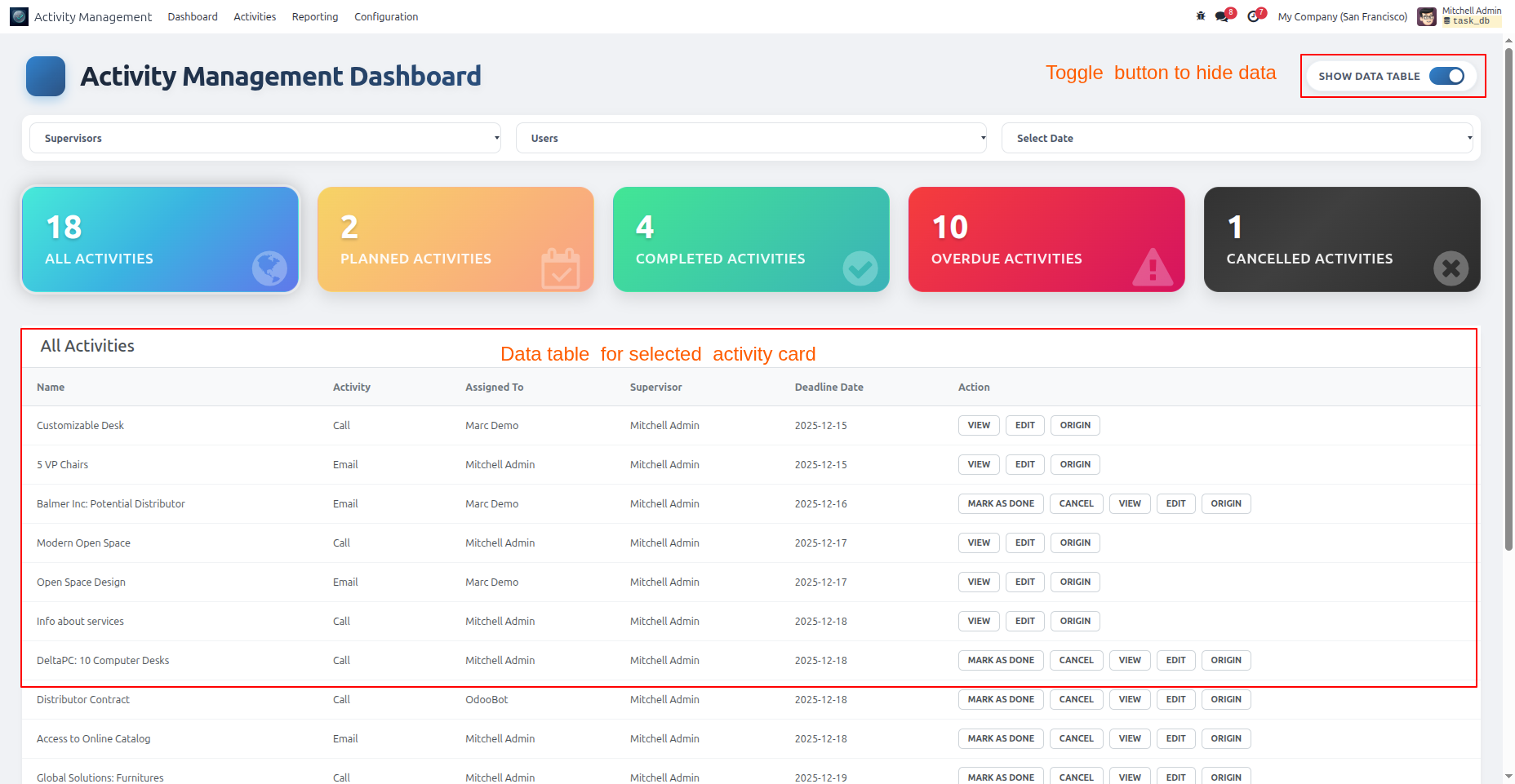
The Activities Table is the detailed view of all your activities. It shows complete information about each task in one organized table, with action buttons that let you manage tasks without leaving the interface.
To use the activities table effectively:
Look at the detailed table below the metric cards. Each row represents one activity with these columns:
- Name – The activity or task name
- Activity – The activity type (Call, Email, Meeting, etc.)
- Assigned To – Who owns this task
- Supervisor – Who is overseeing this task
- Deadline Date – When the task is due
- Action – Quick action buttons
Each row has several action buttons you can use:
- VIEW – Click to see the full task details
- EDIT – Click to update the task (name, deadline, assignee, etc.)
- MARK AS DONE – Click to instantly mark the task complete
- CANCEL – Click to cancel the task if it is no longer needed
- ORIGIN – Click to jump to the linked record (the customer, opportunity, invoice, etc.)
You can perform these actions directly from the dashboard without navigating to other modules. This saves time and keeps you focused on work.
The table is sortable, click any column header to sort by that column (name, activity type, deadline, etc.).
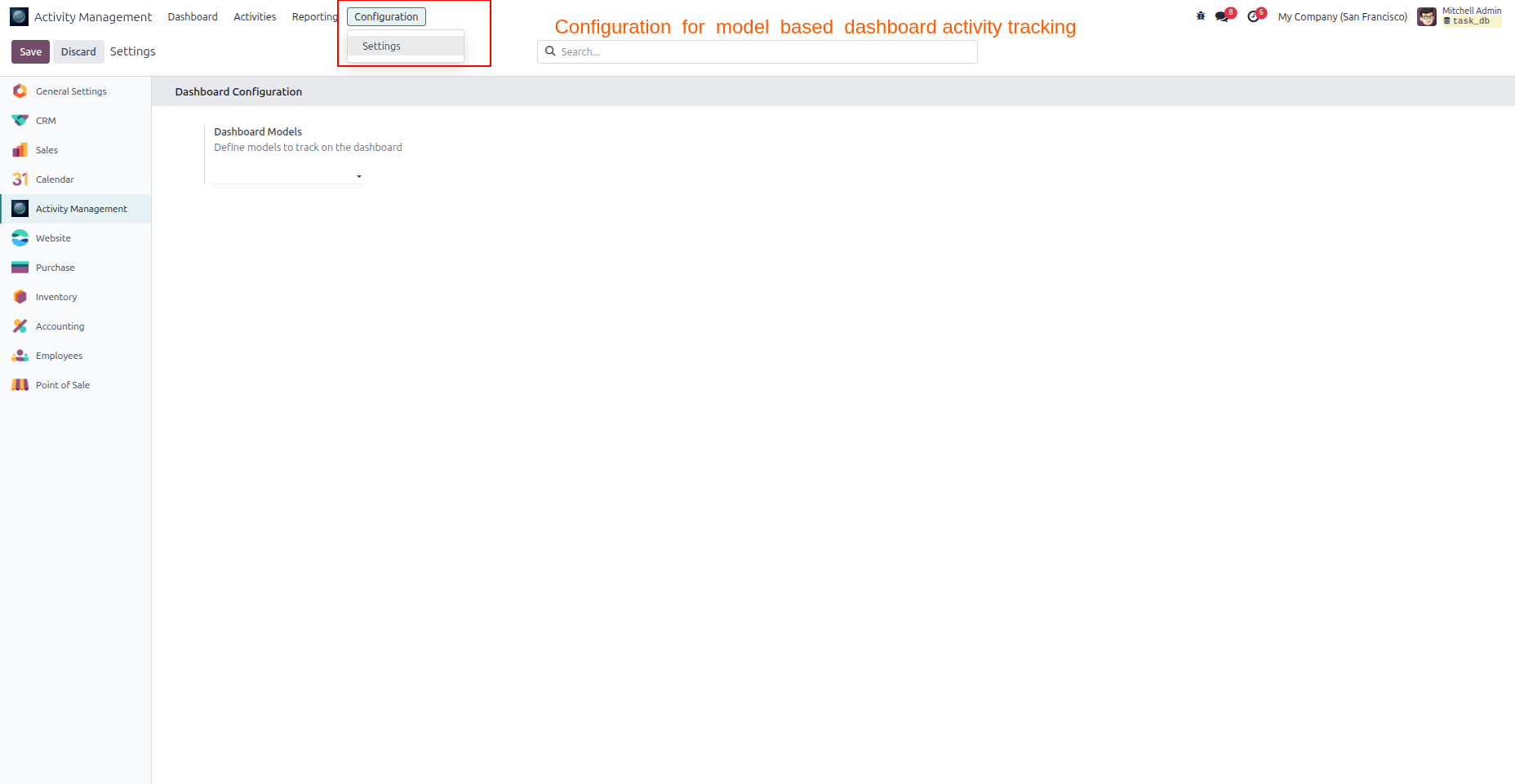
Your interface can monitor activities from multiple Odoo modules (CRM, Sales, Inventory, HR, Accounting, and more). However, you should customize which modules appear on your dashboard based on your specific business needs. This configuration step ensures your Odoo multi module dashboard shows only the most relevant activities to your team.
To configure your dashboard models:
- While viewing your Activity Dashboard, locate and click the Configuration tab at the top of the page (next to Dashboard, Activities, and Reporting tabs).
- In the Configuration section, click on Settings to access the configuration menu.
- You will see a Dashboard Configuration section with a field labeled Dashboard Models.
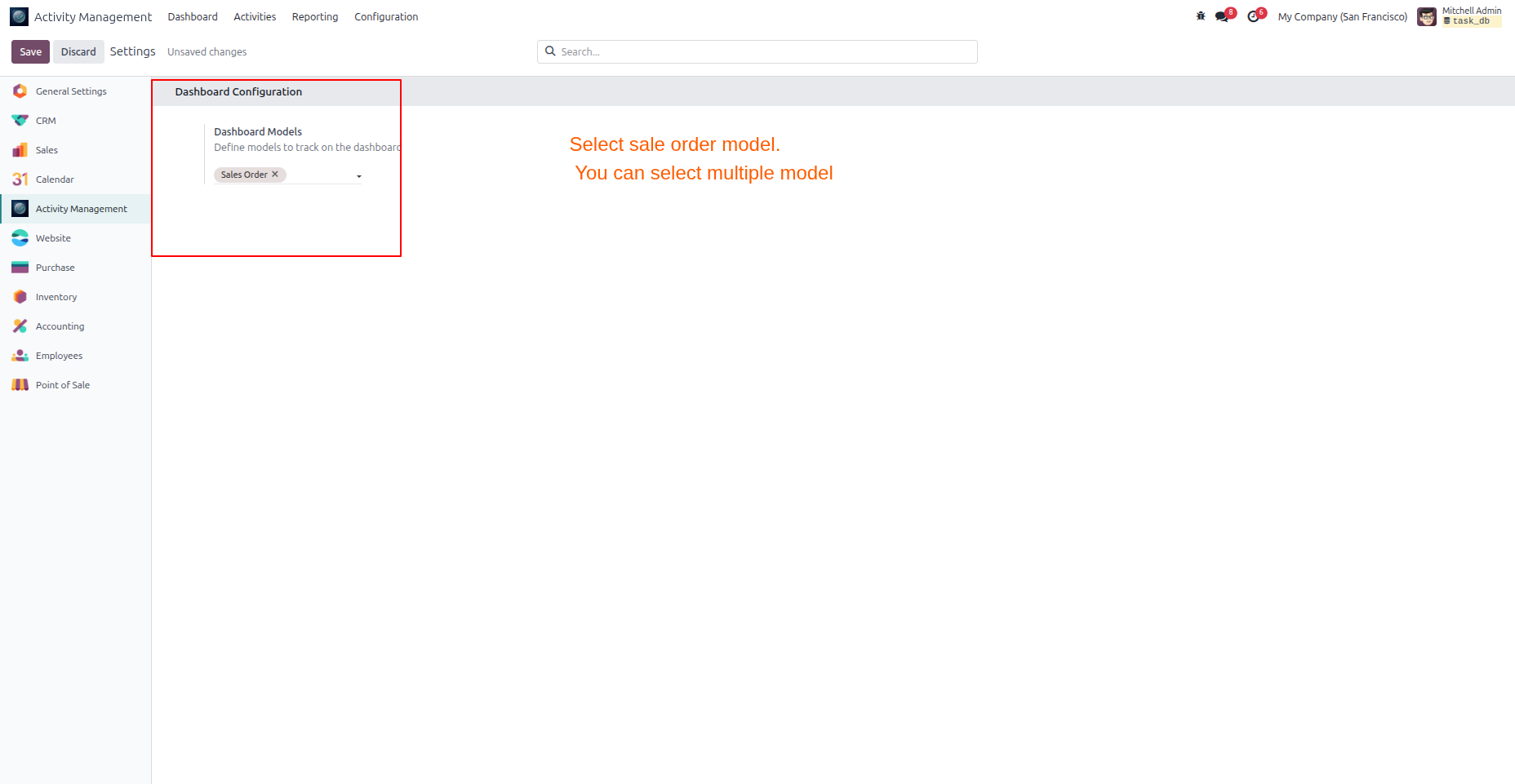
- Click in the Dashboard Models field to open the model selection dropdown.
- Search or browse the available Odoo models you want to track. For example:
- Sales Order – To track activities related to sales
- Lead – To track CRM lead activities
- Purchase Order – To track procurement activities
- Invoice – To track accounting-related tasks
- Employee – To track HR activities
- You can choose as many models as you need. Click each model you want to add to your dashboard. You can select multiple models at once, there is no limit.
- Once you have selected all the models you want to track, click the Save button to apply your configuration.
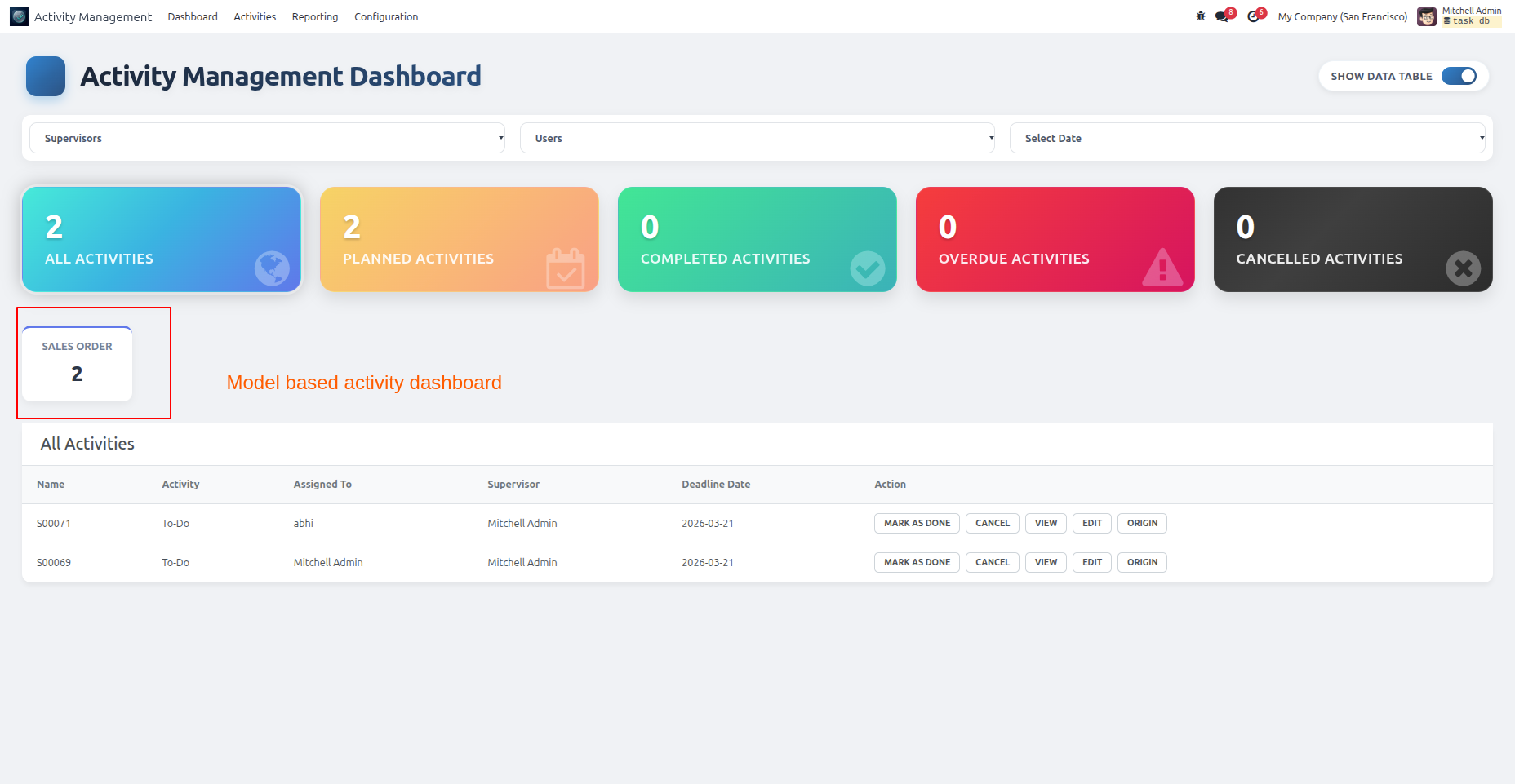
- Your dashboard will now display activities only from the modules you have selected. Any activities created in those modules will automatically appear on your Activity Dashboard.
Once your models are configured, your dashboard shows you a Model-Wise Performance view. This visualization breaks down how many pending activities exist in each module, helping you identify where work is piling up.
To understand model-wise performance:
- After configuration, your dashboard displays a Model-Wise Section showing pending activities by module.
- You will see a visual breakdown showing:
- Sales Order – How many pending activities are linked to sales orders
- Lead – How many activities are pending for CRM leads
- Purchase Order – How many procurement activities are pending
- Other configured modules with their activity counts
- This breakdown helps you identify bottlenecks through proper Odoo activity tracking. For example:
- If Sales Order has 20 pending activities but Lead has only 2, you know the sales pipeline is busy.
- If Accounting has many overdue activities, you can allocate additional resources to that department.
- Use this information to make strategic decisions about workload and resource allocation.
- The model-wise view updates in real-time as new activities are created or completed.
Step 8: Execute Quick Tasks Without Navigation
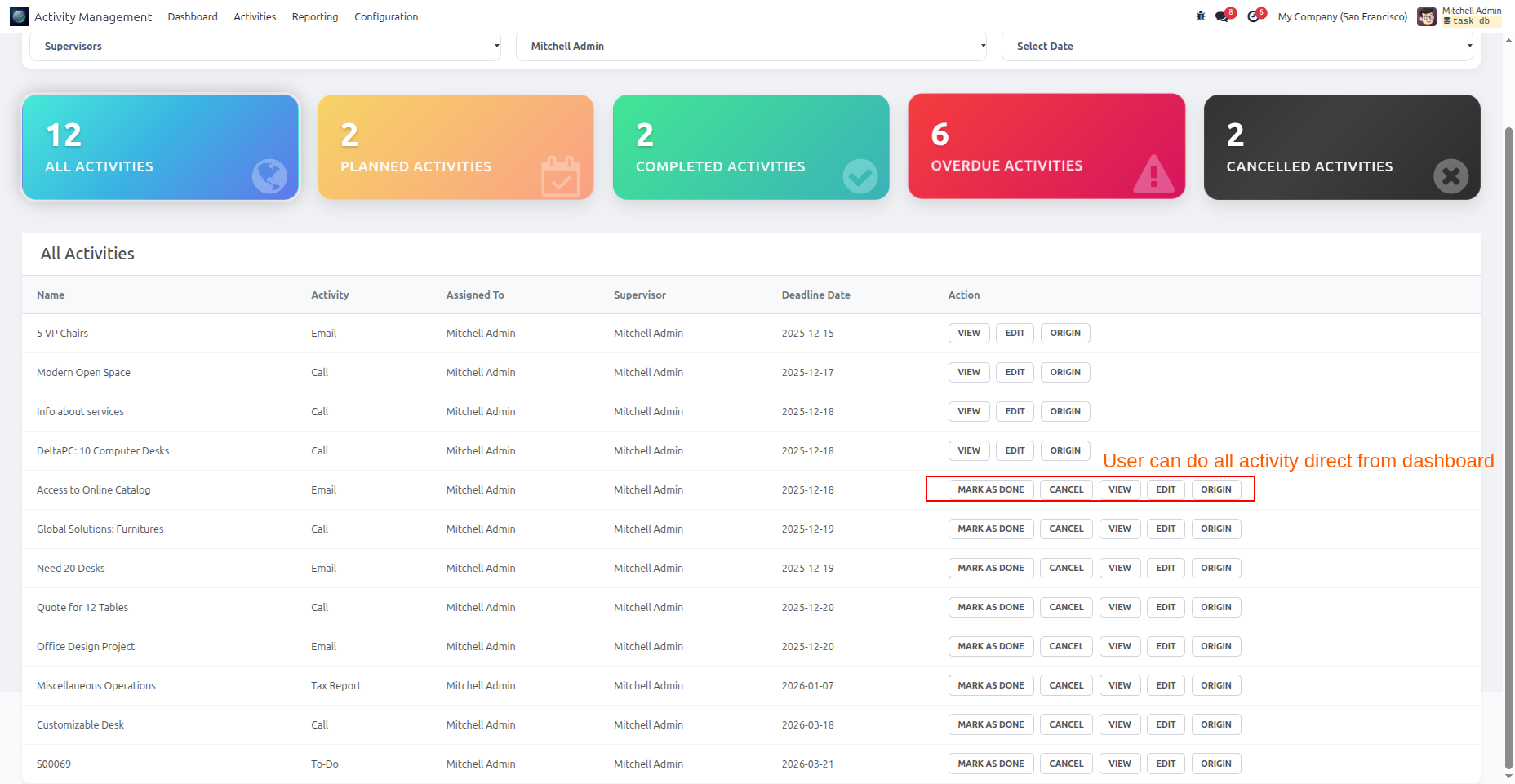
One of the biggest time-savers in the Activity Management Dashboard is the ability to execute actions directly from the dashboard. You do not need to navigate to different modules or open detailed task pages. You can manage activities right from the table.
To execute quick tasks:
- Look at any activity in your dashboard table.
- From the Action column on the right side of each row, you have several quick options:
- MARK AS DONE – Instantly complete the task without opening it
- CANCEL – Cancel the task if it is no longer needed
- VIEW – See full task details
- EDIT – Update task information
- ORIGIN – Jump to the linked record
- Click any of these buttons to perform the action immediately. There is no navigation required.
- For example, if you see “Follow-up Email” marked as completed, simply click “MARK AS DONE” and it moves to completed activities instantly.
- Your team can process multiple tasks in seconds without context switching or navigating between modules.
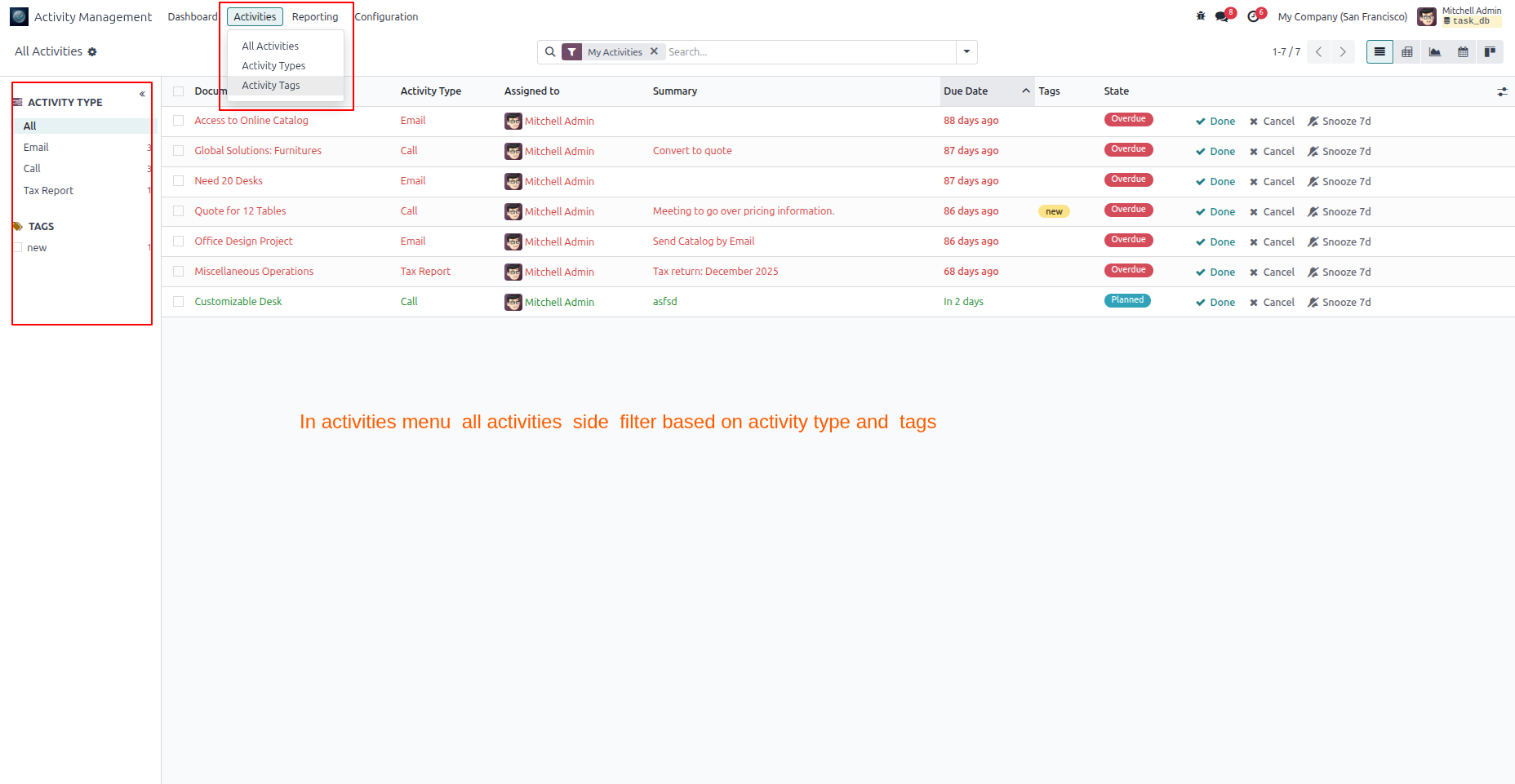
Step 9: Use the Activities Tab to See All Tasks and Types
The Activities Tab gives you a comprehensive list view of all activities and activity types in your system. This is useful for finding specific activities, browsing by type, or creating new activity types.
To use the Activities tab:
- Click on the Activities tab at the top of your dashboard (next to Dashboard and Reporting).
- You will see a menu on the left with options:
- All Activities – Shows every activity in your system
- Activity Types – Shows all activity type categories (Call, Email, Meeting, etc.)
- Activity Tags – Shows all tags assigned to activities
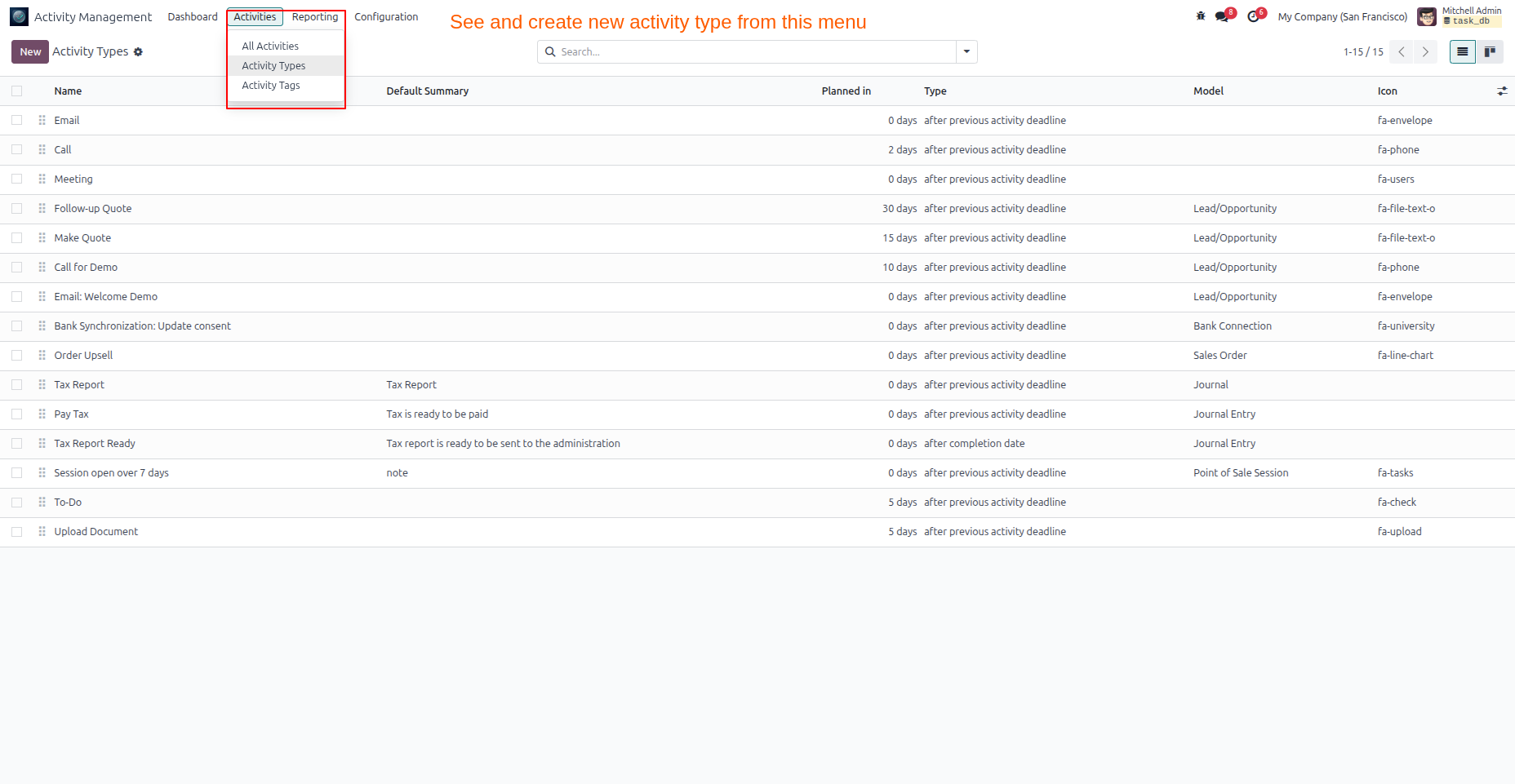
- Click on Activity Types to see all the different types of activities in your system (Call, Email, Meeting, Follow-up Quote, etc.).
- Each activity type can have:
- A default summary template
- A default planned duration
- An associated Odoo model
- A custom icon
- You can create new activity types from this view if you need custom activity categories for your business.
- This tab is useful for supervisors who want to filter activities by type or for training new team members on what types of activities exist in your workflow.
Step 10: Generate Reports and Analytics
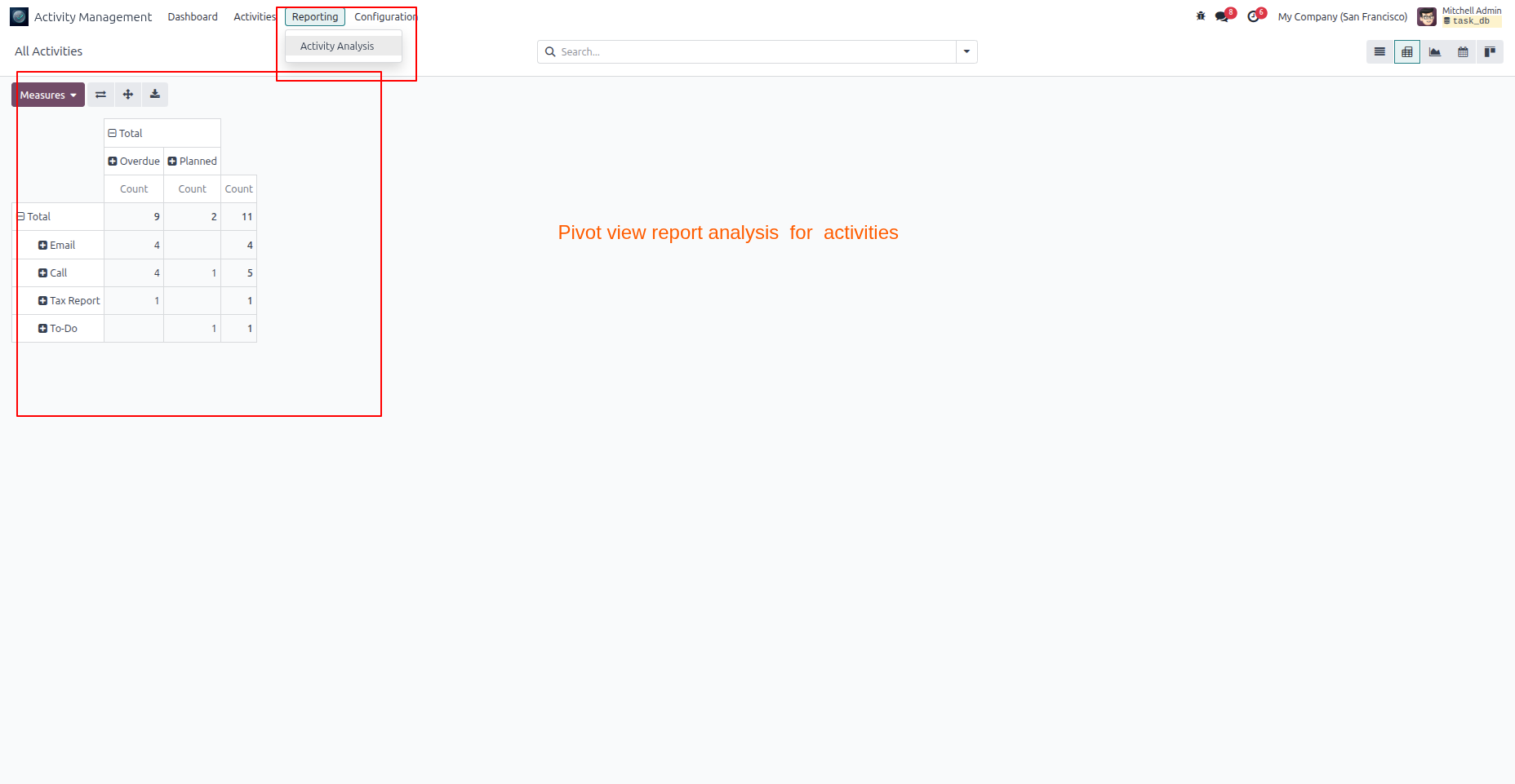
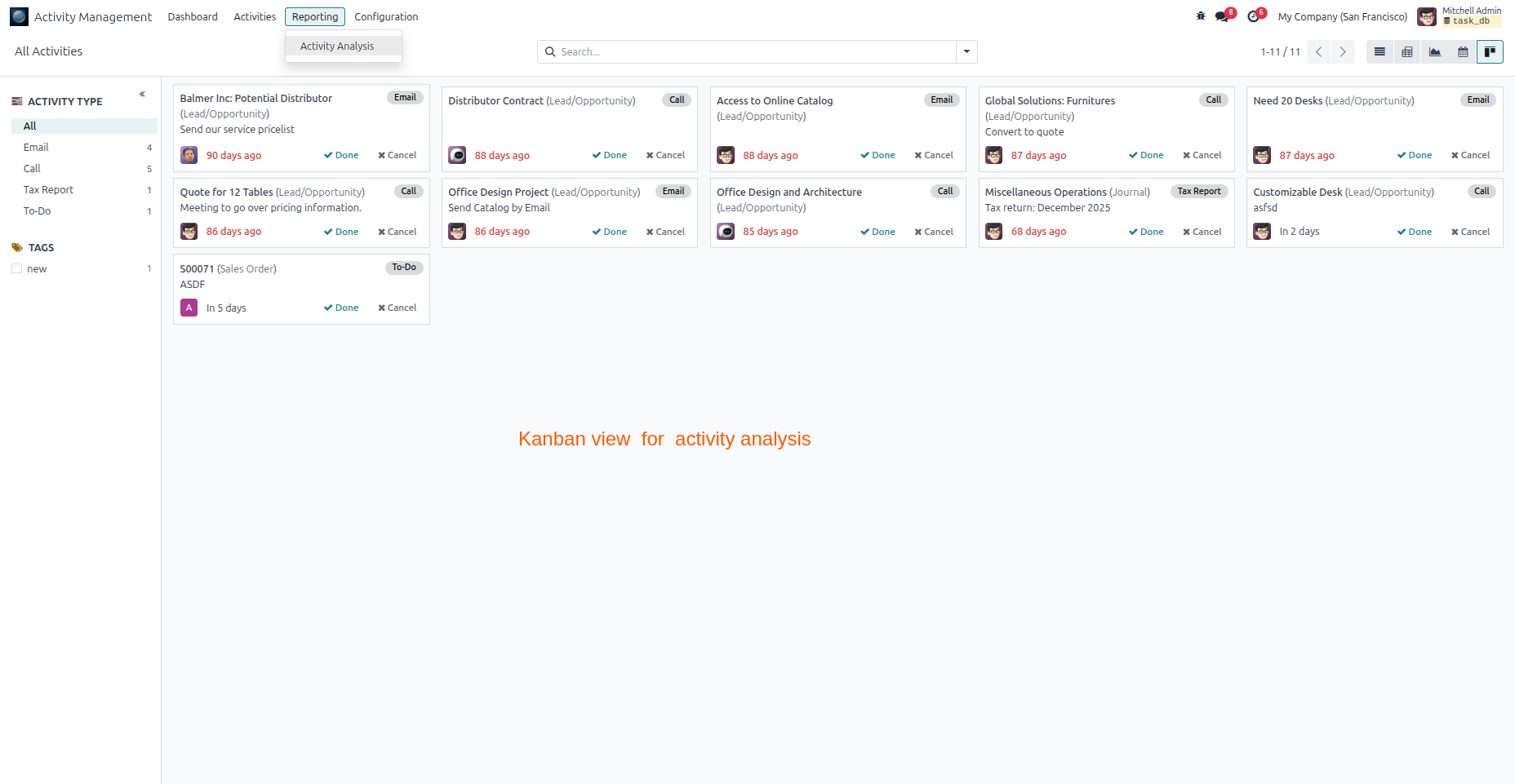
The Reporting Tab provides deep insights into your activity data using pivot tables and Kanban views, while factoring in the overall Odoo Implementation Cost. This is where you move from daily management to strategic analysis.
To access reporting and analytics:
- Click on the Reporting tab at the top of your dashboard (next to Dashboard, Activities, and Configuration).
- You will see several reporting options:
- Pivot Table View – Break down activities by any dimension (supervisor, user, activity type, deadline, etc.)
- Kanban View – Visualize activities as cards organized by status or type
- Data Table View – Detailed spreadsheet-style view of all activities
- Measures Dropdown – Choose what metrics to display (Count, Sum, Average, etc.)
- In Pivot Table View, you can:
- Click on “Measures” to choose what to measure (activity count, etc.)
- Drag columns and rows to reorganize the pivot
- Add filters to drill down into specific data
- Export the data for further analysis
- For example, create a pivot showing:
- Rows as Activity Type (Email, Call, Meeting, etc.)
- Columns as Supervisor to see how many of each activity type each supervisor has
- In Kanban View, activities appear as cards organized by:
- Status (Overdue, Planned, Completed, Cancelled)
- Activity Type (Call, Email, Meeting, etc.)
- Any other grouping you choose.
- Use these reports to answer strategic questions like overdue counts, completion percentages, or time-consuming activity types.
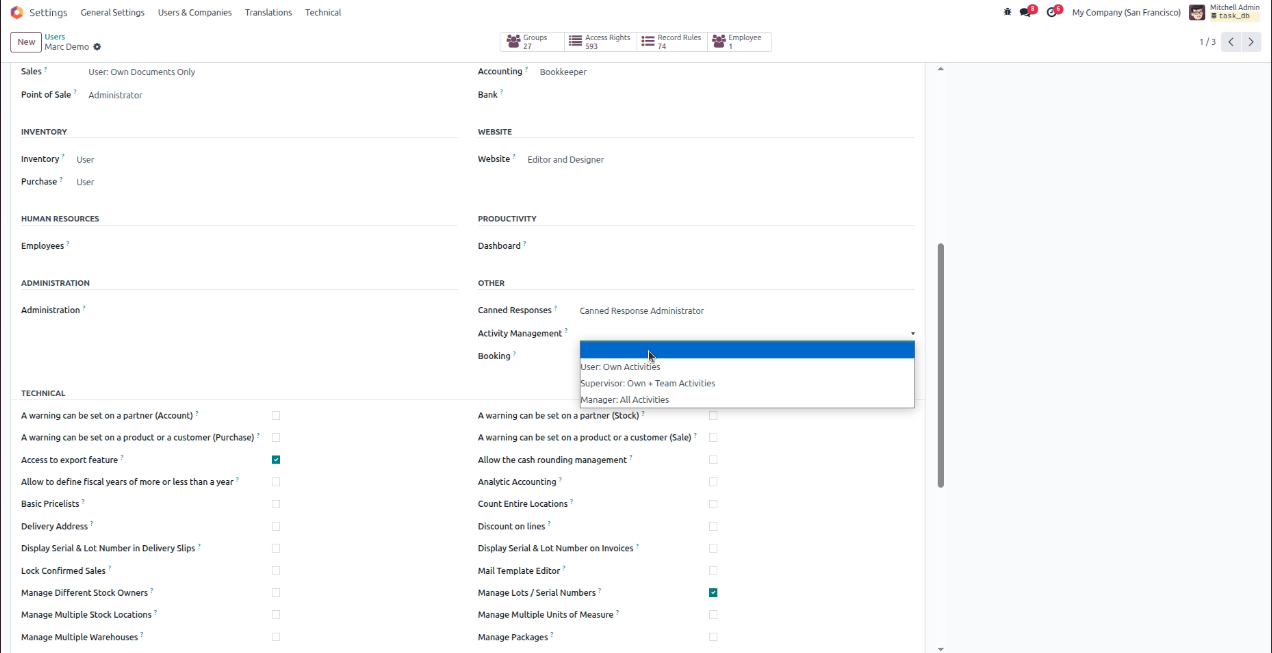
Step 11: Manage User Access Rights and Permissions
The User Access Rights feature ensures that each team member sees only the activities they should have access to, based on their role and permissions. This protects sensitive information while keeping everyone focused on their work.
To set up user access rights:
- Go to Settings → Users & Companies or navigate to Settings in your Odoo configuration.
- Select a user from the list to configure their access rights.
- Find the Activity Management section in their access rights settings.
- You can configure the following permission levels:
- User: Own Activities Only – The user can see only activities assigned to them
- Supervisor: Own + Team Activities – The supervisor can see activities assigned to them and their team
- Manager: All Activities – The manager can see all activities across the organization
- Here is how permissions typically work:
- Regular Users – See only their own activities on the dashboard
- Team Leads / Supervisors – See their own activities plus all activities assigned to their direct reports
- Managers – See all activities across their department or organization
- Admins – See everything and can modify configuration
- Once these permissions are set, the Activity Dashboard automatically filters based on each user’s role when they log in.
- This means the same dashboard shows different data to different users, without any extra configuration per user.

How Does the Activity Management Dashboard Work?
To experience how the Activity Management Dashboard functions live, watch the complete walkthrough video available on the Odoo App Store:
What Core Functionalities Are Explained in the Odoo Activity Management Dashboard?
Discover the core functionalities designed to eliminate operational friction and streamline task execution across your organization.
1. Activity Insight Dashboard
Instantly track Planned, Today, Overdue, and Completed activities with color-coded metric cards and real-time counts. The Odoo activity management dashboard displays five interactive cards at the top that give you a complete snapshot of your team’s workload:
- All Activities – Total count of all tasks across your organization
- Planned Activities – Tasks scheduled for future dates (shown in yellow)
- Completed Activities – Finished tasks your team has accomplished (shown in green)
- Overdue Activities – Tasks that have passed their deadline and need urgent attention (shown in red)
- Cancelled Activities – Tasks that were cancelled and are no longer active (shown in dark gray)
These cards update in real-time as your team creates, completes, or marks activities overdue, giving you a live pulse of your team’s performance at a glance.
2. Advanced Dynamic Filters
Quickly sort activities by Supervisor, Assigned User, or Date Range (Today, Week, Month) to find exactly what you need. The dynamic filters appear at the top of your Odoo activity dashboard and allow you to refine your view instantly:
- Supervisor Filter – View activities for a specific team lead or manager to see their team’s workload
- User Filter – Filter activities assigned to a particular employee to see individual task lists
- Date Range Filter – Select Today, This Week, This Month, or a custom date range to focus on specific time periods
You can combine multiple filters simultaneously. For example, filter by “Sales Manager A” AND “Overdue Activities” to see exactly which tasks a specific team is behind on. The dashboard updates instantly without requiring any navigation.
3. Centralized Activity Management
Access a unified table containing all activity details, linked records, assignees, and deadlines in one place. Instead of jumping between different Odoo modules, all your Odoo business activity management information is organized in a single comprehensive table:
- Activity Name – The task or activity name
- Activity Type – Call, Email, Meeting, Follow-up, etc.
- Assigned To – The team member responsible for the task
- Supervisor – The manager overseeing the activity
- Deadline Date – When the task must be completed
- Action Buttons – Quick links to VIEW, EDIT, MARK AS DONE, CANCEL, or see the ORIGIN (linked record)
All activity details are visible in one row, eliminating the need to navigate to different modules or search for linked documents. You see everything you need to know about a task without leaving the Odoo task management dashboard.
4. Model-Wise Model Based Activity Tracking
Visualize activity distribution across various Odoo modules like CRM and Sales to identify team workload and bottlenecks. This Odoo activity tracking feature shows you exactly where pending activities are concentrated in your business:
- Sales Order Activities – Number of pending activities linked to sales orders
- Lead Activities – Number of pending activities for CRM leads
- Purchase Order Activities – Number of procurement activities waiting
- Invoice Activities – Accounting-related tasks pending
- Other Module Activities – Any other configured Odoo module showing pending work
By seeing which modules have the most pending activities, you can identify bottlenecks and allocate resources strategically. For example, if Accounting has 15 pending activities while other departments have 2-3, you know to allocate additional staff to that department.
5. Quick Task Execution Tools
Execute actions like marking tasks as completed or viewing original documents instantly without navigation. From the Odoo employee task management table, you can perform the following actions directly without leaving the page:
- MARK AS DONE – Instantly complete a task without opening it
- CANCEL – Cancel a task if it’s no longer needed
- VIEW – See the full task details and related information
- EDIT – Update the task details (name, deadline, assignee, priority, etc.)
- ORIGIN – Jump to the linked record (the customer profile, sales opportunity, invoice, etc.)
These quick execution tools eliminate context switching and navigation. Your team can process multiple tasks in seconds while focusing on work. A supervisor can mark 5 completed tasks as done without page refreshes or module navigation.
6. Flexible Configuration Hub
Easily select which Odoo models should be tracked on your dashboard through an intuitive configuration menu. You decide which modules are important to monitor based on your business needs:
- Choose Models to Track – Select from CRM, Sales, Inventory, HR, Accounting, Calendar, Purchase, Manufacturing, Website, and any other Odoo module with activities
- Select Multiple Models – Add as many models as needed to create a comprehensive view
- Easy Configuration – Simple dropdown interface with no technical knowledge required
- Change Anytime – Modify your tracked modules at any time as your business evolves
- Apply Settings – Click Save to apply your configuration immediately
Your Odoo multi module dashboard adapts to your specific workflow. A sales-focused company might track CRM, Sales, and Calendar. A manufacturing firm might track CRM, Sales, Inventory, and Accounting. You customize based on your needs, not the other way around.
7. Seamless Layout & Visibility Toggle
Maintain a clean focus by toggling the data table visibility or managing empty states with clear user feedback. The Odoo dashboard module includes a toggle button that lets you switch between different views instantly:
- Show Data Table Toggle – Hide or display the detailed activities table below the metric cards
- Summary View – When hidden, see only the color-coded summary cards and model-wise breakdown for a high-level overview
- Detailed View – When shown, the full table appears with all activity details for comprehensive task management
- Remember Preference – The dashboard automatically remembers your view preference for future sessions
- Quick Switch – Toggle between views with a single click without losing your filters or settings
Some team members prefer focusing purely on summary metrics (how many overdue tasks?). Others need the detailed table (who’s responsible, what’s the deadline?). You can switch views instantly to match your current workflow, during standup meetings show summary cards, when managing tasks show the full table.
Why Does Your Team Need This Odoo Task Management Dashboard?
Transitioning toward a centralized management approach transforms daily operations and addresses critical visibility gaps across your organization.
Before the Odoo activity management dashboard:
- Supervisors spend 30 minutes a day checking different modules for pending tasks
- Team members miss deadlines because they forgot about tasks buried in their email
- No one knows which department is overloaded
- Updates and task status changes happen manually, inconsistently
After the Odoo task management dashboard:
- Supervisors see the complete picture in 30 seconds
- Tasks are visible and prioritized in one place
- Bottlenecks are spotted immediately
- Actions are taken from the dashboard, no lost context
- Your team is more organized, more accountable, and more productive
Final Thoughts
Implementing an Odoo activity management dashboard transforms chaotic workflows into clear operational strategies. Departmental supervisors gain immediate visibility through this functional Odoo task management module.
Leaders can finally standardize Odoo employee task management without requiring heavy technical configurations. Systematic Odoo activity tracking highlights workload bottlenecks long before they affect client deliverables.
Proper Odoo activity management ensures your teams stop hunting for hidden daily updates. Centralizing these core details streamlines complete Odoo business activity management from one interface. Staff members save valuable administrative hours using this unified Odoo multi module dashboard.
Organizations can eliminate critical operational delays utilizing an enterprise Odoo task management dashboard. Keep everyone focused on execution by installing a dedicated Odoo activity dashboard today. This versatile Odoo dashboard module brings absolute clarity to complex corporate structures.
See how your current operations compare. Talk to the CodeTrade team and get a clear picture of where Odoo makes the biggest difference.
Chand Prakash founded CodeTrade India and continues to lead it as CTO, shaping the technical direction of the company since its early days. He has spent his career solving hard engineering problems and building teams that ship reliable software, with a focus on ERP, e-commerce, and custom enterprise platforms.



 Chand Prakash

 Hardik Soni