







AI
eCommerce
 Chand Prakash
29 October 2026
Chand Prakash
29 October 2026
How AI shopping agents are changing ecommerce product discovery
 Chand Prakash
WooCommerce is where customers shop. Odoo is where many businesses manage stock, orders, and accounts. Both are widely used. W3Techs reports that WooCommerce ran on 8.4% of all websites in April 2026, which is about half of all the online stores it tracks. Odoo said in 2026 that it has 28 million users worldwide.
The two systems do not share data on their own. Without a link, someone has to copy each order into Odoo and update stock by hand. This takes time and leads to mistakes such as selling products that are out of stock.
Odoo WooCommerce integration solves this by moving data between the two systems automatically. This guide explains how it works and how to set it up, step by step.
An Odoo WooCommerce connector is an add-on that links your WooCommerce store to Odoo. When something changes in one system, the connector updates the other one.
It usually keeps these things in sync:
Pick one system to control each type of data. If both systems can change the same thing, such as stock, one will overwrite the other. Here is a common setup:
| Data | Controlled by | When it updates |
|---|---|---|
| Products and prices | Odoo | On a schedule |
| Product descriptions and SEO text | WooCommerce | Not synced |
| Stock | Odoo | Within minutes |
| Orders | WooCommerce | Instantly |
| Customers | WooCommerce | With each order |
| Shipping and tracking | Odoo | When the order ships |
| Invoices and payments | Odoo | After the order syncs |
You can change this setup to suit your business. What matters is that your team agrees on it and follows it.
There are three main ways: a ready-made connector app, an automation tool, or a custom-built connection. Odoo does not include an official WooCommerce connector, so you will need one of these.
Not sure which one fits? Odoo integration services can review your setup and recommend the right option.
The steps below are for a connector app. A custom build follows a similar order.
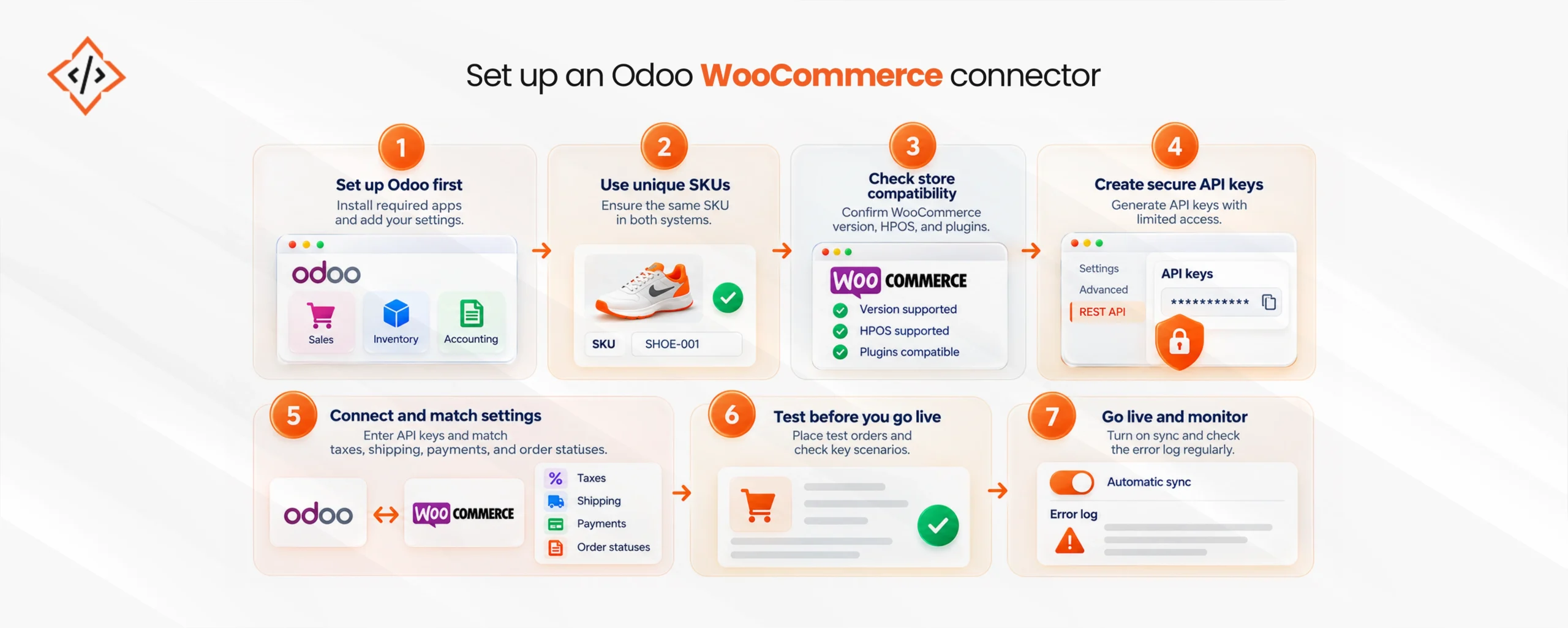
Install the Sales, Inventory, and Accounting apps in Odoo. Then add your warehouses, taxes, and payment methods. The connector needs these in place before it can link anything.
A SKU is the product code that both systems use to match products. Check that every product and variant has one and that it is the same in both systems. Missing or duplicate SKUs are the most common cause of sync errors.
Make sure the connector works with your WooCommerce version. Newer stores use a faster way of storing orders called HPOS, so confirm the connector supports it. If your store uses extra plugins for checkout or orders, WooCommerce development services can check that their data will sync.
API keys work like a password that lets the connector read and update your store. Create them in WooCommerce under Settings, then Advanced, then REST API. Use a separate user account for the connector, give it only the access it needs, and keep the keys private.
Enter your store URL and API keys in Odoo. Then match the settings in both systems, such as taxes, shipping methods, payment methods, and order statuses.
Use a copy of your store to place test orders. Try an order with a discount code, a partial refund, a cancelled order, and an out-of-stock product. Check that each one shows up correctly in Odoo.
Turn on automatic sync. For the first two weeks, check the connector’s error log every day so you can fix problems early.
Most connectors sync orders instantly and other data every few minutes. They use two methods to do this. Webhooks send an update the moment something happens, like a new order. Scheduled syncs check for changes at set times, such as every 10 minutes.
A good setup for most stores looks like this:
Once orders reach Odoo reliably, Odoo order management can handle the next steps for you:
One rule keeps Odoo inventory sync with WooCommerce accurate. Only change stock in Odoo. If someone edits stock in WooCommerce, the next sync will overwrite it.
Each part of an order needs its own rule in Odoo. A WooCommerce order total includes the product price, discounts, shipping, and tax, and Odoo records each of these separately. That is why WooCommerce accounting integration needs some setup.
If the connector’s default settings do not match how your finance team works, Odoo customization services can adjust them.
Yes, Odoo can handle several WooCommerce stores, several currencies, and different tax rules. Each one needs to be set up properly during WooCommerce ERP integration.
Most connectors let you link more than one WooCommerce store to one Odoo database. Decide whether the stores share stock or keep separate stock. Give each store’s orders a short prefix, such as “UAE-” or “KSA-“, so order numbers never clash.
Odoo supports many currencies. Link each store currency to the right price list and payment account in Odoo, and turn on automatic exchange rates. Test an order in each currency to make sure the invoice shows the correct amount.
Set your WooCommerce tax rates to match the taxes in Odoo. The UAE charges 5% VAT, and Saudi Arabia charges 15%. Saudi businesses covered by ZATCA e-invoicing rules must issue approved electronic invoices, so create invoices in Odoo with the Saudi settings turned on. If your store is in English and Arabic, sync product names and descriptions in both languages.
Most problems come from setup mistakes, not from the connector itself. Here is how to avoid them:
Most connector apps are a one-time purchase. The higher cost is usually the time it takes to set them up and test them.
A single, standard store can often be set up without help. You will likely need a developer if you have several stores, several currencies, GCC tax rules, custom checkout fields, or other systems to connect, such as a marketplace or a shipping partner. In those cases, Odoo ERP development support helps the setup keep working as your order volume grows.
Odoo WooCommerce integration links your online store with the system that runs your business. Orders, stock, and payments move automatically, so your team stops copying data, and both systems show the same numbers.
To get it right, decide which system controls each type of data, set up rules for refunds, discounts, and fees, and test real orders before you go live.

 Chand Prakash
 Hardik Soni
 Chand Prakash
 Chand Prakash
 Hardik Soni