






Odoo Development
 Hardik Soni
23 June 2026
Hardik Soni
23 June 2026
The CFO’s Guide to Migrating from Odoo Community to Enterprise
 Hardik Soni
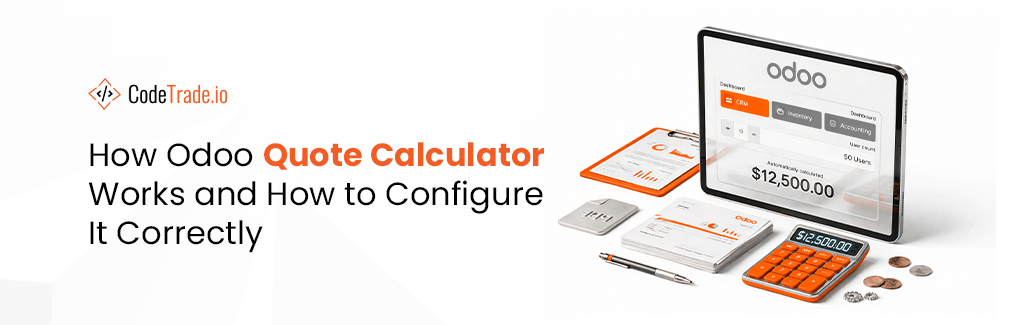
For businesses selling customizable products or services, creating accurate quotes is a constant challenge, simply because building them takes so much time and effort.
You must be familiar with pulling up massive spreadsheets, adjusting variables for each customer, double-checking calculations, and hoping you didn’t miss a cost somewhere. For companies like you, who offer made-to-order products or configurable services, this manual quoting process is more like a revenue leak rather than a time-consuming task.
According to a 2024 survey of 200 B2B manufacturers, manual sales and quoting processes cost companies an average of 5% of their revenue each year. Moreover, 88% of respondents reported that they lost deals because their quoting process was inefficient.
That’s where an Odoo quote calculator really starts to matter. When you stop jumping between spreadsheets and disconnected tools, pricing becomes much easier to manage. Everything lives in one place, costs update as inputs change, and quotes come together without the usual back-and-forth.
Now that you know why it matters, let’s look at how the Odoo quote calculator actually works and how you can set it up for your business.
Think of the Odoo quote calculator as an intelligent pricing assistant that’s well integrated with your ERP. But unlike other generic online calculators, this one doesn’t pull numbers from thin air. Every calculation it performs is based on real data from your Odoo system. It includes real data like your actual product costs, current labor rates, supplier pricing, and historical project benchmarks, too!
What makes the Odoo calculator even more powerful? Well, it is its direct integration with different modules like sales, accounting, and purchasing. Therefore, when you generate a quote, you work with your organization’s actual data, which is pulled in real-time.
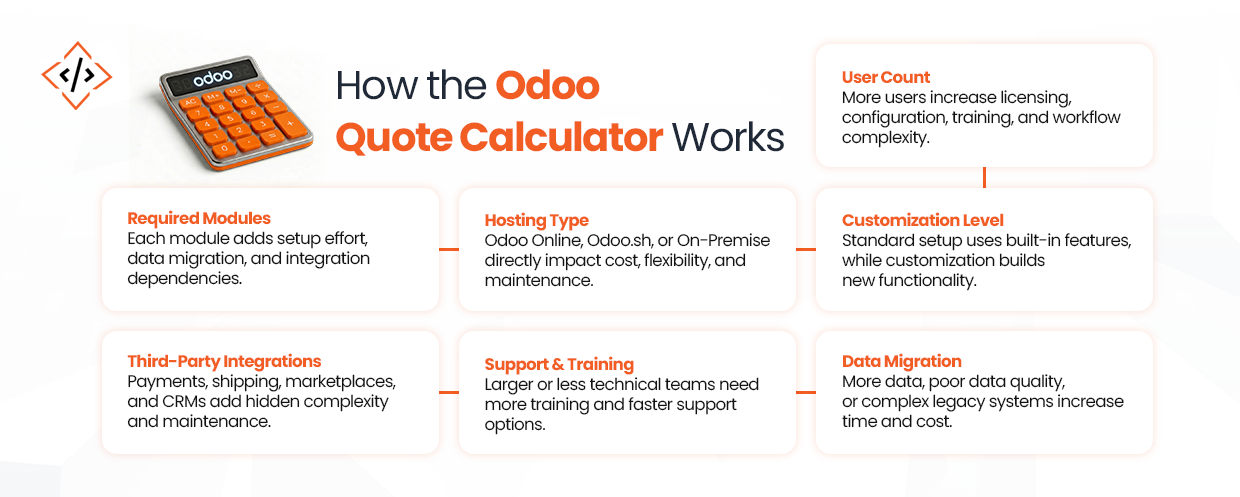
But what exactly goes into these calculations? Understanding the key factors that drive your quote calculator enables you to design more accurate pricing models. In addition, it also helps avoid the common problem of oversimplifying your cost structure.
Mentioned below is a detailed breakdown of each factor that influences quotation accuracy.
User count matters more than most people realize when implementing Odoo. The Odoo pricing calculator needs to account for how many users will access the system because both licensing costs and implementation complexity scale with user count.
A 6-person team using basic sales and CRM modules has vastly different configuration needs compared to a 50+ person operation. They may require advanced inventory management, manufacturing, and multi-company accounting. More users typically mean more complex workflows, additional training requirements, and potentially, more customization!
When configuring your quote calculator for Odoo implementation projects (if you’re an Odoo partner), you’ll want to build in tiered pricing that reflects this reality. An industry report analyzing over 1,000 implementation projects found that the average ERP budget is approximately $9,000 per user over a five-year period, across businesses of all sizes.
Well, this figure varies significantly based on company size and number of users. However, it still provides a benchmark for realistic cost estimation.
Selecting which Odoo modules you need directly impacts the configuration effort and customization required for your specific quote calculator setup.
The difference between implementing just Sales and Accounting versus the full Manufacturing suite is substantial. Each module you select has its own configuration requirements and data migration needs. It also introduces integration points that your Odoo price calculator must factor in.
An e-commerce company, for instance, usually requires modules like Website, Sales, Inventory, and Accounting. This calls for product setup, payment gateways, shipping regulations, and tax computations. Additionally, each of these modules requires thorough testing and configuration before it is put to use.
When compared to a service-based firm, modules for project management, timesheets, and invoicing may be enough. The setup is much simpler, with fewer dependencies and less configuration. As a result, the overall scope and cost are very different.
Your quote calculator should map module selections to realistic hour estimates based on actual implementation experience. Don’t just multiply modules by a fixed hourly rate. Account for interdependencies and integration complexity.
How you run Odoo significantly impacts your initial and ongoing operational expenditures. Let’s explore the precise implications of each kind of hosting.
| Type | Pros | Cons | Cost Impact |
|---|---|---|---|
| Odoo Online (SaaS) | It requires no infrastructure management, includes automatic updates, offers predictable monthly costs, and allows for the fastest deployment. | It comes with limited customization options, depends on Odoo’s release schedule, and may raise data residency concerns for some businesses. | Lower initial investment but higher recurring fees. It is ideal for businesses wanting to get up and running within weeks without IT overhead. |
| Odoo.sh (PaaS) | It offers full customization capabilities, a managed hosting environment, included staging and testing environments, and automatic backups | It requires technical expertise for custom development and has higher monthly expenses than Odoo Online. | Custom development has a medium upfront cost as well as modest ongoing fees. For businesses that need custom features but do not want to handle infrastructure management, this is a deal. |
| On-Premise | Complete control over data and infrastructure, no per-user licensing beyond Odoo Enterprise, unlimited customization | This hosting requires dedicated IT resources, accountability for upgrades and security, and a greater initial capital cost. | It demands the highest initial investment but the lowest ongoing expenses over time. It is best for large enterprises with very specific compliance requirements and an established IT infrastructure. |
This is where quote calculators often oversimplify. Here’s where you can deliver real value by being honest about complexity tiers.
The key distinction your Odoo calculator should make is simple. Configuration uses existing Odoo functionality, while customization builds new functionality. They’re priced differently for good reason.
The integrations you need directly affect implementation scope, and your quote calculator should reflect this reality.
Payment gateways such as Authorize.net, PayPal, and Stripe are examples of common integration categories. These are non-negotiable for e-commerce businesses. But before they are put into use, they need to be tested for security compliance and payment flow. Another significant category is shipping carriers. For real-time rate calculation and direct label printing within your system, FedEx, UPS, and DHL require API integrations.
Additionally, you may need to integrate specialized inventory platforms or legacy warehouse management systems. During transition periods, some businesses may need to sync client data with existing CRM platforms such as HubSpot or Salesforce. Amazon, eBay, or Shopify connectors are frequently required by multi-channel retailers.
Each integration, apart from the one-time setup cost, also requires ongoing maintenance, handling API changes, and occasional troubleshooting. A realistic quote calculator accounts for these integration-related challenges, as they often involve hidden complexity.
Most businesses underestimate the fact that the quality of implementation means nothing if their team doesn’t know how to use the system properly.
Support and training requirements depend heavily on your team size and how tech-savvy your people are. It also depends on how complex your business operations get. Considering basic support will allow you to get email assistance with responses within 48 hours. This generally works fine for teams that are okay with figuring things out on their own.
Standard support takes it up a notch. Here, you get both phone and email channels, faster response times (within 24 hours), and someone who checks in with you monthly. Then there is SLA-based premium support for businesses that cannot afford downtime. In such cases, you are looking at guaranteed response times between 2 and 4 hours. Additionally, you get a dedicated account manager who knows your setup and priority treatment when bugs need fixing.
The important fact to note here is that training is not a one-size-fits-all exercise. A startup with a handful of team members might need a single intensive training day. Whereas, a company with more than 50 ot 60 people may need more role-based training sessions, such as one for warehouse staff, another for accounting, and another for sales. Additionally, factor in 4 to 8 hours of training per user group.
Therefore, your Odoo pricing calculator should help customers understand that skimping on training is a false economy. Proper training reduces support tickets and increases adoption rates. And the best part is that it improves the ROI too.
If your business has been operating for any length of time, you’ve got data. Probably lots of it. And getting that data cleanly into Odoo is often the most difficult part of the entire implementation.
Legacy system migration volume directly influences both timeline and cost, so it’s an important element to factor into your quote calculator.
Data volume matters. Are we talking about 500 customer records or 50,000? 100 products or 10,000 SKUs with complex variations? Data quality is equally important. Is the source data clean and standardized, or will significant cleanup be required? Historical data needs vary. Does the customer need 5 years of transaction history migrated, or just current open orders? System complexity plays a role, too. Migrating from QuickBooks is fundamentally different from migrating from SAP.
Considering the approximate timeline, a realistic data migration for a mid-sized business might involve 40 to 60 hours for data extraction, cleaning, mapping, testing, and validation. Large enterprises with complex legacy systems can easily hit 200+ hours.
Most calculators use ranges based on historical project benchmarks, not random numbers. That’s why experienced Odoo development services providers build their quote calculators on actual project data, creating estimates that reflect reality rather than wishful thinking.
Now that you understand what drives pricing, let’s set up your own Odoo quote calculator. It is not complex. But it does require methodical configuration. We’ll walk through each step with the details you need to actually implement this.
You need a quotation template that will house your calculator. For that, go to Sales → Configuration → Quotation Templates in your Odoo instance.
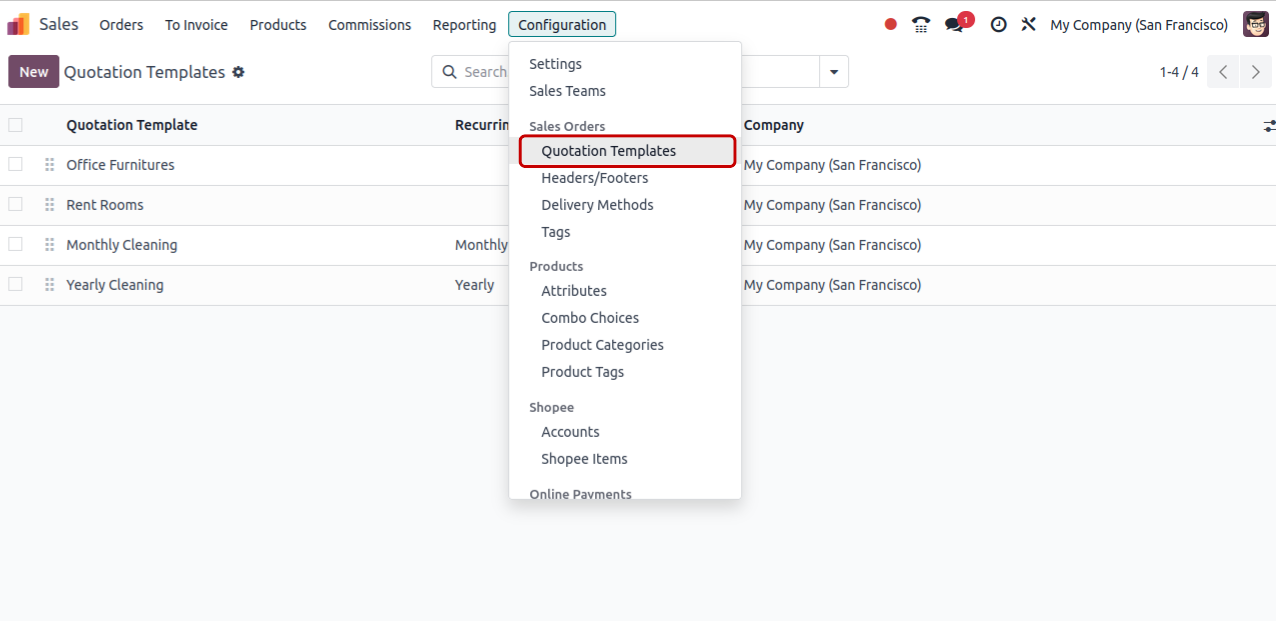
Click Create to build a new template. Give it a descriptive name that clearly indicates this template includes dynamic pricing.
In the template form, you’ll see a Quote Calculator field. This is where the magic happens. You can either select an existing calculator if you’ve already created one or create a new calculator on the fly by typing a name and clicking “Create and edit.”
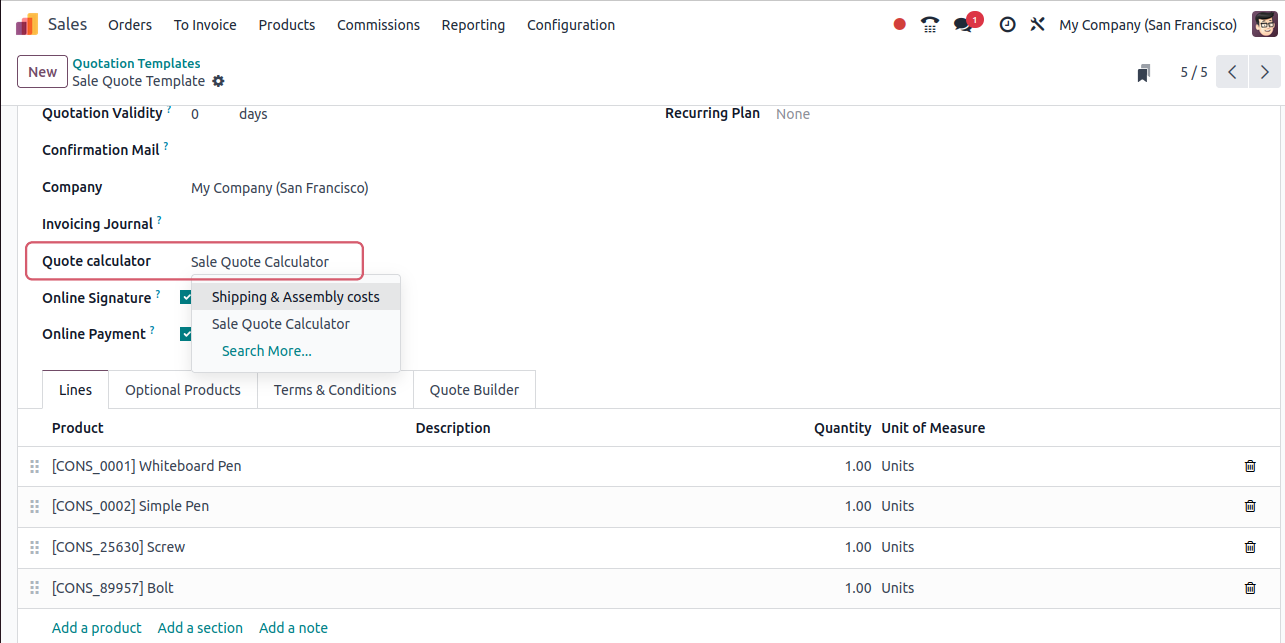
Before diving into the calculator itself, spend a minute customizing your template. Add standard sections, terms and conditions, or default products that should appear on every quote. This saves time later when you’re generating customer quotations.
The template becomes the foundation. Every quote you create from it will inherit these settings and have access to the calculator functionality.
Click into your quote calculator, and you’ll see a spreadsheet-style interface built using Odoo Spreadsheet. While it looks familiar, it behaves very differently from a traditional spreadsheet. Every value pulls directly from your Odoo database, so pricing, costs, and calculations stay in sync with real business data.
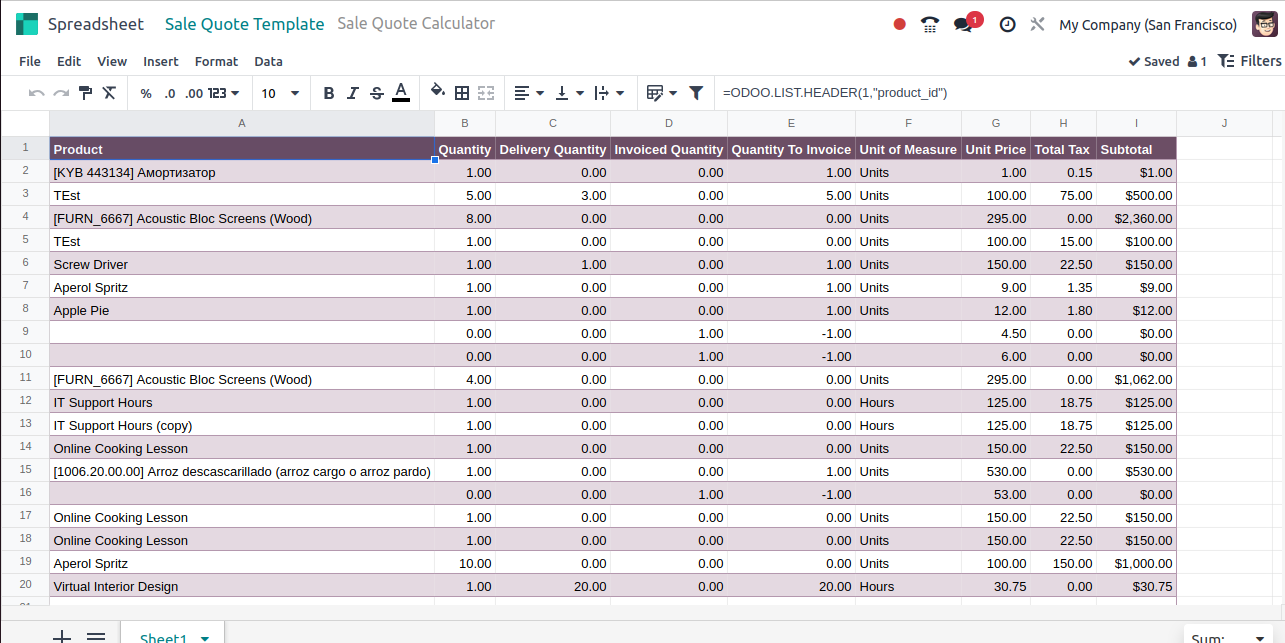
You’ll see a default Products tab listing all your Odoo products. This is your output tab, where the final calculated prices will appear.
Next, create a Calculations tab. This is where you define the logic behind your pricing and cost calculations.
Input variables are cells that change per customer. For instance, product dimensions or specifications, quantity requirements, geographic location or delivery distance, service complexity level, and any customer-specific factors.
Fixed cost parameters are cells pulled from your Odoo data. They can be material costs per unit from your product records, labor rates from your HR or project app, overhead allocation percentages, and supplier pricing from the purchase module.
And formulas tie it all together. Total material cost equals base material times quantity times waste factor. Labor cost equals hours required times hourly rate times complexity multiplier. Total equals materials plus labor plus overhead plus margin.
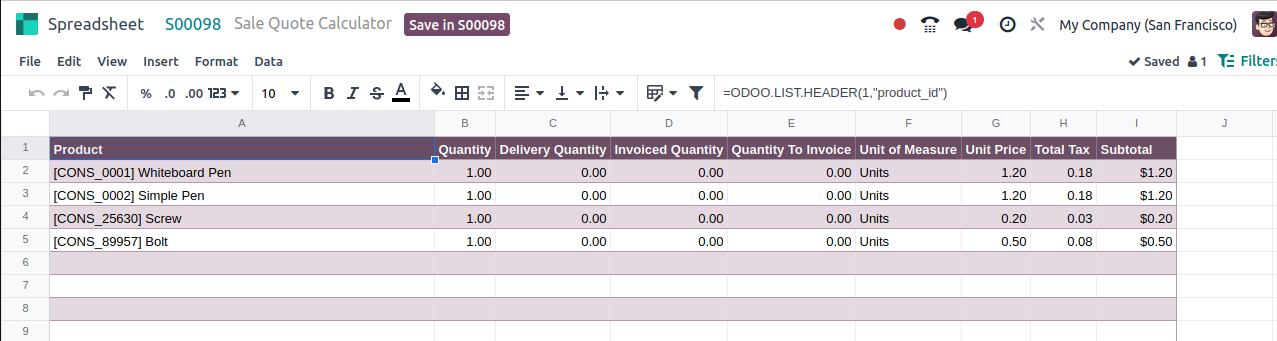
The beauty of this approach is simple. Yellow-highlighted cells can be edited when creating each quote, while other cells pull real-time data from Odoo. You’re not guessing at costs. You’re calculating based on actual business data.
This is where you can get creative with complex formulas that reflect your specific pricing model, whether that’s tiered volume discounts, seasonal pricing adjustments, or multi-factor cost calculations.
To understand the broader Odoo development process and customization options, see our Odoo development guide.
This step connects your calculator spreadsheet to the actual quotation document, making your calculations automatically populate the sales order lines.
In your Products tab, create a calculated field that pulls the final price from your Calculations tab. This is your output cell that will sync to the quotation.
The next step is to set up the sync connection. Right-click on that very cell and select Edit Sync.
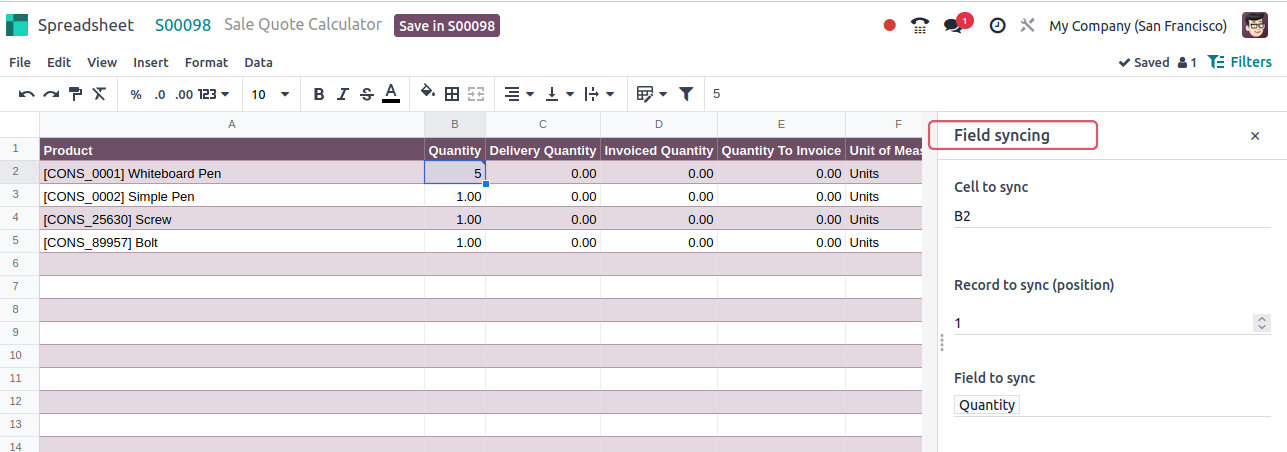
After that, configure these settings:
This sync means every time you adjust variables in the calculator, the quotation updates automatically. Because everything updates automatically, there’s no copying, pasting, or risk of transcription errors. Prices stay in sync as data changes.
If you’re working with multiple products or complex quotations, you can establish multiple sync connections, each updating different sales order lines. For more advanced setups, you can also hire Odoo developer who can build sophisticated calculators that handle multiple products and complex pricing rules.
To see your calculator in action, create a new quotation by going to Sales → Orders → Quotations → Create.
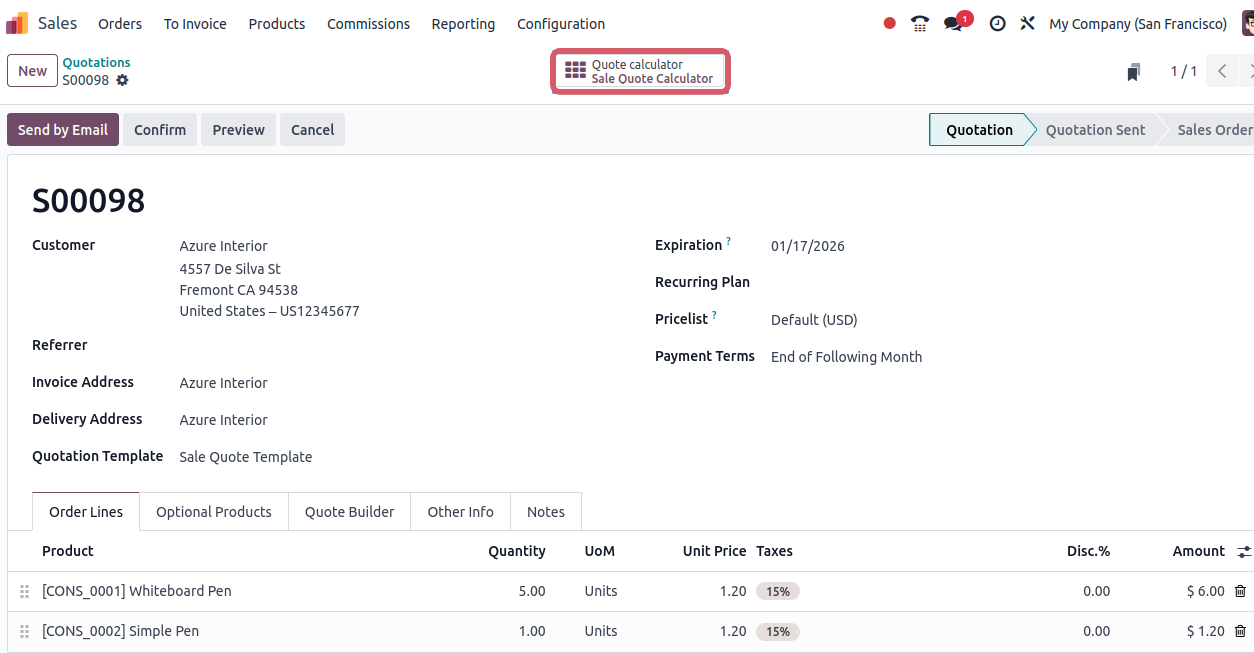
When you select your quotation template, notice the Quote Calculator smart button appearing at the top. This is your signal that the calculator is ready and connected.
Click the smart button to launch the calculator. Your spreadsheet will load with the structure you set up, including the Products tab, Calculations tab, and any custom worksheets.
Change customer-specific variables in those yellow-highlighted cells. Adjust the product dimensions, increase the quantity, or modify the service hours. Watch your formulas recalculate instantly, showing new totals based on your business rules.
When you’re satisfied with the calculations, simply save and close the calculator. Switch back to your quotation view, and here’s the moment. The unit price on your sales order line has automatically updated to reflect your calculated price.
It removes the need for manual entry and spreadsheet checks while helping prevent pricing mistakes that can cut into margins or cost you the deal.
This is the Odoo calculator doing exactly what it should. Automating the tedious parts of pricing so you can focus on closing deals and delivering value. For a closer look at what’s new in the latest release, the Odoo 19 Guide outlines important features and capabilities.
The Odoo quote calculator transforms how businesses approach custom pricing by replacing error-prone spreadsheets and manual processes with an integrated system that calculates costs in real-time using actual business data. When you consider that manual quoting processes cause companies to lose annual revenue and that manufacturers cite inefficient quoting as a reason for losing deals, the value of automation becomes crystal clear.
From understanding how user count, modules, hosting, and customization affect implementation costs to configuring calculators that sync directly with quotations, you now have a complete roadmap for implementing automated pricing in your organization. The investment in configuring your Odoo pricing calculator properly pays dividends immediately through faster quote turnaround, fewer pricing errors, and the confidence that every proposal reflects your true costs and desired margins.
So, if you are serious about scaling your quoting process and eliminating the revenue leaks caused by manual calculations, partnering with the best Odoo partner like us ensures your calculator configuration matches your specific business model and growth objectives.
So, are you ready to eliminate manual quoting errors and speed up your sales cycle? If yes, let’s discuss how Odoo’s quote calculator can transform your pricing process and help you capture revenue you’re currently leaving on the table.
 Hardik Soni
 Hardik Soni
 Hardik Soni
 Hardik Soni
 Chand Prakash