
How to Measure Vendor Performance in Odoo?
 Hardik Soni
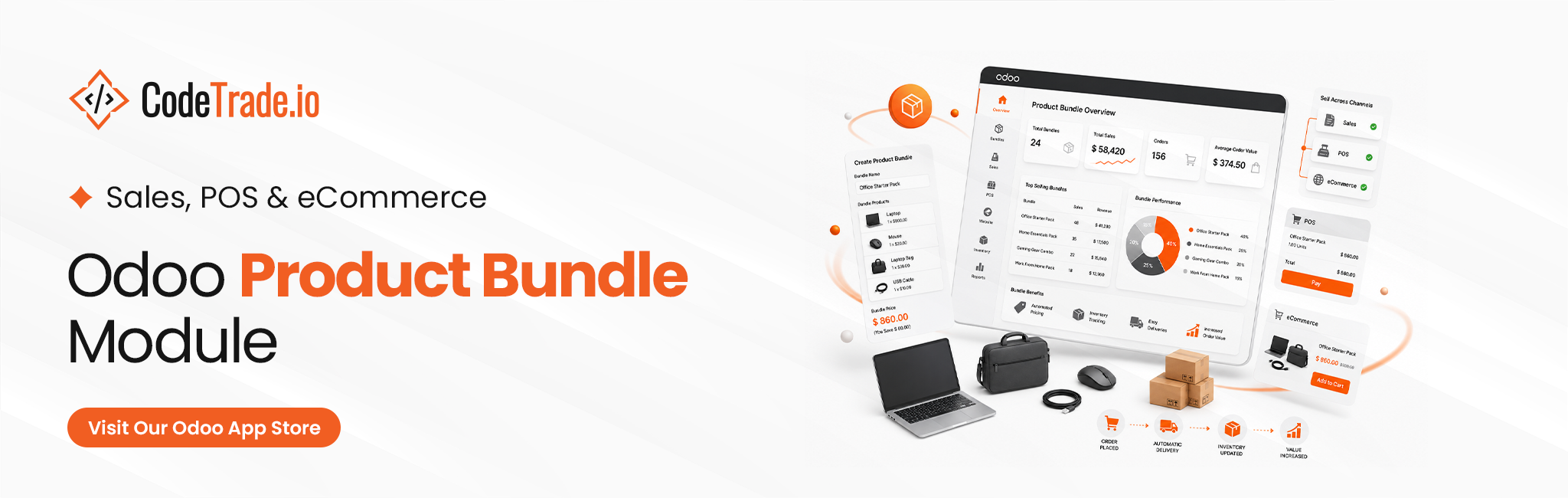
Many retailers struggle to sell complementary items efficiently. Processing individual products separately limits average order values and slows down checkout counters.
Deploying tailored Odoo customization services easily resolves these operational bottlenecks. A native Odoo Product Bundle Pack unifies your grouped items into clean, single-line offerings across your entire corporate database and storefront registers.
This practical Odoo Product Bundle Module streamlines configuration while removing the manual price calculations that frequently introduce administrative errors into retail channels.
Utilizing dedicated Odoo Product Bundling automation updates component retail prices and cost variables simultaneously. This automated process guarantees complete pricing accuracy without requiring repetitive manual data entry.
Furthermore, fragmented inventory slips often cause fulfillment delays. Deploying automated Odoo Inventory Bundle Management resolves this by displaying exact itemized breakdowns on delivery orders automatically. This tracking unifies workflows from initial online cart confirmation to final warehouse dispatch while maintaining clean backend reporting records.
Operating a retail or e-commerce storefront without a structured kit strategy frequently leads to fragmented operations and lost revenue. When a consumer buys a primary item, they often require related accessories, yet standard systems offer no automated method to present these components as a single discounted package.
Cashiers are forced to scan items individually, online storefronts display disconnected items, and inventory teams receive disorganized fulfillment orders. To resolve this, businesses deploy robust Odoo ERP solutions that unify multichannel transactions and smooth out the overall customer purchasing journey.
This visibility and structural deficit creates repetitive daily hurdles for retail establishments, online stores, and corporate sales teams:
Lacking a dedicated Odoo Product Bundle Pack engine means leaving significant profit margins uncaptured while introducing unnecessary manual administrative workloads for your staff.
The Odoo Product Bundle Module provides a comprehensive, native framework to configure and supervise grouped items directly from your corporate backend, digital storefront, and checkout registers. This integrated application unifies your multichannel commercial operations, ensuring that promotions run flawlessly without demanding repetitive manual adjustments from your administrators.
Utilizing this scalable Odoo Sales Bundle Pack architecture allows your operational teams to complete key promotional tasks efficiently:
This deployment delivers all the technical automation necessary to execute complex cross-selling strategies seamlessly while eliminating extra administrative overhead.
The Odoo Product Bundle App integrates directly into your core Sales, Website eCommerce, and Point of Sale infrastructure. Once installed, the application appends a dedicated configuration tab inside your standard product master records. This establishes a centralized workspace for Odoo Product Pack Management where teams specify individual component items.
Merchants can easily manage Odoo Bundle Pricing using automated backend calculations or manual fixed overrides depending on active promotional strategies. Every configured combination remains fully traceable from initial front-end cart validation through stock warehouse dispatch and accounting ledger validation.
Follow this comprehensive structural walkthrough to configure custom grouped items and optimize your multichannel sales workflows effortlessly.
Before creating a bundle, you need to know where to find it. Product packs are managed from a dedicated menu in the Sales module.
To access the Product Pack menu:
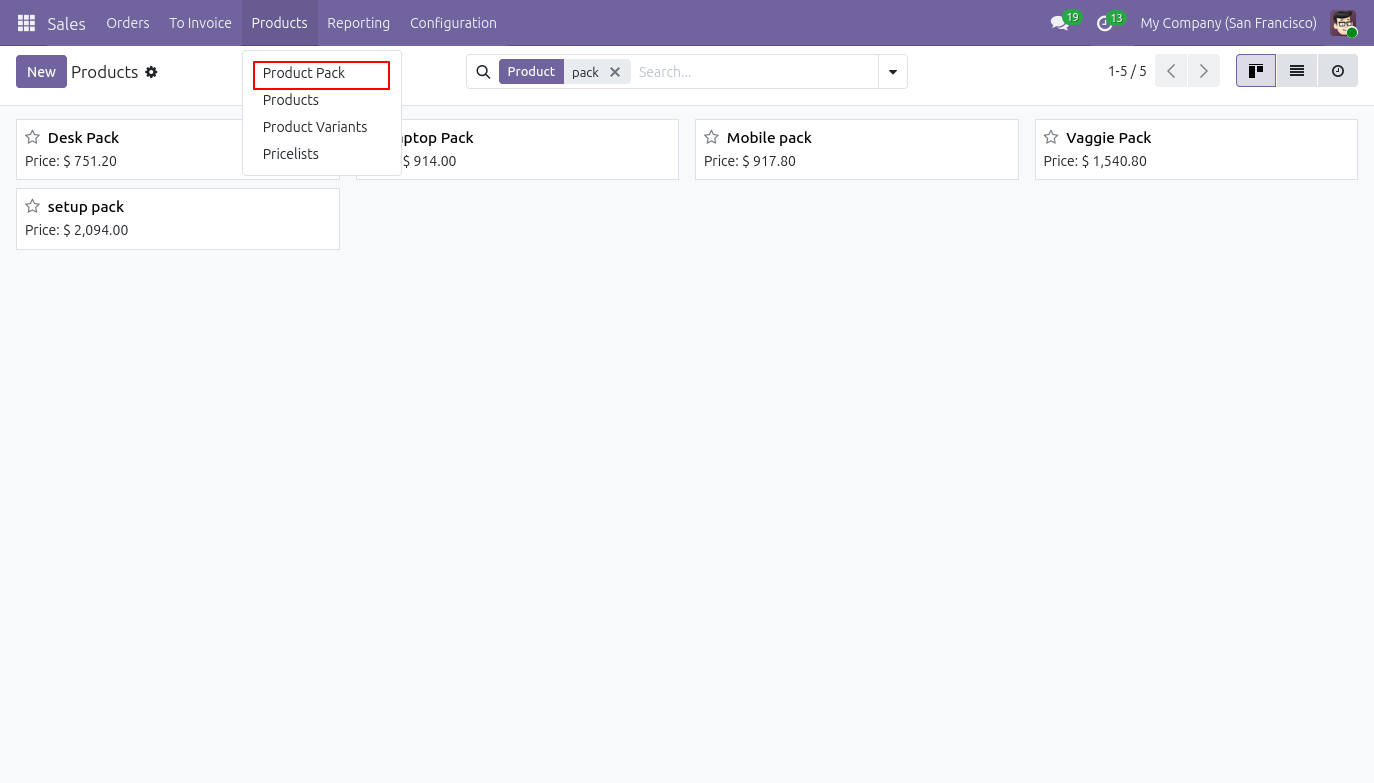
Result: You now have a central place to create and manage all your product bundles. Any pack you create here will be available across Sales, Website, and POS.
When creating or editing a bundle, you can choose how the bundle price is set , either manually or by letting Odoo calculate it automatically from the items inside.
To configure bundle pricing:
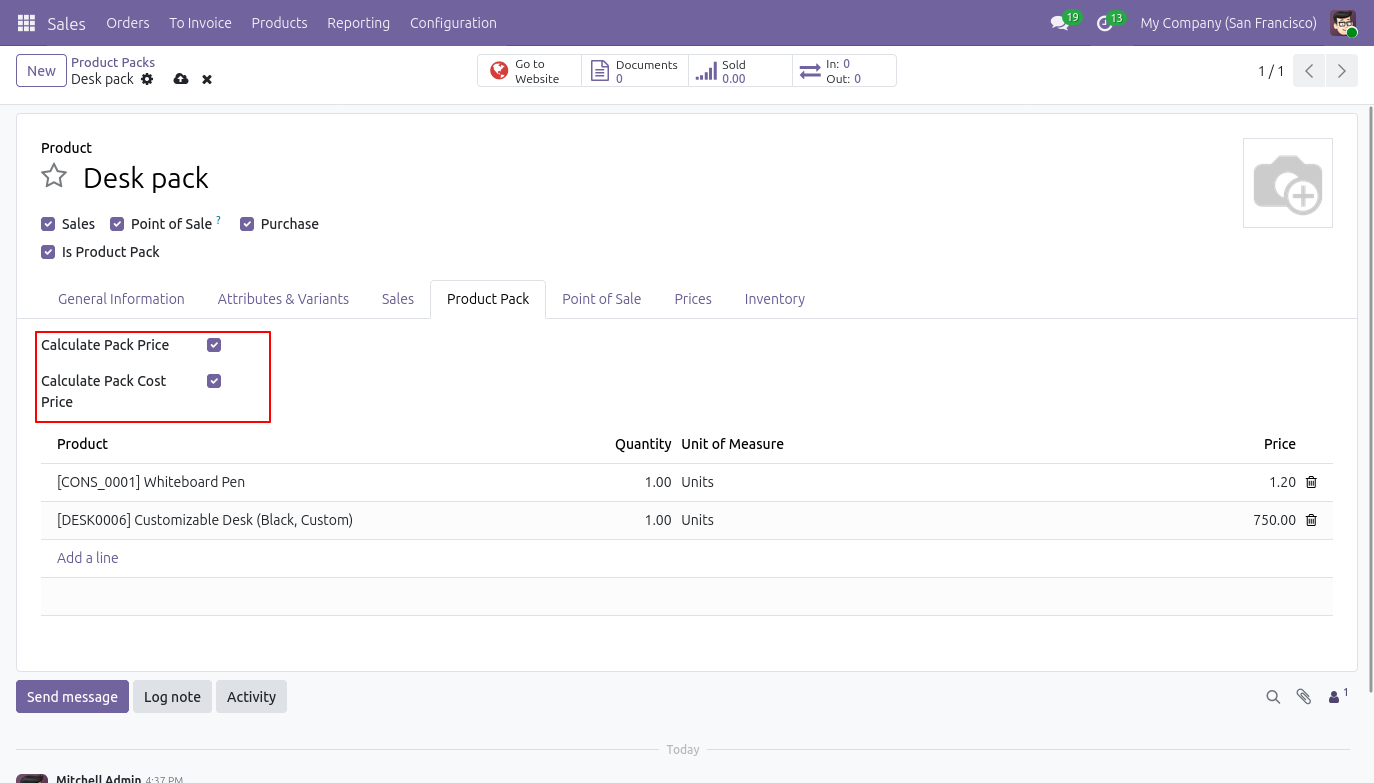
Result: When auto-calculate is enabled, the bundle price updates automatically whenever the price of any component product changes. You no longer need to update bundle prices manually.
With pricing configured, the next step is to add the actual products that make up the bundle.
To add products to a bundle:
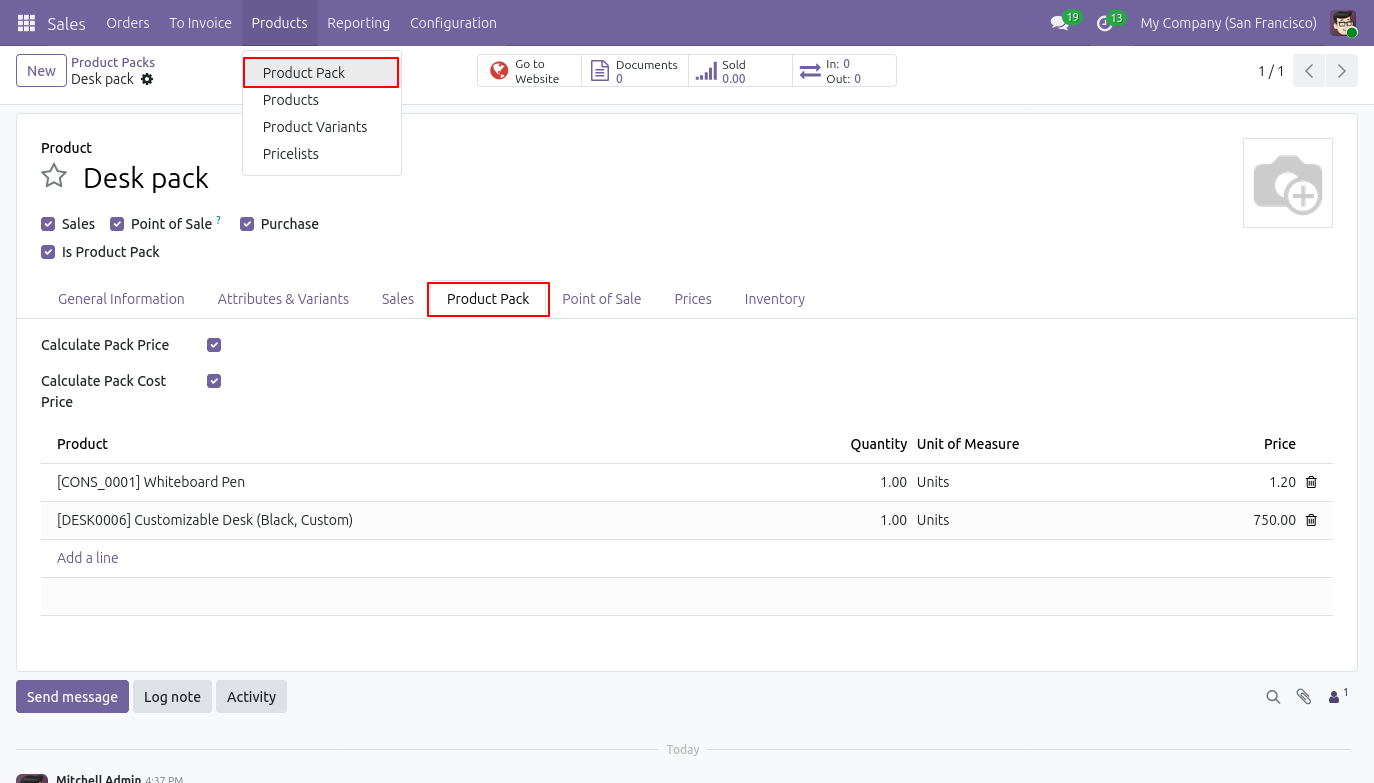
Result: Your bundle now contains all the products you’ve defined. You can include simple products, product variants, and even multiple quantities of the same product within one pack.
Once a bundle is created, it is automatically available on your eCommerce website alongside your regular products.
To view bundle products on the website:
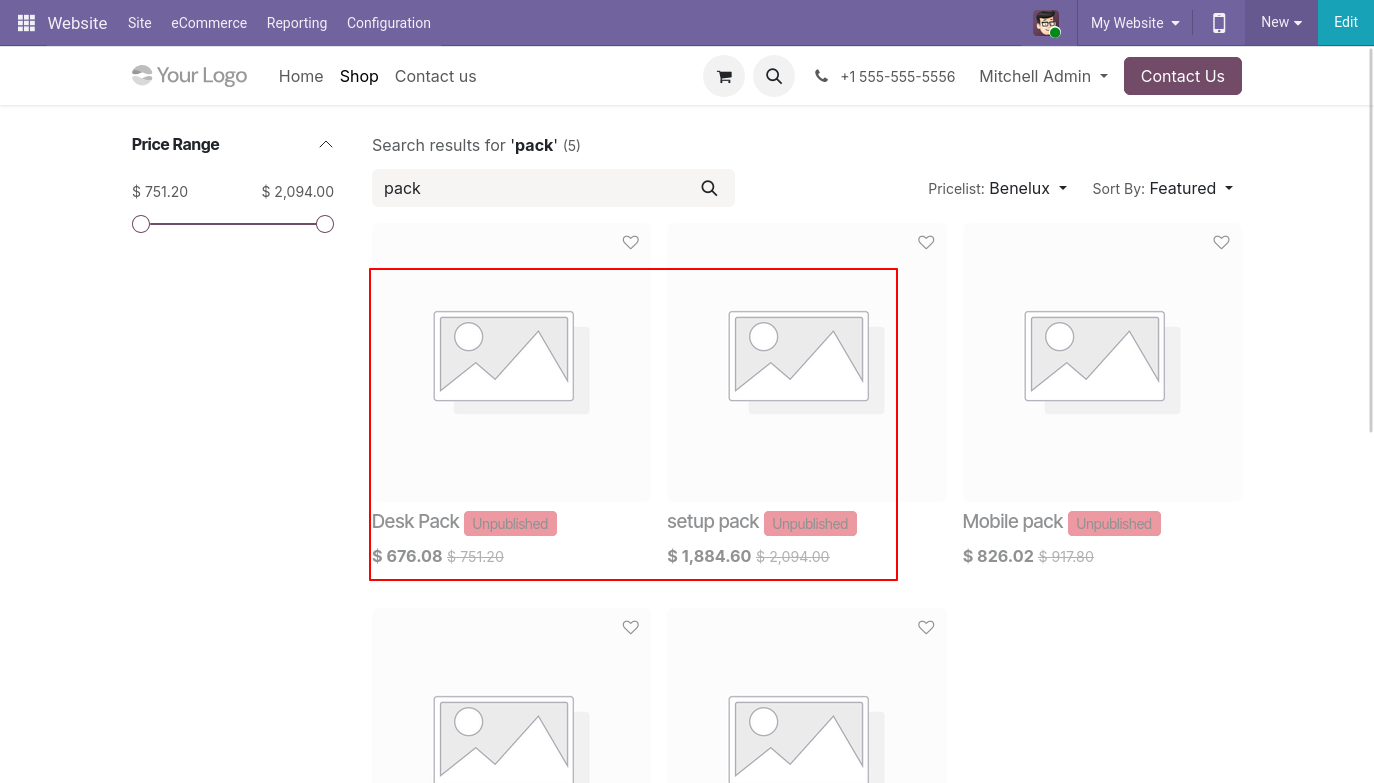
Result: Customers can browse and purchase bundles directly from your website just like any other product.
Customers on your website can click a button to see a full breakdown of everything included in the bundle , before they decide to buy.
To view bundle details on the website:
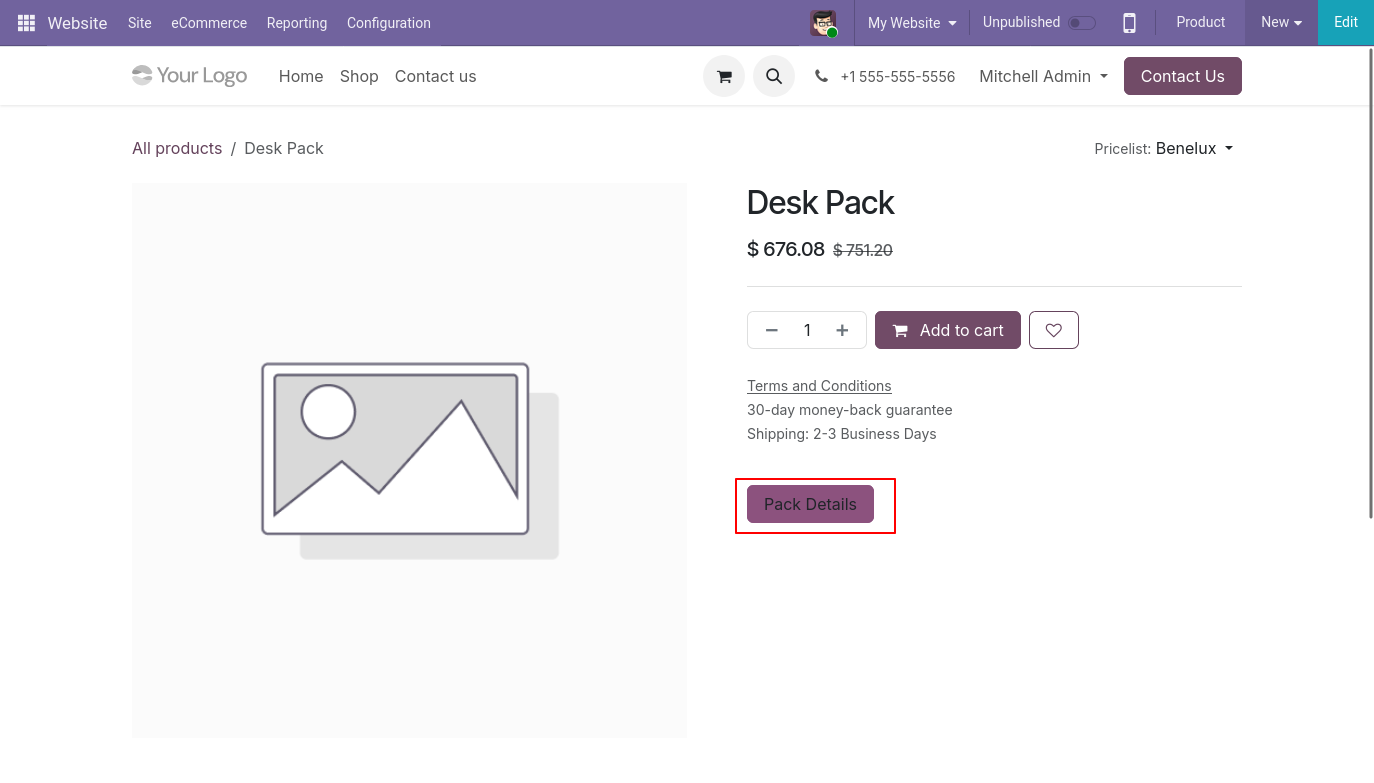
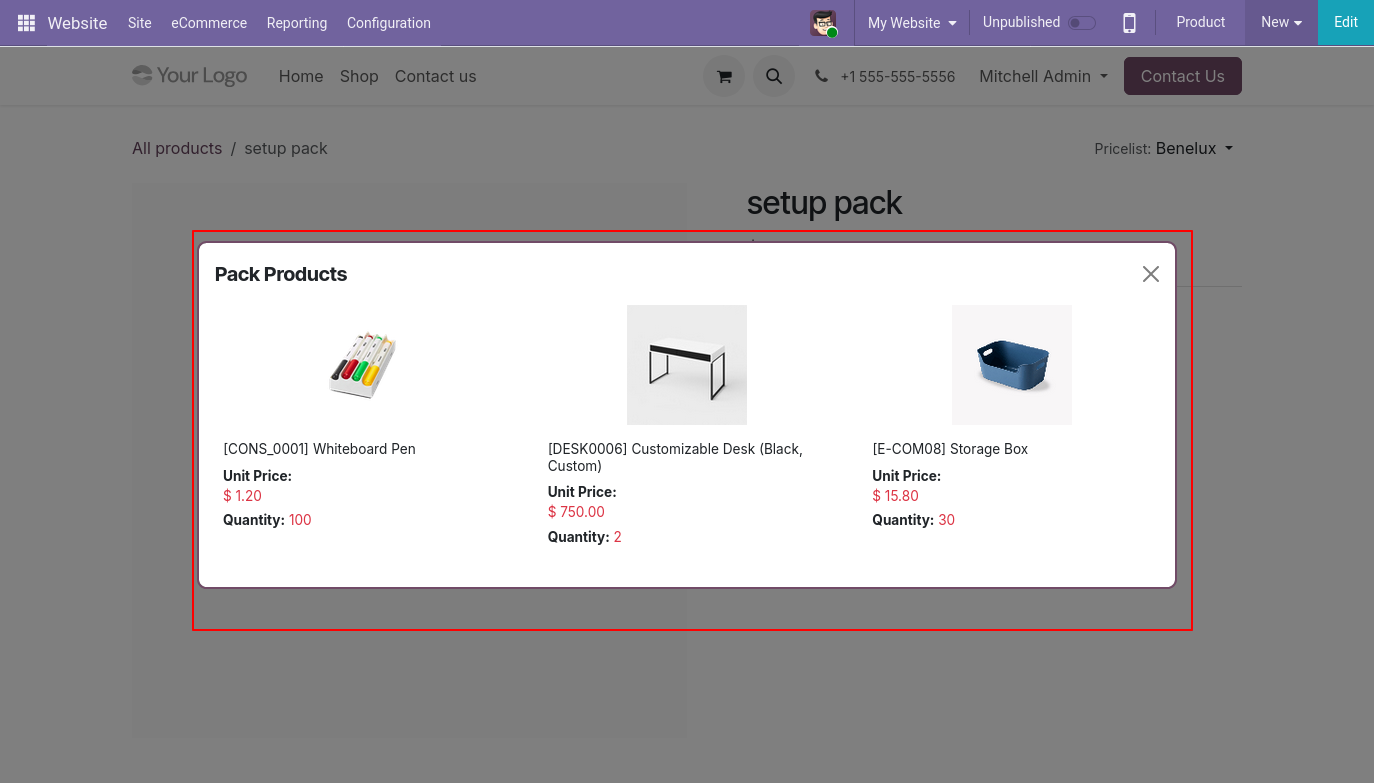
Result: Customers can make an informed purchase decision without having to contact your team. They know exactly what they’re getting before they add it to the cart.
When a customer completes their purchase on the website, the order is confirmed and visible in both the customer’s account and your back-end.
To confirm a bundle order from the website:
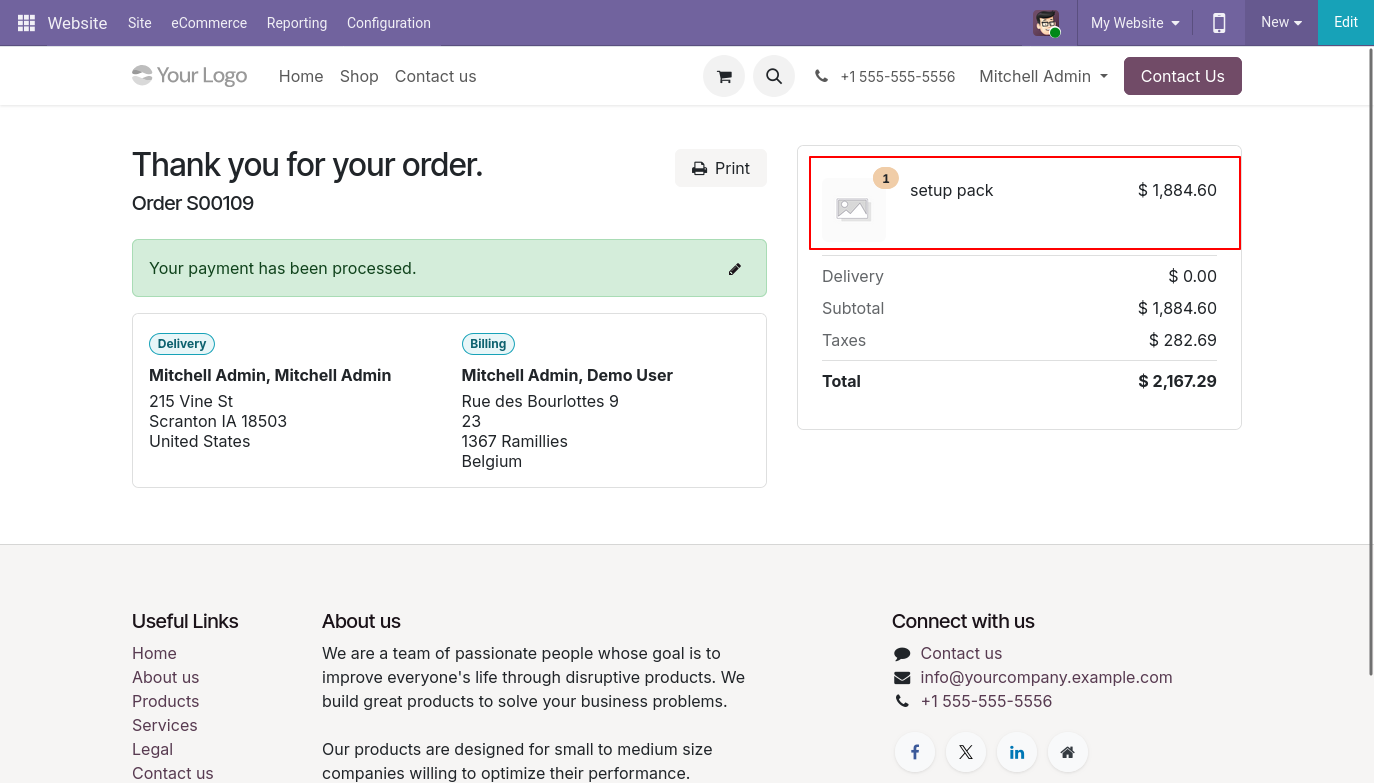
Result: The bundle order is placed successfully and is now visible in your Odoo Sales back-end for processing.
Once a website order is confirmed, it flows directly into your Odoo Sales module as a confirmed sale order , with the delivery option ready to go.
To view the sale order in the back-end:
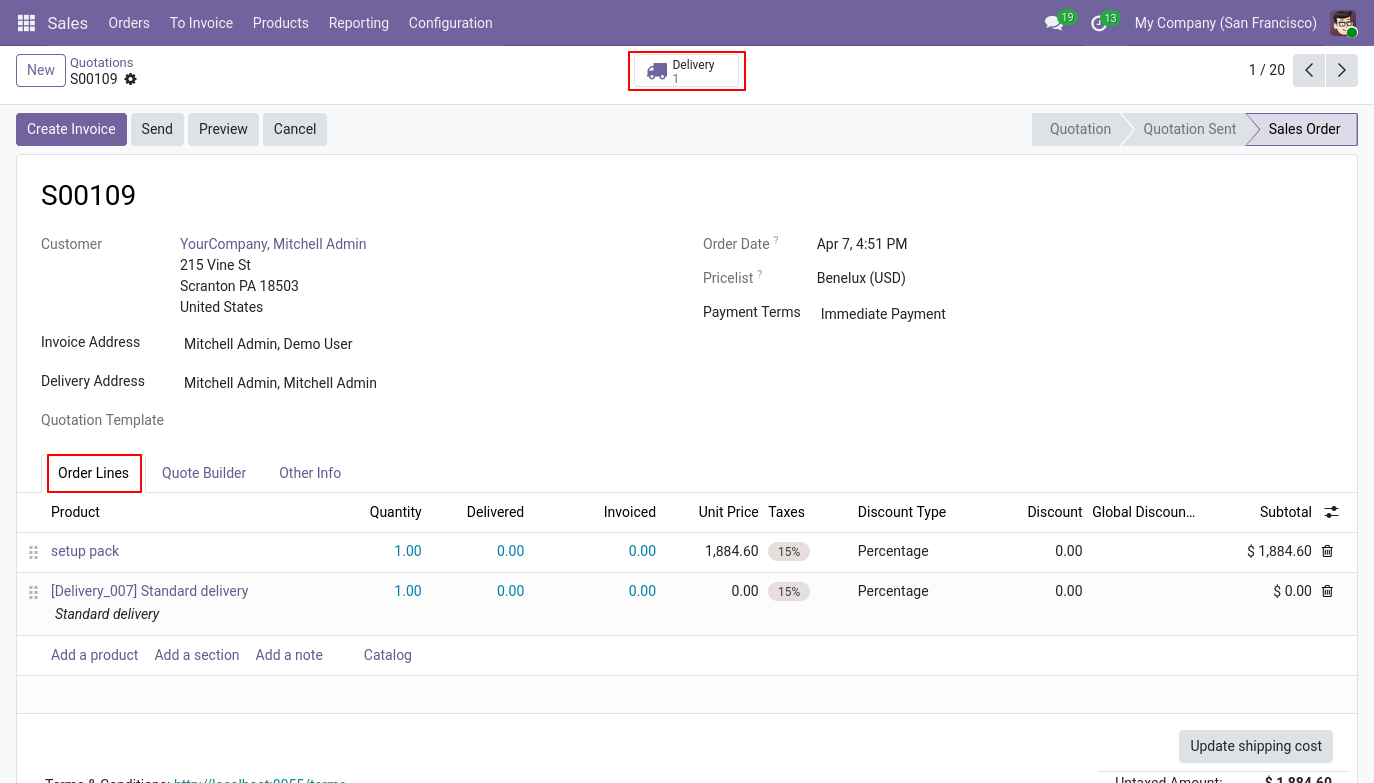
Result: The sale order is created with the bundle as one line item. No manual order entry needed. The delivery order is already prepared and waiting to be processed.
When a bundle is included in a sale order, all the individual products inside the bundle are automatically added to the delivery order , so your warehouse team knows exactly what to pick.
To view the delivery order:
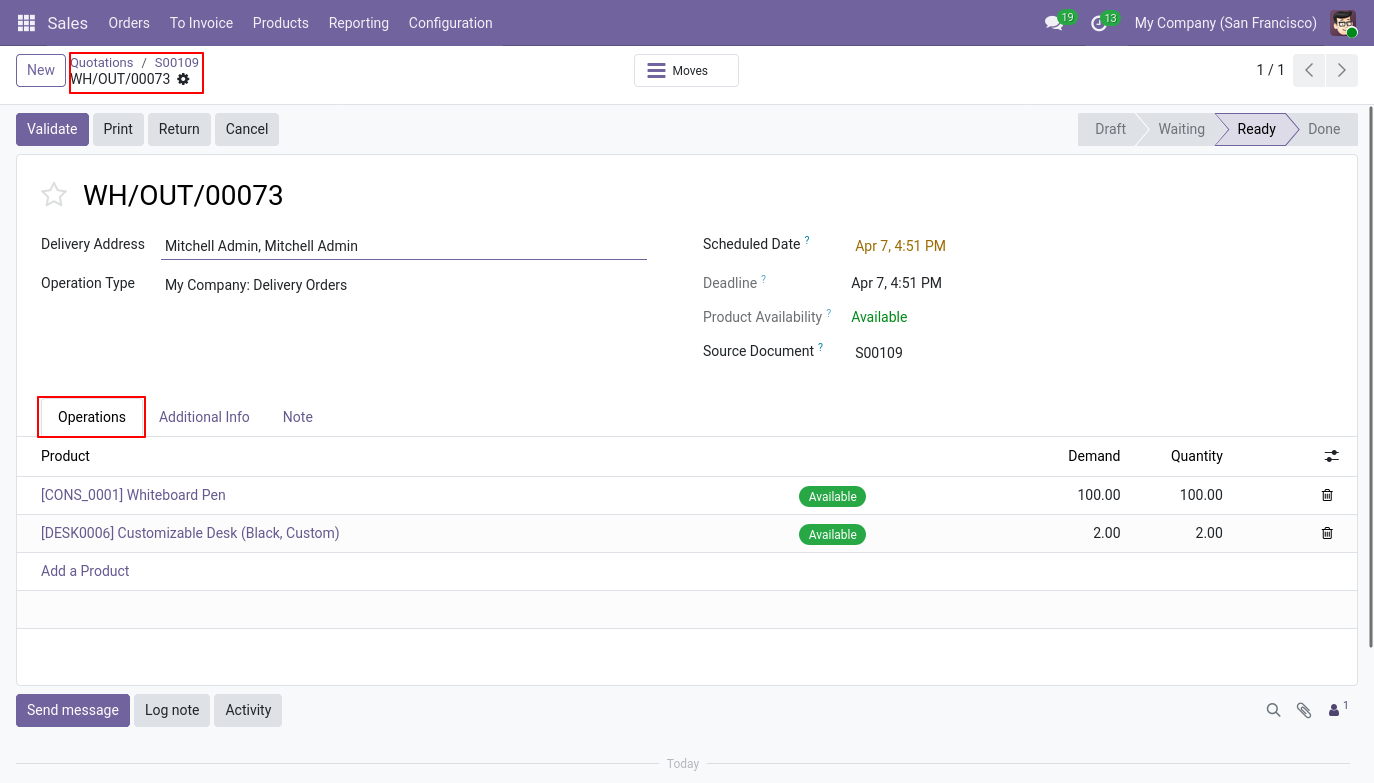
Result: Your warehouse team sees every item that needs to be picked and shipped , not just the bundle name. There is no risk of incomplete deliveries.
When a cashier at your Point of Sale selects a bundle product, the order line shows not just the bundle name and total price, but also each individual component product inside it.
To view bundle components at POS:
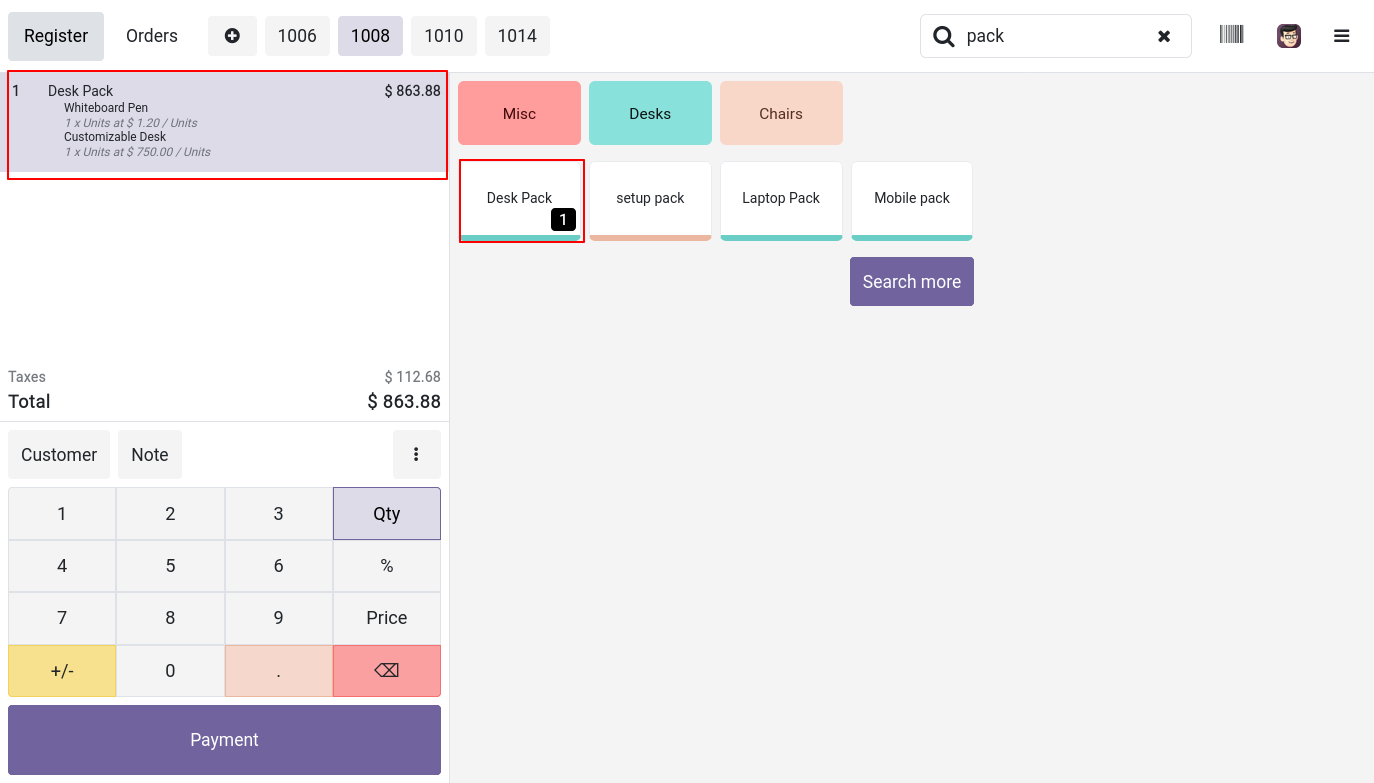
Result: Cashiers always know what’s inside the bundle. They can answer customer questions on the spot and confirm the right items are being sold.
After payment is processed, the printed receipt includes a full breakdown of all the products in the bundle , giving customers a clear and detailed record of their purchase.
To print a receipt with bundle details:
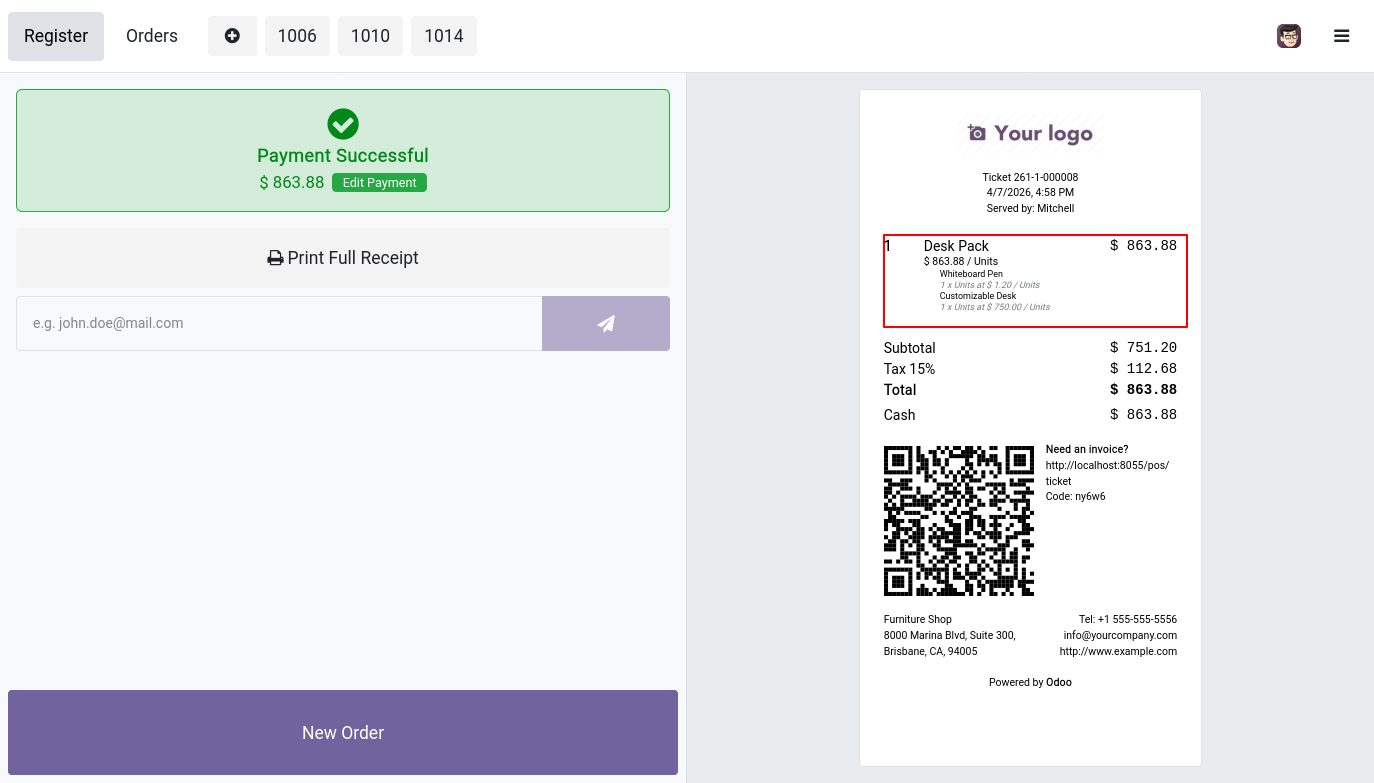
Result: Customers receive a transparent receipt that clearly shows what they paid for. This reduces disputes and builds trust.
Completed POS orders with bundle products are recorded in the Point of Sale back-end, with the bundle listed as a single product line for clean reporting.
To view a POS order in the back-end:
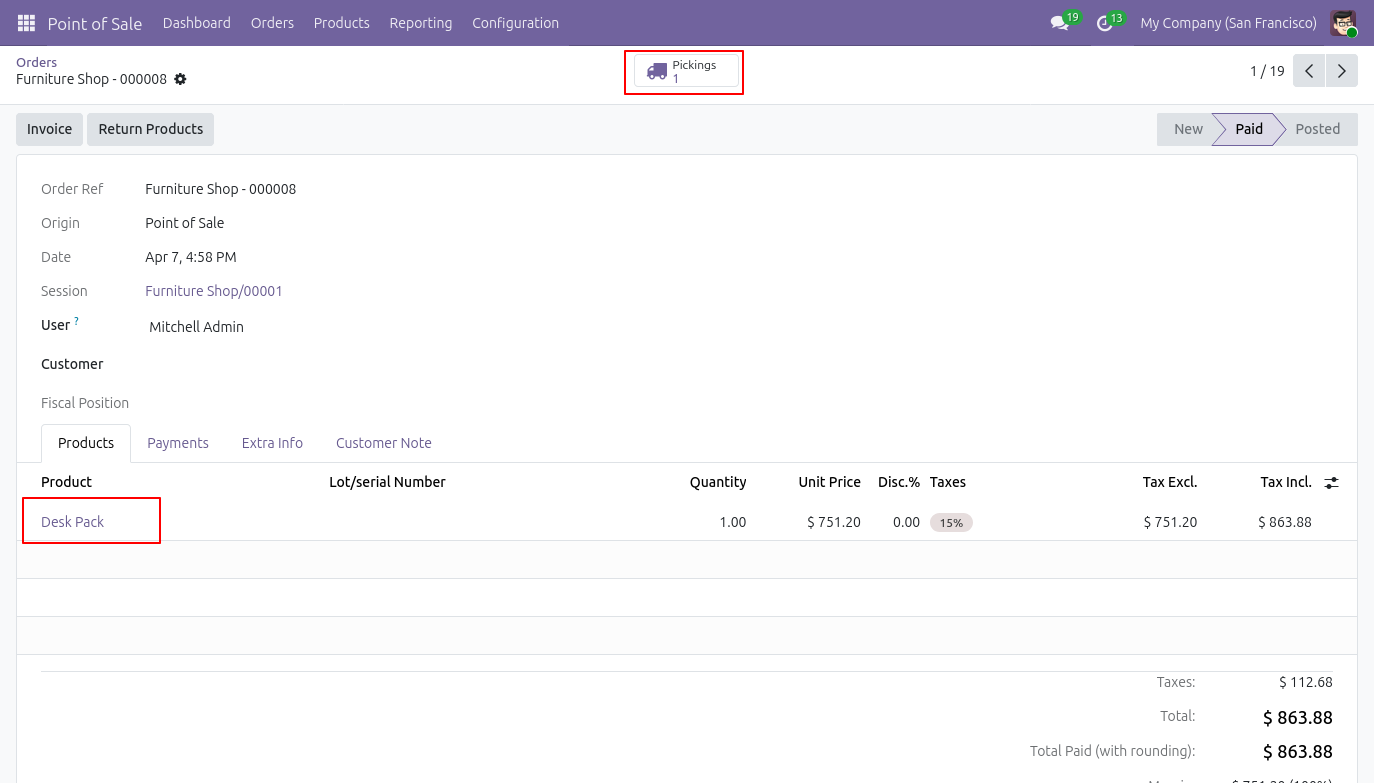
Result: POS order history remains clean and easy to read. The bundle is tracked as one item in reports, while the individual component details are handled separately through the picking.
The stock picking for a POS bundle order lists every individual product inside the bundle , giving your inventory team full visibility into what was sold and what needs to move out of stock.
To view picking details for a POS order:
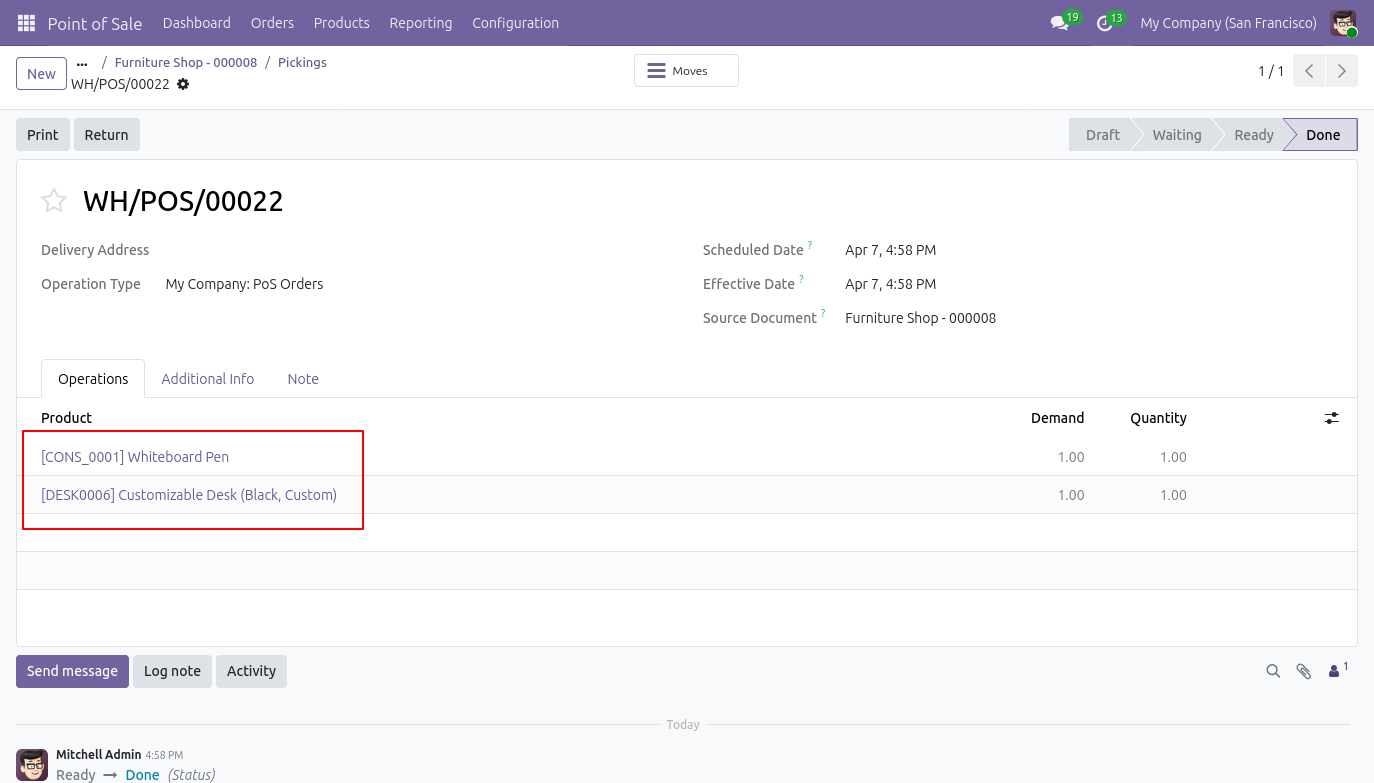
Result: Every item inside the bundle is tracked in inventory. Your stock levels are updated accurately for each component product, not just the bundle as a whole.
Bundles are not limited to physical products. You can also include service products in a pack. When a service product is configured with the invoice policy set to “Based on Milestones”, confirming the sale order will automatically create a corresponding project and tasks in Odoo.
To add a service product to a bundle:
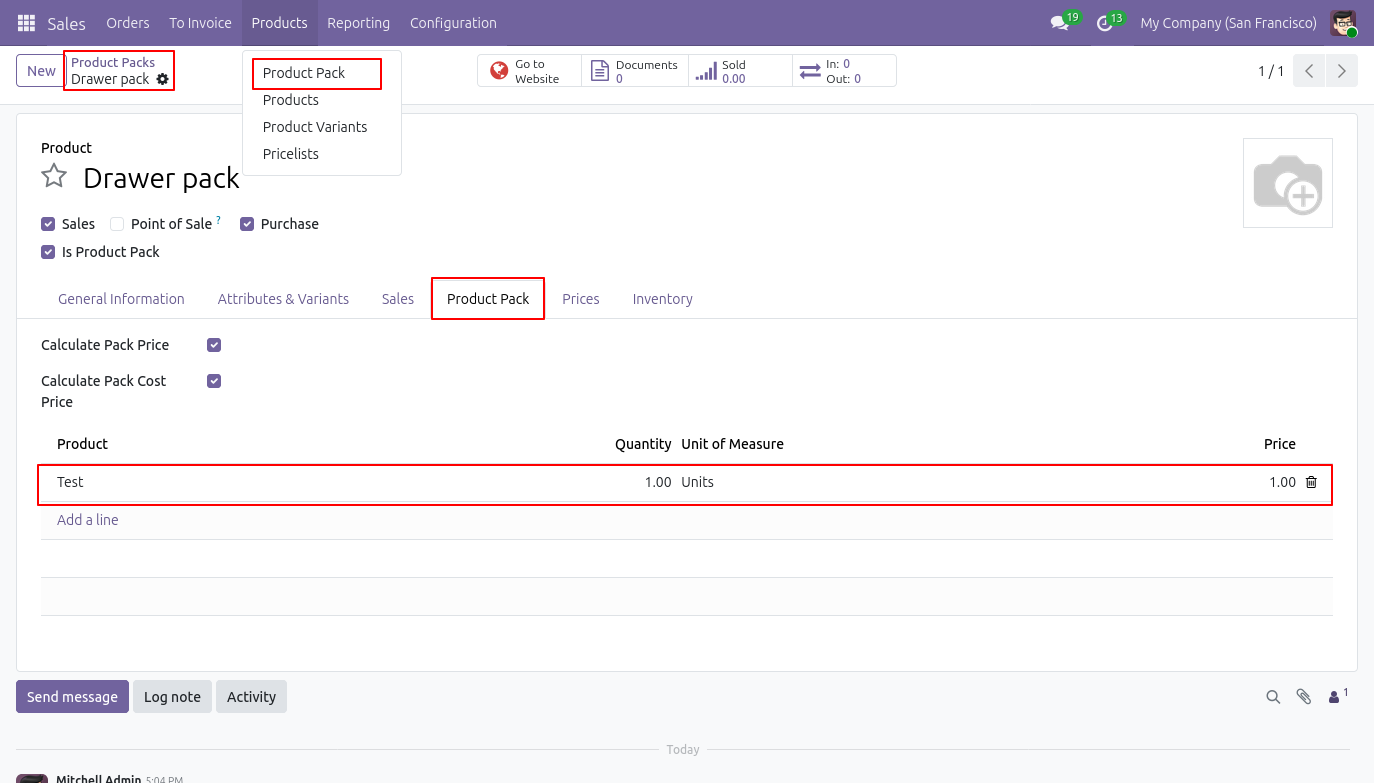
Result: The bundle now contains both physical and service products. When a sale order with this bundle is confirmed, a delivery order is created for the storable items and a project with tasks is created for the service component , automatically.
Once you have added the bundle to a quotation, the next step is to confirm it. At this stage, the order is still a quotation you can review the bundle and the pricing before confirming.
To confirm the sales order:
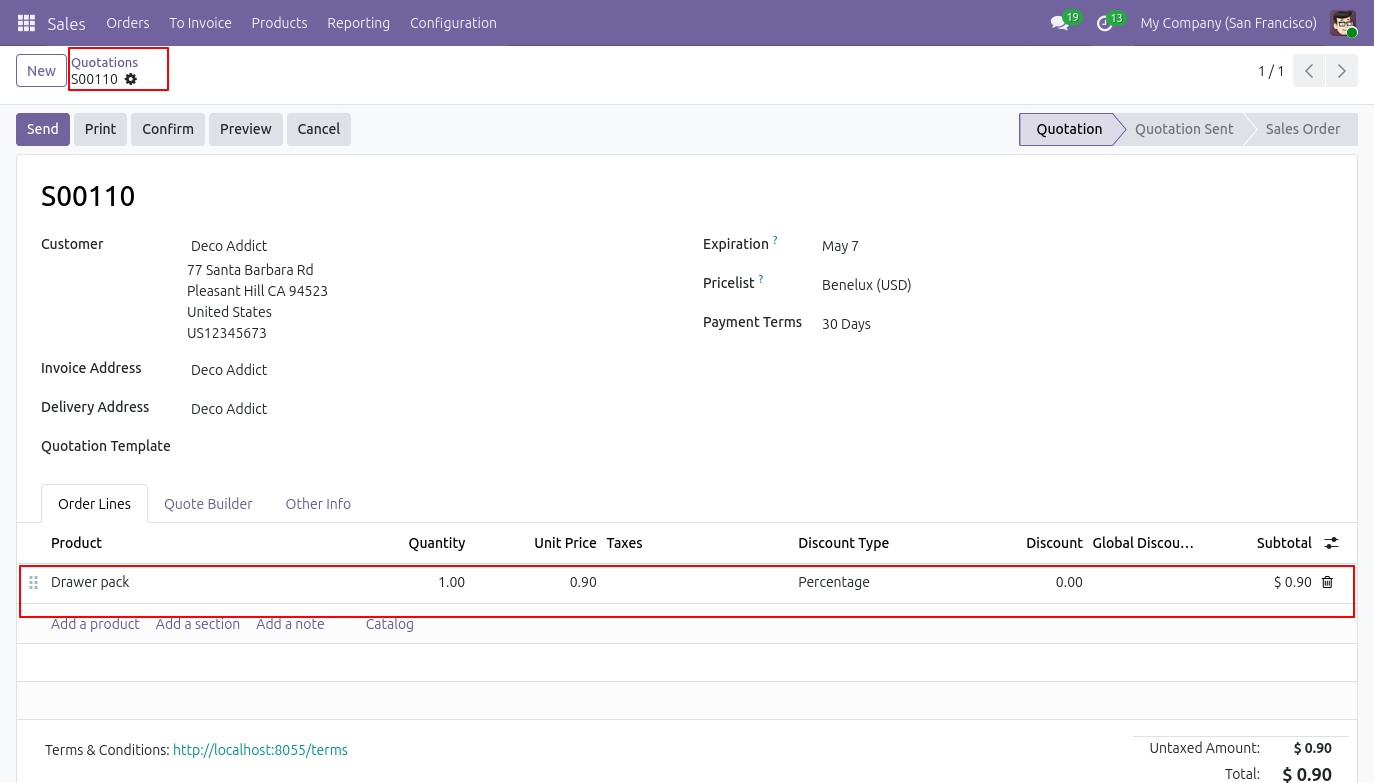
Once the sales order is confirmed, Odoo handles everything in one go. A project with tasks is created for any service products without any manual steps.
To verify the result after confirmation:
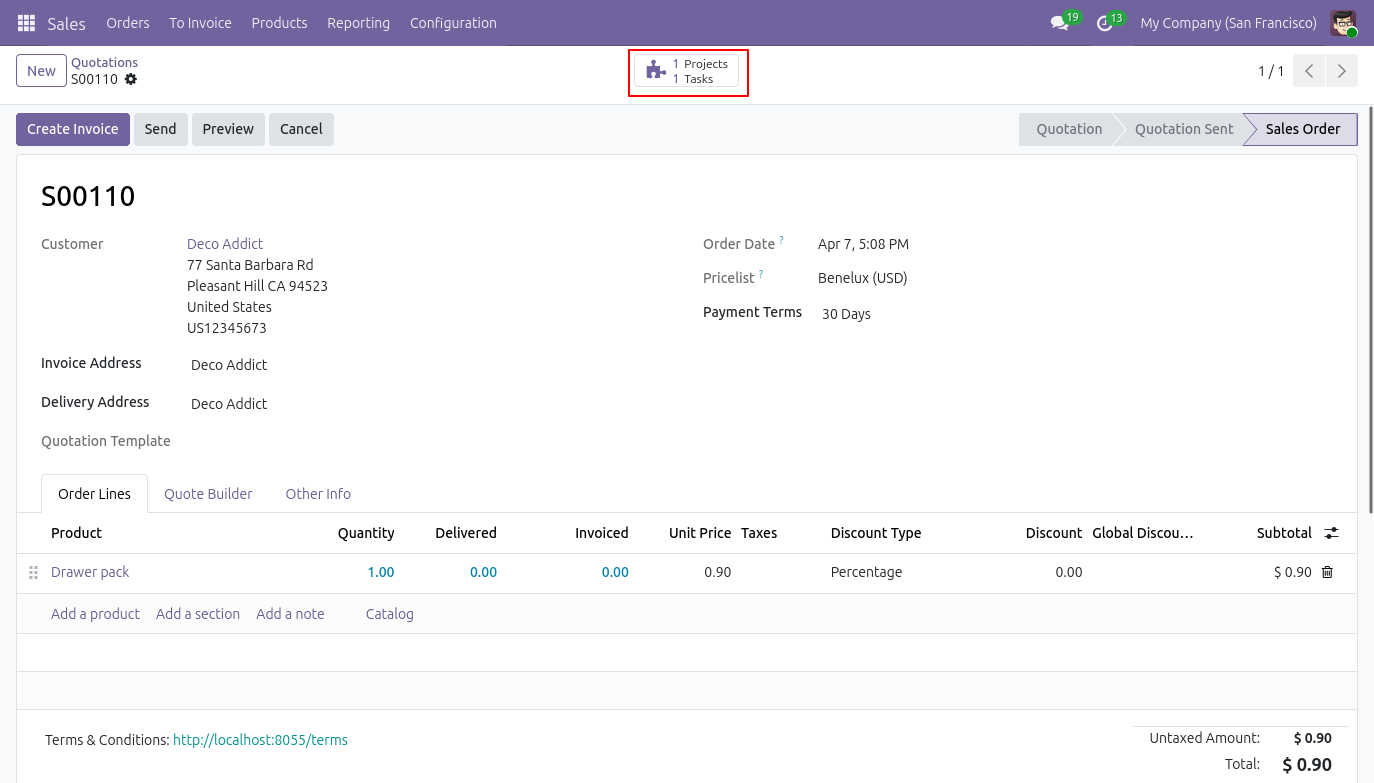
Result: Everything is set up automatically after confirmation. No manual steps are needed to create the delivery or project. Your team can get to work immediately.
Explore the core structural functionalities that allow your business to manage multi-item promotions across all active channels effectively.
You can turn any variable product into a bundle and choose only the specific variations you want to include. You can also control whether the bundle shows up on your website and POS screen giving you full control over where each pack is visible. This setup simplifies how you manage an active Odoo Sales Bundle Pack across different storefronts.
You are not limited to simple products when working with this application. You can add product variants to a bundle, include as many products as you need, and even add multiple quantities of the same product within one pack. For example, a single bundle can include 100 pens and 2 desks at the same time, expanding your options for Odoo Bundle Products.
All your bundle packs are neatly organised and visible both on your website and at the POS screen. This makes it easy for customers browsing online and cashiers at the counter to find the right bundle quickly without any confusion, enhancing the visual management of your Odoo Website Product Bundle items.
You have two options when it comes to configuring Odoo Bundle Pricing. You can either set the price manually, useful when you want a fixed promotional price, or let Odoo automatically calculate the bundle price based on the total of all the individual items inside it. The same automated math applies directly to the cost price fields.
When a bundle is sold at your checkout counter, the printed statement includes a full breakdown of all your Odoo Bundle Products for POS lines. The printout specifies each item’s name, unit price, and quantity, removing generic transaction rows that leave customers wondering what they paid for.
Whether the order came from your e-commerce storefront or from the brick-and-mortar register, you can view full transaction rows directly from your dashboard. Integrating backend data smoothly is a core benefit when you leverage expert Odoo implementation services to establish unified business tracking from a single administrative screen.
When a grouped order moves to fulfillment, the backend stock picking documentation lists every individual product item inside the pack. This tracking structure streamlines your Odoo Inventory Bundle Management, giving your warehouse team exact picking lists to pack and ship goods without guessing.
Deploying curated Odoo Product Kits is one of the most reliable strategies to increase your average transaction values. Instead of moving a single standalone item, you can pair popular products with related accessories at a combined rate, motivating buyers to complete larger purchases simultaneously.
Implementing a strategic cross-selling framework allows merchants to grow their average order value without overcomplicating baseline operations. Utilizing a specialized Odoo Product Bundle App unifies your physical registers and digital storefronts into a single automated tracking ecosystem.
Deploying this specialized architecture optimizes several crucial operational areas across your commercial workflows:
This multi-channel automation protects your operational workflows from manual pricing mistakes while simultaneously driving higher transaction totals across every storefront.
Deploying a unified Odoo Product Bundle Pack framework establishes comprehensive transaction visibility across your retail counters and e-commerce storefronts. Centralizing your multi-item promotional workflows eliminates manual spreadsheet tracking and repetitive calculator errors.
Tailoring workflows through tailored Odoo ERP development services ensures this architecture automates retail pricing adjustments while maintaining precise inventory records for warehouse fulfillment teams. Warehouse staff can confidently process complex order shipments using clear component packing slips. Install this plug-and-play Odoo Product Bundle App directly from the marketplace today to organize your multi-channel sales operations and secure stronger transaction margins.